
⚠️ This page connects you to Atovia’s partners and affiliate markets. We may receive a commission from affiliate partners for activities made through these links. Discount offers may change at any time according to policy! Rest assured, there are no additional costs to you! We hope this saves you time in finding the right items!
Need to find a page you visited a few days ago, or erase a visit quickly? Open Safari history with Command+Y or History > Show All History. This guide gives you the exact menu paths and shortcuts for viewing, searching, deleting, and clearing history on a Mac.
- Where Safari Stores Your History on Mac
- How to View Your Safari History on Mac
- How to Search Safari History
- Other Ways to Find a Page: Back/Forward Menus and iCloud Tabs
- How to Delete Individual History Entries
- How to Clear All Safari History on Mac
- How to Automatically Remove History After a Set Time
- How History Syncs Across Apple Devices
- Private Browsing and Other Privacy Controls
- Troubleshooting: History Missing, Greyed Out, or Not Clearing
- Quick Checklist and Comparison
- Frequently Asked Questions
- Open history with Command+Y or History > Show All History.
- Clear history for a chosen time range with History > Clear History.
- Delete a single entry by right-clicking it and choosing Delete.
- If Safari syncs through iCloud, clearing history on your Mac also affects your other Apple devices.
Menu names and dialogs may look slightly different on your version of macOS. Apple renamed Preferences to Settings in macOS Ventura, so older Macs use the older name.
Where Safari Stores Your History on Mac
Safari keeps a record of the pages you visit so you can return to them later. Each entry includes the page title, the web address (URL), and the date and time of your visit. You do not need to turn this on, because Safari records history automatically unless you are using a Private Window.
By default, Safari keeps history items for one year. You can change that period in Safari > Settings > General, which is covered in the section on automatic removal below.
History vs. cache vs. cookies
- History: a list of pages you visited, with titles, addresses, and dates.
- Cache: saved page parts, such as images, that help sites load faster.
- Cookies: small files that sites use to remember you, such as whether you are signed in.

These are separate things, but clearing history also removes related website data for the period you choose, as explained later.
How to View Your Safari History on Mac
- Open Safari on your Mac.
- Choose History > Show All History from the menu bar, or press Command+Y.
- Scroll through the list. Entries are grouped by date, so you can look at earlier days.
- Double-click any entry to open that page.
Use the History menu for recent pages
The History menu also lists pages you visited recently, so you can jump back to one without opening the full history window. Click History in the menu bar and choose a page from the list.

Reopen recently closed tabs and windows
If you closed a tab by accident, press Shift+Command+T to reopen the last closed tab. You can also open History > Recently Closed to reopen closed tabs and windows from a list.
How to Search Safari History
- Press Command+Y to open the history window.
- Click the search field in the top-right corner of the window.
- Type a site name, such as the name of a store, or a word from the page title.
- Safari filters the list to matching entries. Double-click one to open it.

Search works on site names and page titles, so try the words you remember from the page itself. If you get too many results, clear the search field and use the date groupings to narrow down by day. If you remember roughly when you visited, scroll to that day and look for the site there.
Other Ways to Find a Page: Back/Forward Menus and iCloud Tabs
Back and Forward menus
Click and hold the Back or Forward button in the toolbar. Safari shows a list of recently visited pages in that tab, so you can jump several steps at once instead of clicking repeatedly.
iCloud Tabs
Tab views show pages that are currently open, not your browsing history. If you use Safari on other Apple devices with the same Apple Account, the Start Page can show iCloud Tabs, which are pages open on those devices. This is useful when the page you want is still open on your iPhone or iPad.

How to Delete Individual History Entries
- Press Command+Y to open the history window.
- Click the entry you want to remove.
- Control-click or right-click it and choose Delete, or press the Delete key.
Delete several entries at once
- Command-click to select separate entries.
- Shift-click to select a continuous range, then press Delete.
Remove every visit to one website
Type the site name into the search field, select the matching results (Command+A selects all of them), and press Delete. This removes the visits shown in the results.

How to Clear All Safari History on Mac
Before you clear: if Safari syncs through iCloud, clearing history on your Mac also clears it on other devices signed in to the same Apple Account. Check the sync section below if you want to avoid that.
- In Safari, choose History > Clear History.
- Click the pop-up menu and pick a time range.
- Click Clear History.
Time ranges you can choose
- The last hour
- Today
- Today and yesterday
- All history

🛒 Recommended Product
In newer versions, the dialog may let you choose which profiles to clear.
What gets removed and what stays
Clearing history removes the list of visited pages and related website data, such as cookies and cache, for that period. This can sign you out of some websites. It does not remove saved passwords or AutoFill information.

How to Automatically Remove History After a Set Time
- In Safari, choose Safari > Settings.
- Click the General tab.
- Find Remove history items and choose an option from the pop-up menu.
The options are after one day, after one week, after two weeks, after one month, after one year, or manually. The default is after one year.
A shorter period suits a shared Mac or anyone who prefers a short record. Choose manually if you want to decide for yourself when to clear history.
How History Syncs Across Apple Devices
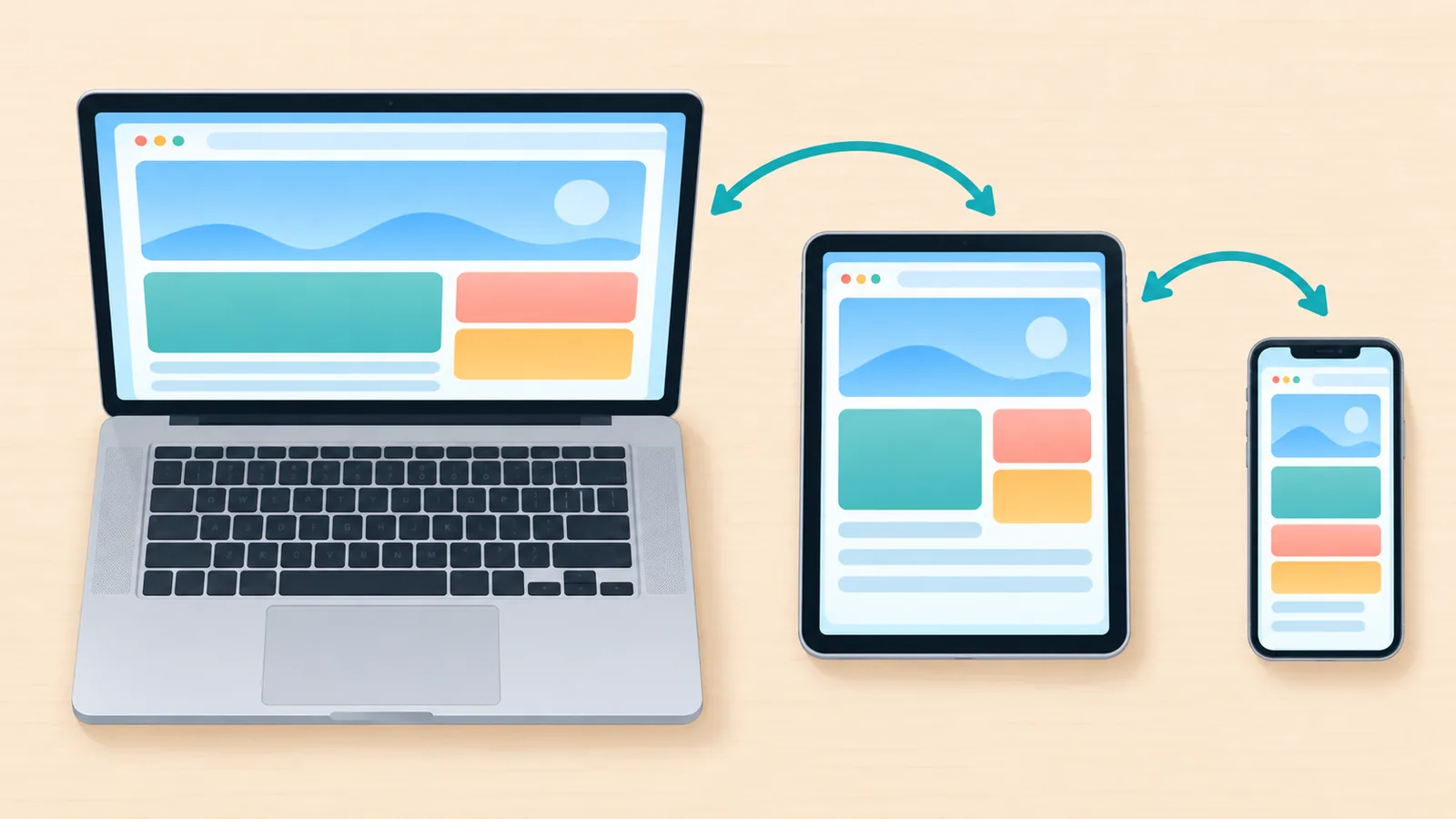
When Safari is turned on in iCloud, your history can be shared with other devices signed in to the same Apple Account. Clearing history on one device then clears it on the others too.
Check or turn off Safari sync
- Open System Settings on your Mac.
- Click your Apple Account, then choose iCloud.
- Find Safari in the list of apps and turn it on or off.
Screens may look slightly different depending on your macOS version. Turning sync off stops sharing Safari data through iCloud, so decide this before you clear history if you want other devices left alone.

Private Browsing and Other Privacy Controls
Private Window
Choose File > New Private Window or press Shift+Command+N. Safari does not record the pages you visit in a Private Window, so they will not appear in your history afterward.
Profiles
In macOS Sonoma and later, Safari profiles keep separate history, tabs, cookies, and website data for each profile. If you cannot find a page, check that you are in the right profile.
Tracking and website data
Open Safari > Settings > Privacy. There you can turn on Prevent cross-site tracking and use Manage Website Data to review or remove data that sites have stored.

Troubleshooting: History Missing, Greyed Out, or Not Clearing
- Clear History is greyed out: Screen Time restrictions under Content & Privacy that limit web content can make Clear History unavailable. Check System Settings > Screen Time.
- Work or school Mac: a managed Mac can restrict history controls. Ask the administrator.
- History seems missing: you may be in a Private Window, a different profile, or the retention setting may have removed older items.
- Something still looks wrong: quit and reopen Safari, then check for macOS updates in System Settings > General > Software Update.
Quick Checklist and Comparison
| Task | Menu path or shortcut | Effect |
|---|---|---|
| View history | History > Show All History or Command+Y | Opens the full list, grouped by date |
| Search history | Search field in the history window | Filters by site name or page title |
| Delete one entry | Right-click > Delete | Removes only the selected entries |
| Clear a time range | History > Clear History | Removes history and related website data for the period |
| Auto-remove | Safari > Settings > General > Remove history items | Deletes history after the period you pick |
| Private browsing | File > New Private Window or Shift+Command+N | Does not record pages visited in that window |
Before you clear history
- Check whether Safari sync is on, since other devices may be cleared too.
- Remember that clearing can sign you out of some websites.
- Choose the smallest time range that does the job.
- Remember that Safari has no undo for clearing history.
Frequently Asked Questions
Can I recover deleted Safari history?
Safari has no built-in undo. Restoring from a Time Machine backup may be possible, but it is not guaranteed.
Does clearing history log me out of websites?
Clearing history can sign you out of some websites, because related website data such as cookies is removed for that period. Saved passwords and AutoFill information are not removed.

Does clearing history on Mac clear it on iPhone?
If Safari syncs through iCloud with the same Apple Account, yes, it clears history on your other devices as well. If sync is off, it does not.
How far back does Safari history go?
That depends on your Remove history items setting. The default is one year, and you can change it in Safari > Settings > General.
Can I see history from a deleted or private window?
No. Safari does not record pages visited in a Private Window, so they cannot be viewed afterward.
Take a minute to review your Safari privacy settings and history options today.
- Apple Support, Safari User Guide for Mac: https://support.apple.com/safari
Want more comparisons and buying guides?