
⚠️ This page connects you to Atovia’s partners and affiliate markets. We may receive a commission from affiliate partners for activities made through these links. Discount offers may change at any time according to policy! Rest assured, there are no additional costs to you! We hope this saves you time in finding the right items!
Yes, you can set up sharing between a PS5 and a PS4: one PS5 and one PS4 can each be activated on the same account, and the whole setup comes down to two menu paths. This guide walks through both, then shows what carries over, what does not, and how to avoid the account-safety mistakes that trip people up.
- What PlayStation Game Sharing Really Means
- Can You Gameshare Between a PS5 and a PS4?
- How to Turn On Console Sharing on Your PS5
- How to Set Your PS4 as the Primary Console
- Step-by-Step Checklist for Both Consoles
- What Is Shared and What Is Not With PlayStation Plus
- Gameshare vs Share Play: Key Differences
- How to Switch Consoles or Turn Sharing Off
- Safety and Etiquette: Who to Share With
- Troubleshooting Common Problems
- FAQ
- Key Takeaways and Next Steps
- On the PS5, go to Settings > Users and Accounts > Other > Console Sharing and Offline Play and turn it on.
- On the PS4, set the console as your primary PS4 under Settings > Account Management.
- Each account can have one PS5 and one PS4 activated, and Console Sharing can be on for only one PS5 at a time.
- Share Play is a different feature from library sharing.
- Never hand over your login details. PlayStation says doing so weakens account security and violates its terms of service.
What PlayStation Game Sharing Really Means
“Gameshare” is a popular nickname, not a single official feature. In practice it refers to a few separate console settings: Console Sharing and Offline Play on the PS5, and the primary console setting on the PS4. Each one works differently and has its own limits.
It is also not the same thing as Share Play, which lets someone join your session for a short time, and it is definitely not the same as giving someone your username and password. We cover both differences below.
One more caution before you start: what you can actually use depends on your subscription status, membership tier, whether a game is currently available, and any age or parental control settings on the accounts involved.

Can You Gameshare Between a PS5 and a PS4?
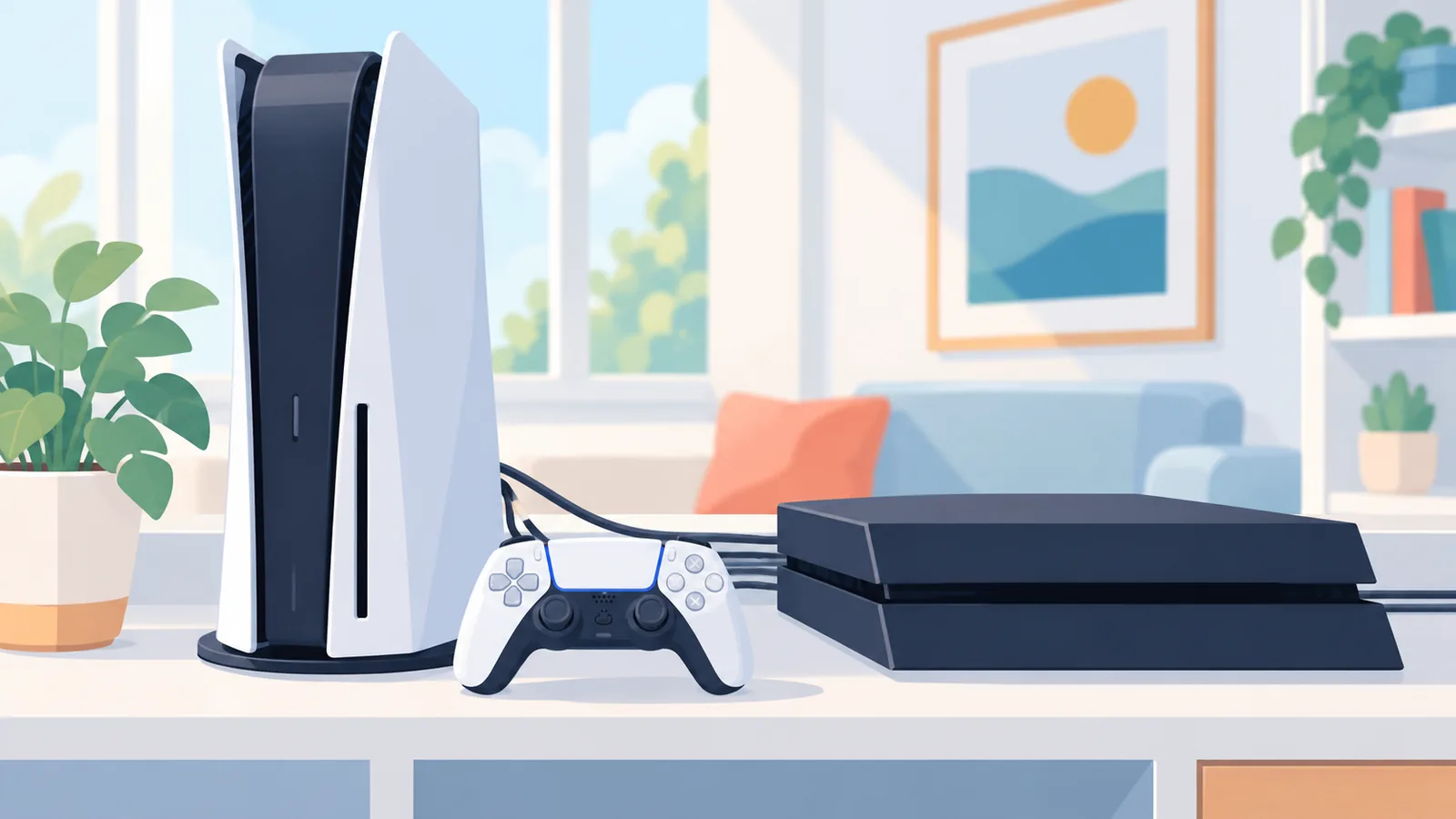
Yes. According to PlayStation’s console activation rules, one PS5 and one PS4 can each be activated on the same account at the same time. That is the foundation of a two-console setup.
The setup has two parts: turn on Console Sharing and Offline Play on your PS5, and set your PS4 as the primary console for the account. The next two sections cover each part in turn.
How to Turn On Console Sharing on Your PS5
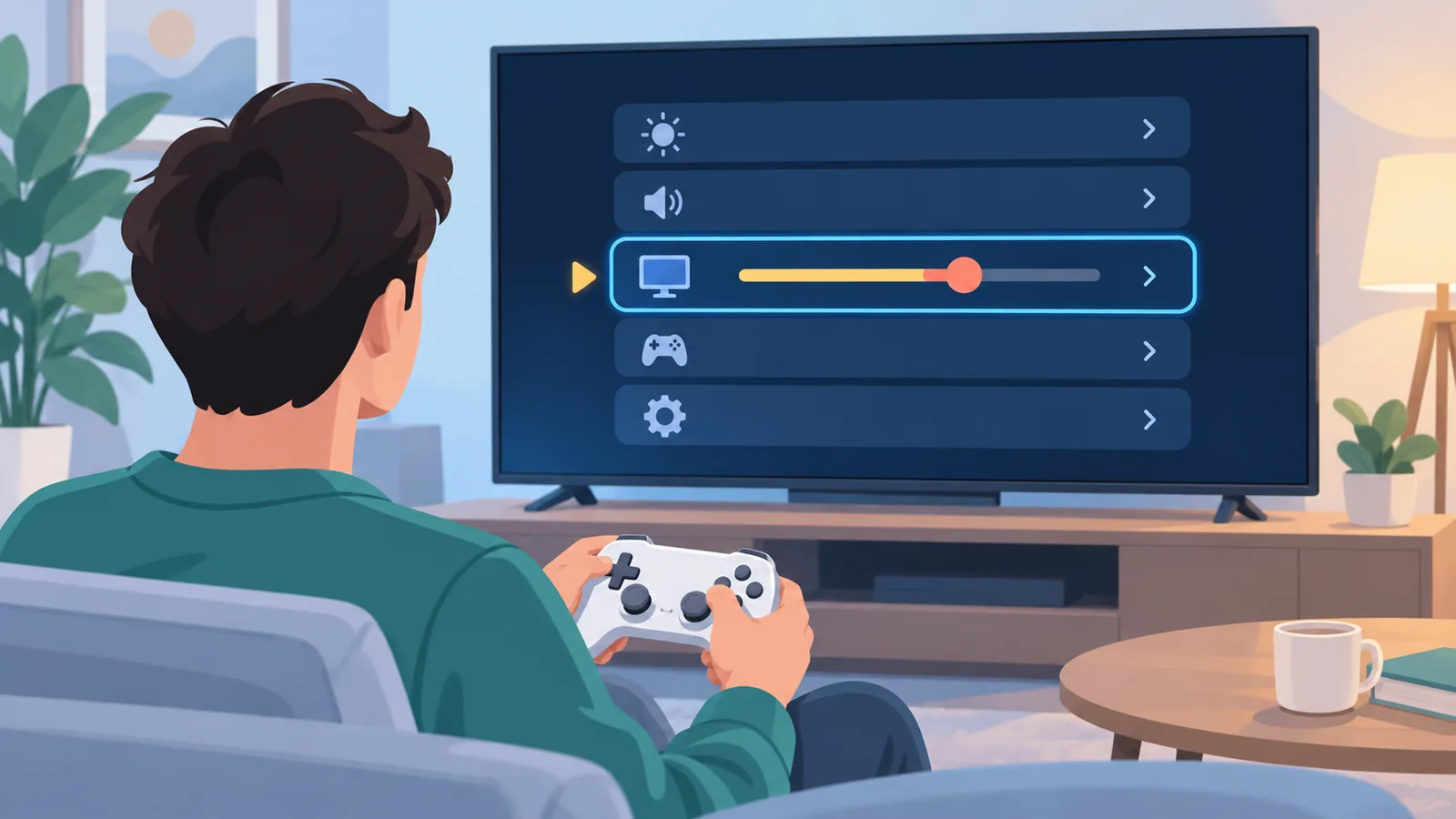
On a new PS5, follow this path:
- Open Settings.
- Go to Users and Accounts.
- Select Other.
- Choose Console Sharing and Offline Play.
- Turn the feature on.
Only one PS5 can have this turned on at a time. Once it is on, other users on that console can use the games and media that were purchased or downloaded there, including when the console is offline.
How to Set Your PS4 as the Primary Console
On the PS4, open Settings, go to Account Management, and set the console as your primary PS4. Each account can have only one primary PS4.
Some older guides, including an unofficial 2022 walkthrough, present this primary console step as the main PS4 “gameshare” procedure. PlayStation’s own support pages do not spell out every limit that applies to ordinary game sharing, so treat any promise of unlimited sharing with caution.
Step-by-Step Checklist for Both Consoles
- Sign in to your account on the PS5.
- Turn on Console Sharing and Offline Play (Settings > Users and Accounts > Other).
- Sign in to the same account on the PS4.
- Set the PS4 as your primary console (Settings > Account Management).
- Make sure the game you want to use is downloaded on the console you plan to play on.
- Launch the game on the PS5 with sharing turned on and confirm it starts.
If a game will not launch, check these first: that Console Sharing is on for this PS5 and not a different one, that your subscription is active and your membership tier includes the title, and that no age or parental settings are blocking it.
What Is Shared and What Is Not With PlayStation Plus
If you subscribe to PlayStation Plus, some benefits can be used on the PS5 you have set up and on your primary PS4. Other benefits stay tied to your own account and do not carry over to another person’s account.

| Benefit | Shared or Not Shared |
|---|---|
| Online multiplayer | Shared on the set PS5 and primary PS4 |
| Monthly games | Shared on the set PS5 and primary PS4 |
| Game catalog (depends on membership tier) | Shared on the set PS5 and primary PS4 |
| PS Plus discounts | Apply on the set consoles, not to purchases made from a different account |
| Claiming PS Plus games on another account | Not shared |
| Online storage | Not shared |
| Automatic patch downloads | Not shared |
| Early access to limited-time trials | Not shared |
Gameshare vs Share Play: Key Differences
Share Play is a separate feature from library sharing. It lets a friend join your game for a short session, but it does not add the game to anyone’s library.

🛒 Recommended Product
| Feature | Console Sharing and Offline Play | Share Play |
|---|---|---|
| What it does | Lets other users on that PS5 use games and media purchased or downloaded there | Lets a visitor watch or play in your session |
| Subscription | Not described as a requirement in the official setup page | Requires PlayStation Plus |
| People involved | Users on one console | One visitor at a time |
| Time limit | None stated | Session ends one hour after the visitor joins |
| PS4 involvement | PS4 uses the primary console setting | Offers a mode that shares the screen with a PS4 player |
| Added to library? | Works through the shared console | No, the game is not added to anyone’s library |
How to Switch Consoles or Turn Sharing Off
To move Console Sharing to a different PS5, turn it off on the old PS5 first. Only one PS5 can have it on at a time, so the new console cannot take over until the old one is deactivated.

If you can no longer reach the old console, you can remotely deactivate your devices. This can be done only once every six months, so use it only when you need to.
Keep the limits in mind throughout: one PS5 and one PS4 can be activated per account, and each account can have only one primary PS4.

Safety and Etiquette: Who to Share With
PlayStation advises against sharing your account details with anyone. It says that doing so weakens your account security and violates the terms of service. Console settings exist precisely so that you do not need to hand over a password.
As general advice (not a PlayStation rule), it makes sense to set up sharing only with people you trust, such as members of your own household, and to give each person their own account. If children use the console, review the age and parental settings so that the games you share actually launch for them.
Troubleshooting Common Problems
A game will not launch
Check that Console Sharing and Offline Play is turned on for this particular PS5, that the game is downloaded, and that age or parental settings are not blocking it.

PlayStation Plus benefits seem to be missing
Confirm that your subscription is active and that your membership tier includes the benefit. Remember that online storage, automatic patch downloads, and early access to limited-time trials are not shared.
The sharing option is not working as expected
Because only one PS5 can have it on at a time, confirm that you have not turned it on elsewhere. If needed, deactivate the old console first, then turn it on again on the console you want.
You are hitting an activation limit
One PS5 and one PS4 can be activated per account, and there is only one primary PS4. Deactivate a console you no longer use before activating another.
FAQ
Can I gameshare with just one PS5 and one PS4?
Yes. One PS5 and one PS4 can each be activated on the same account, and that is the setup this guide describes.

Which PlayStation Plus benefits carry over?
On the set PS5 and the primary PS4, online multiplayer, monthly games, and the game catalog for your membership tier can be shared, and PS Plus discounts apply on those consoles. Online storage, automatic patch downloads, and early access to limited-time trials are not shared, and you cannot claim PS Plus games or use PS Plus discounted purchases from another account.
Is Share Play the same as gameshare?
No. Share Play is a separate feature that needs PlayStation Plus, allows one visitor, and ends one hour after the visitor joins. It does not add a game to anyone’s library.
Can I use sharing on two PS5 consoles?
Not at the same time. Console Sharing and Offline Play can be on for only one PS5 at a time, so deactivate the old console before you move it to a new one.

Is it safe to give a friend my login?
No. PlayStation says sharing account details weakens your account security and violates its terms of service.
Key Takeaways and Next Steps
- Turn on Console Sharing and Offline Play on one PS5, and set one PS4 as your primary console.
- Know what carries over: some PS Plus benefits yes, several others no.
- Remember that Share Play is a separate, time-limited feature.
- Switching consoles means deactivating the old one first, and remote deactivation is limited to once every six months.
- Never share your login details.
References
- PlayStation Support: How to turn on PS5 Console Sharing and Offline Play
- PlayStation Support: How to activate a primary PS4 console
- PlayStation Support: How to deactivate a PlayStation console
- PlayStation Support: Share PlayStation Plus benefits on PlayStation consoles
- PlayStation Support: How to start Share Play on your PS5 console
- Tom’s Guide (2022): How to gameshare on PS4 (unofficial reference used for procedure context only)
- PlayStation Support: How to use security best practices on PlayStation
Want more comparisons and buying guides?