⚠️ This page connects you to Atovia’s partners and affiliate markets. We may receive a commission from affiliate partners for activities made through these links. Discount offers may change at any time according to policy! Rest assured, there are no additional costs to you! We hope this saves you time in finding the right items!
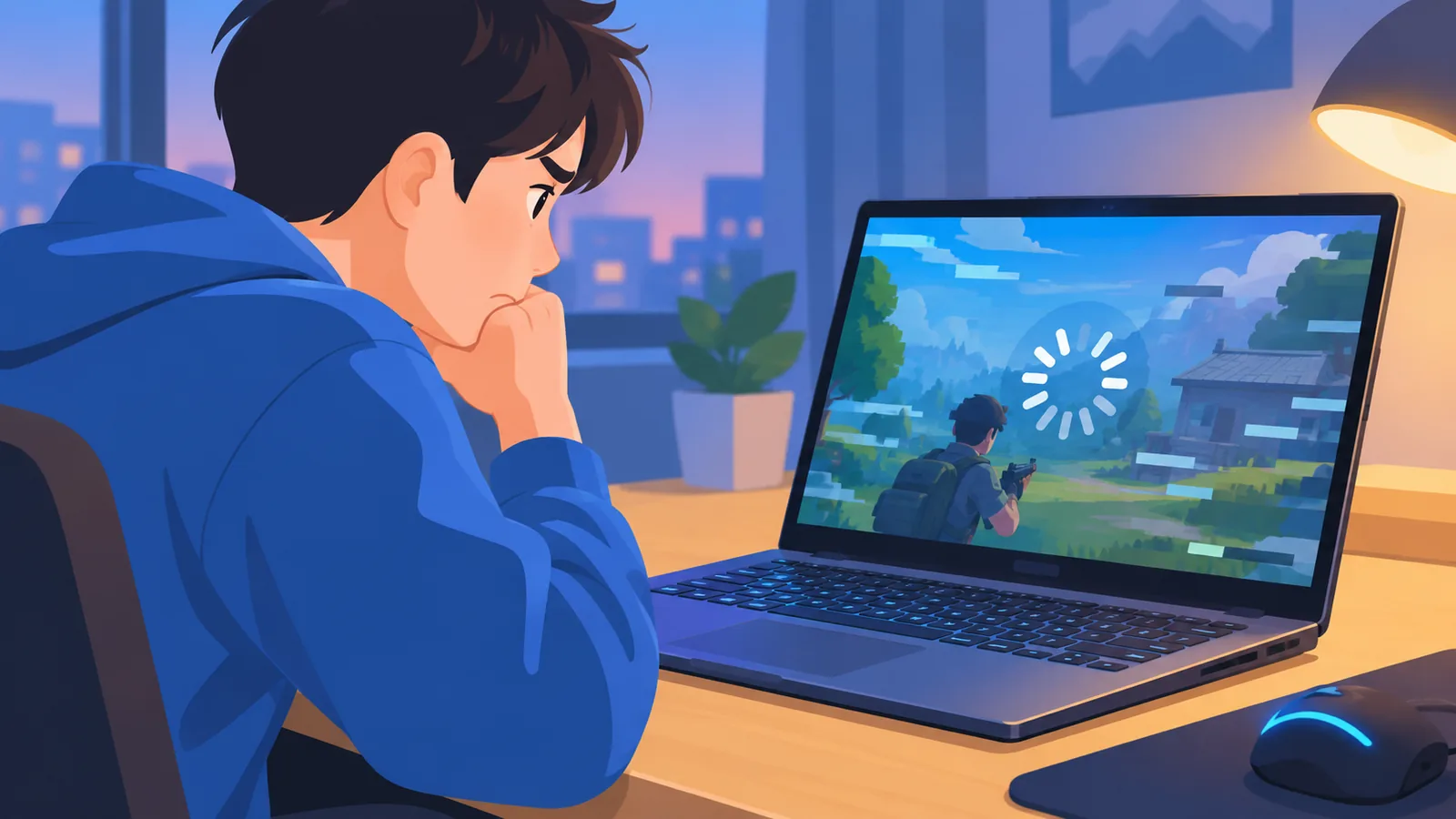
A game that ran smoothly last year now stutters, the fans sound like a hair dryer, and your frame rate keeps dropping. It’s frustrating, especially when you paid for a machine built to play. The good news is that most slowdowns have a simple cause you can find in a couple of minutes.
Below, you’ll start with a quick self-check. Then you’ll work through fixes in order, from free and fast to hardware changes.
- Quick Answer: What Usually Slows a Gaming Laptop
- Run This 2-Minute Self-Check First
- Too Many Background and Startup Programs
- Thermal Throttling: When Heat Is the Real Problem
- Power Mode and Plugged-In Settings
- Outdated or Corrupted Graphics Drivers
- Low RAM, Full Storage, and Slow Drives
- Malware, Bloatware, and Windows Housekeeping
- Fix It or Upgrade It? A Quick Comparison
- How to Keep Your Gaming Laptop Fast
- FAQ
Quick Answer: What Usually Slows a Gaming Laptop
Most of the time, a slow gaming laptop is held back by heat, background programs, power settings, outdated drivers, or hardware that has reached its limit. Heat and background load are the most common and the cheapest to fix, so start there.
Many of these problems overlap. A laptop that runs on battery, with a launcher and a browser open, in a warm room, can look “broken” when nothing is actually wrong with the hardware.
- Check heat first: blocked vents and soft surfaces cause thermal throttling.
- Plug in the original charger and pick a performance power mode.
- Update the graphics driver from NVIDIA, AMD, or Intel, not a random download site.
- Leave a comfortable amount of free drive space, and move games to an SSD if you can.
Run This 2-Minute Self-Check First
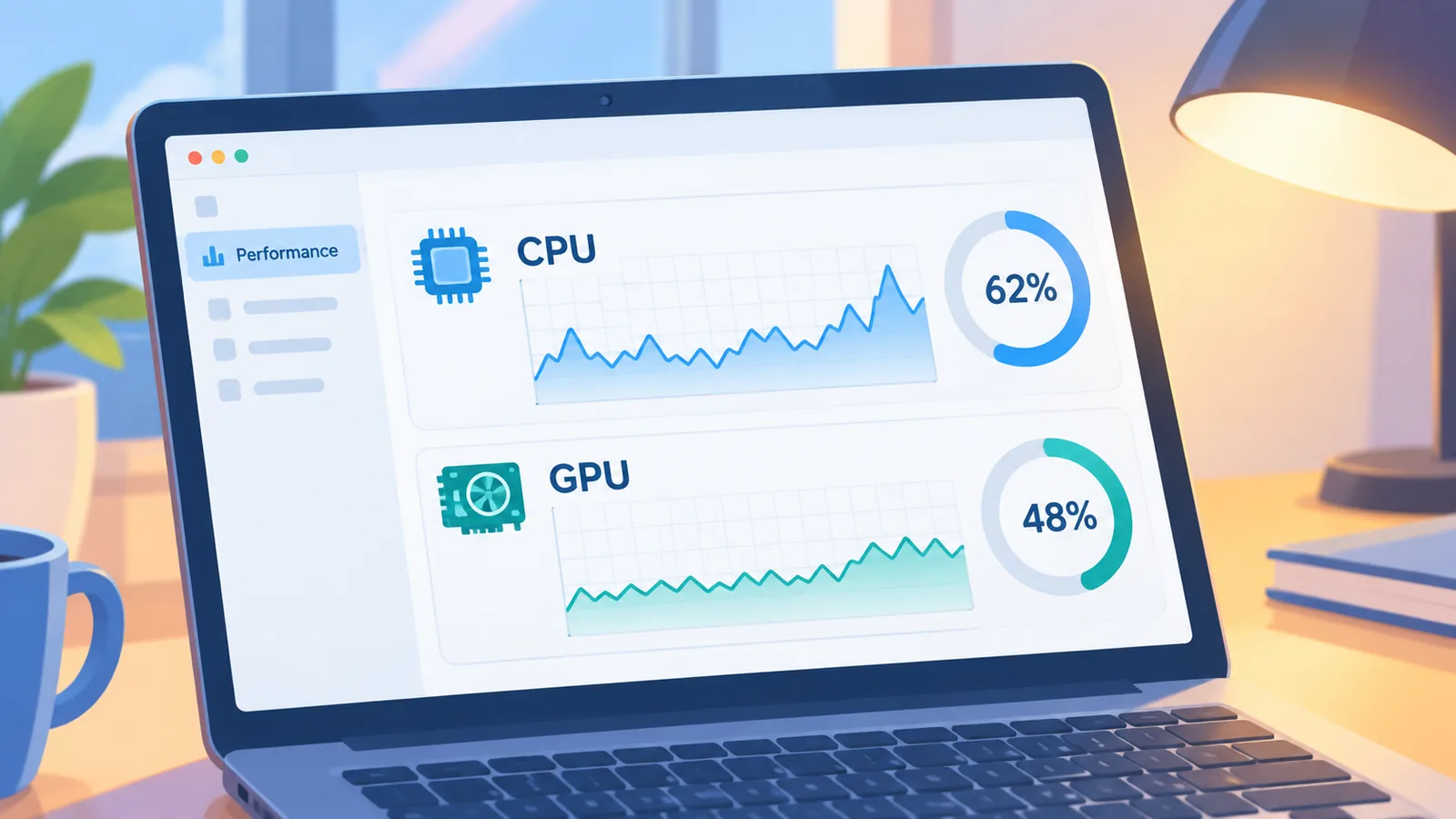
The fastest way to find the cause is to open Task Manager while the game is running and watch what happens. Press Ctrl + Shift + Esc, then open the Performance tab to see CPU, memory, disk, and GPU usage.
Is it slow everywhere or only in games?
If everything is slow, including web browsing and file opening, look at background programs, storage, and Windows housekeeping first. If only games struggle, heat, power mode, drivers, and GPU assignment are more likely.
Does it get worse after 10 to 15 minutes?
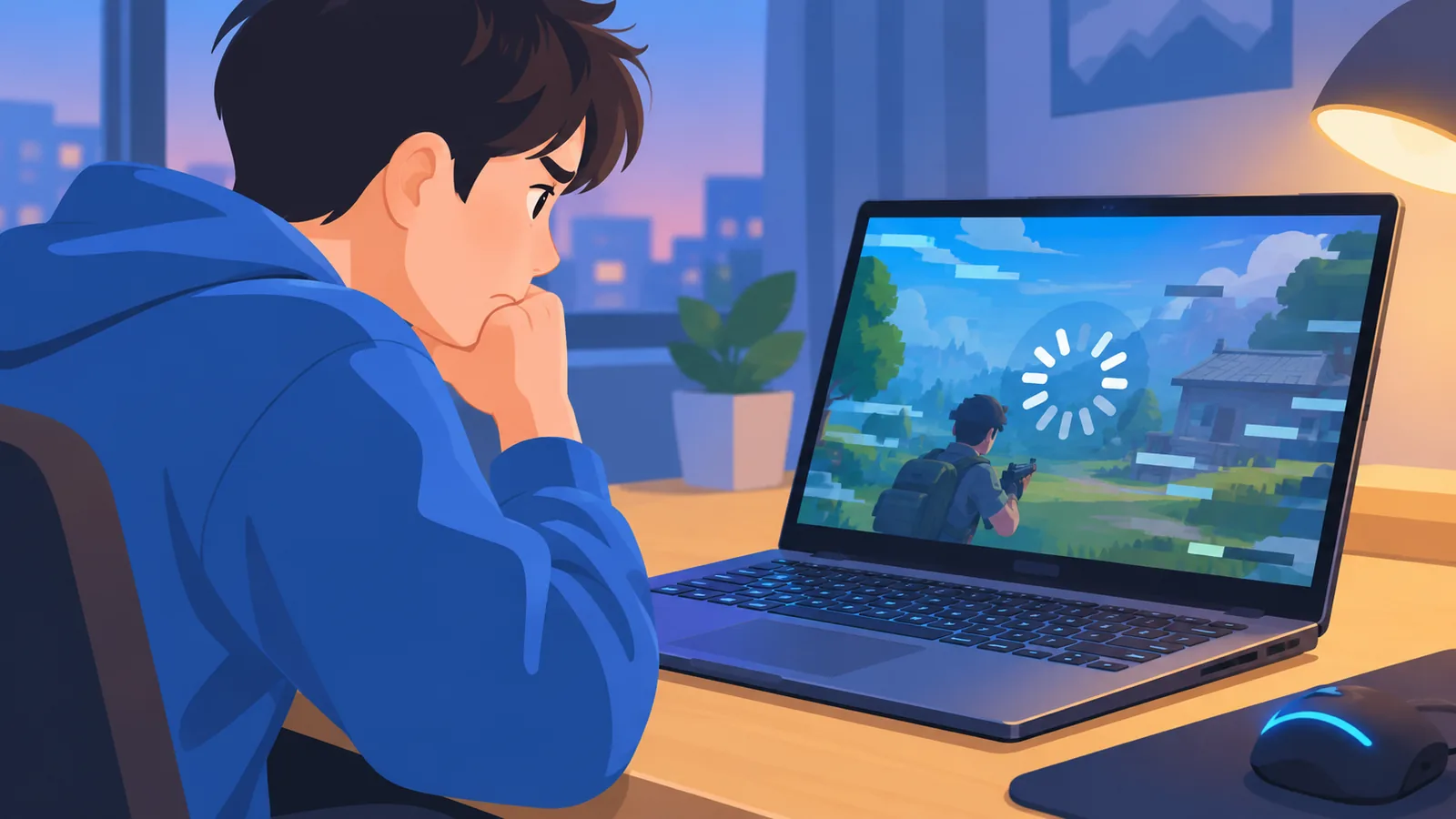
Smooth at first, then choppy? That pattern points to heat. The laptop starts fast, warms up, and then lowers its own speed to protect itself.
- Task Manager: note CPU, memory, disk, and GPU usage during the game.
- Power: check whether you are on battery or plugged in.
- Heat: listen for loud fans and feel whether the keyboard area is very hot.
- Storage: look at how much free space your game drive has left.
- Updates: see whether Windows has updates waiting.
To confirm you’ve found something, write down the one reading that looks off. You’ll use it to pick the right section below.
Too Many Background and Startup Programs
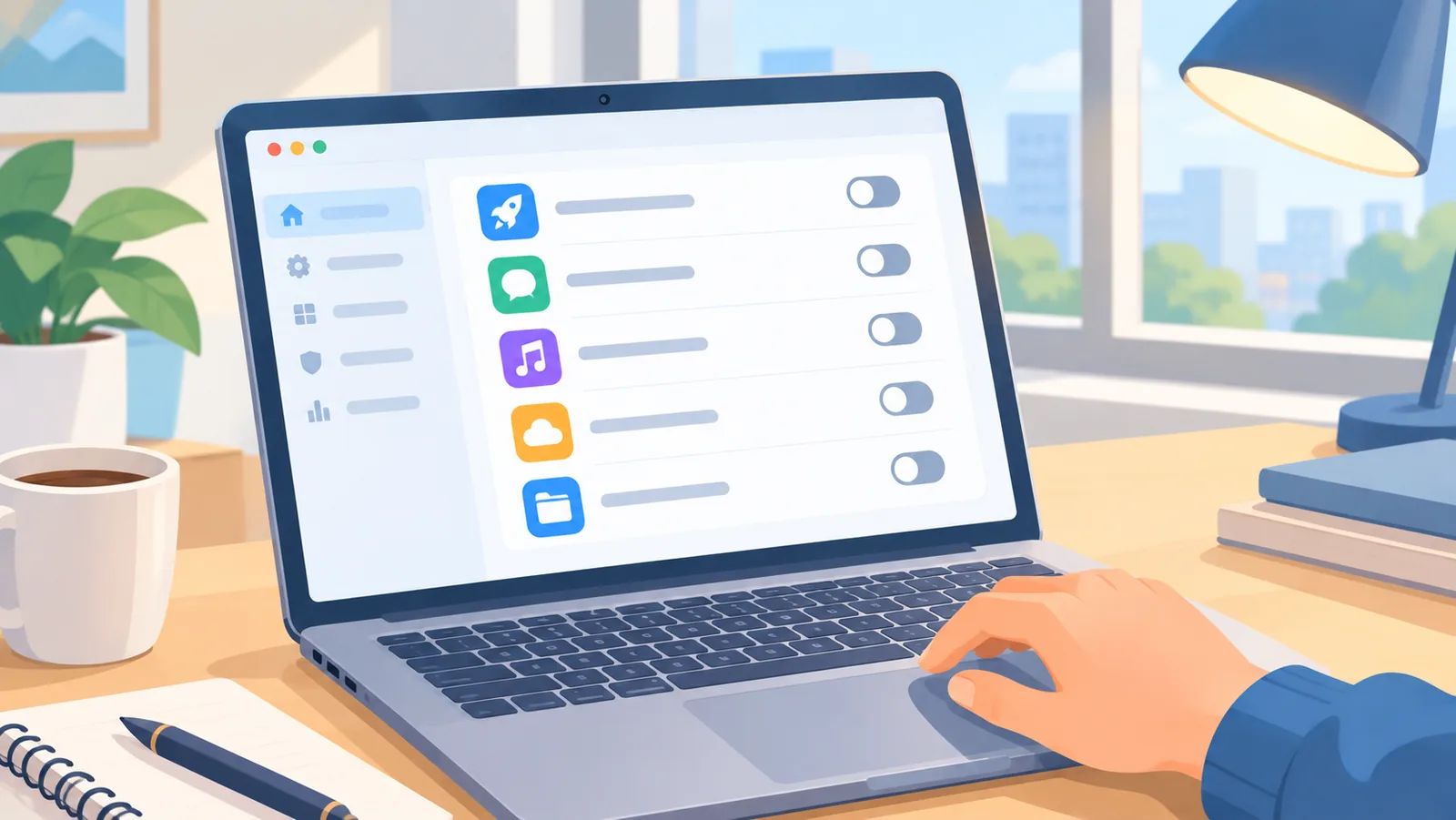
Yes, background programs can slow a gaming laptop, because launchers, browsers, overlays, cloud sync tools, and RGB software all use CPU and memory while you play. Each one is small, but together they add up.
Here’s the catch: many of these start automatically with Windows, so you may not remember opening them. A quick cleanup often makes a visible difference.
- Open Task Manager and go to the Startup apps tab.
- Disable apps you don’t need at launch, such as extra launchers and chat tools.
- Close browser windows and unused overlays before you start a game.
- Pause cloud sync and large downloads while you play.
To confirm it worked, restart the laptop and check the Processes tab before launching the game. Lower CPU and memory use at idle means the cleanup helped.
Thermal Throttling: When Heat Is the Real Problem
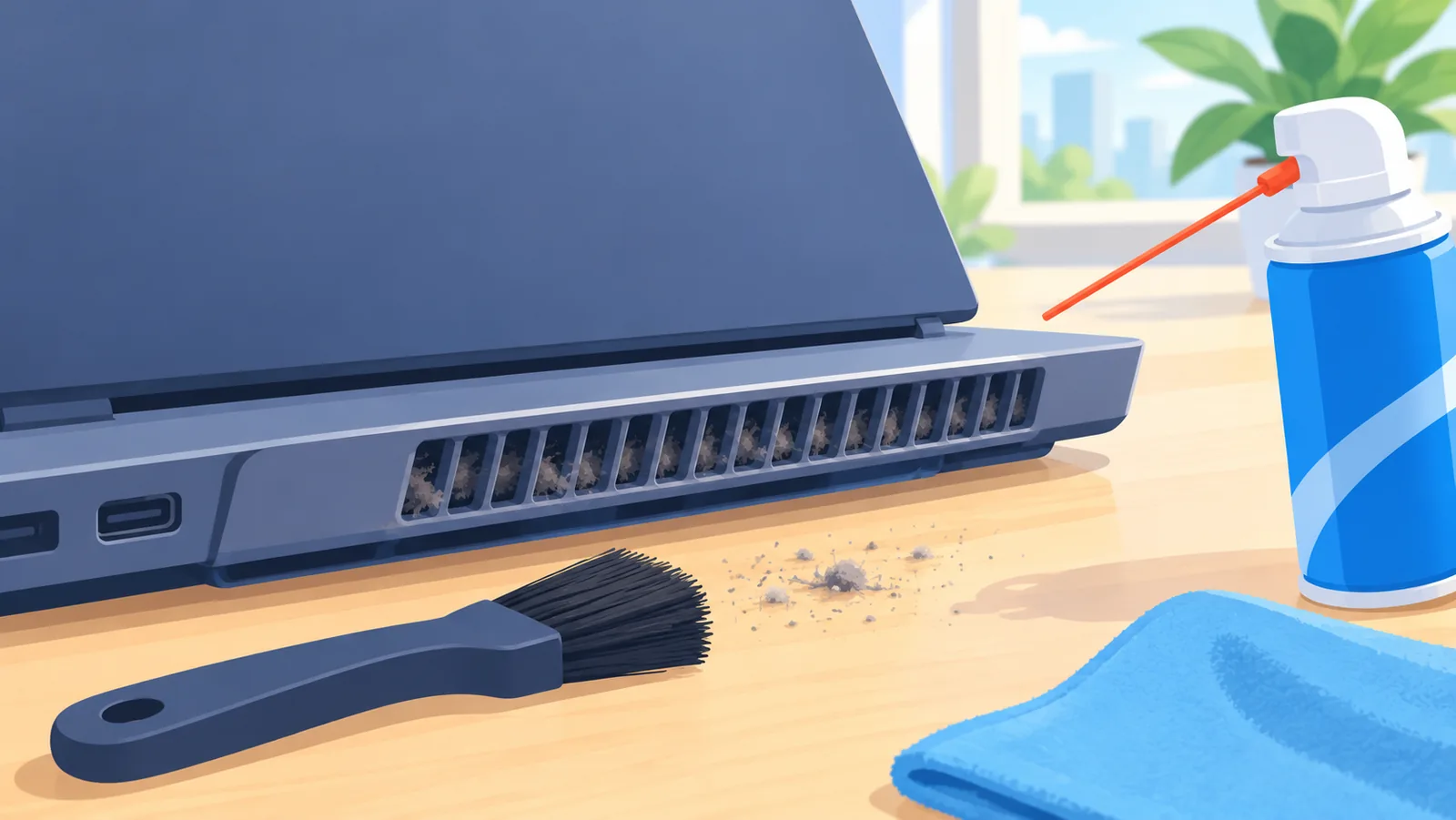
Thermal throttling is when your CPU or GPU slows itself down to avoid overheating, and it is one of the most common reasons a gaming laptop loses performance. Dust-blocked vents, soft surfaces like beds and couches, and long play sessions make it more likely.
How do I know my laptop is throttling?
Use a free hardware monitoring tool to watch temperatures and clock speeds during a game. If clock speeds fall as temperatures rise, throttling is likely.
Temperature limits differ by chip. Look up your exact CPU or GPU model on the maker’s specification page (Intel, AMD, or NVIDIA) to see its stated maximum, rather than relying on a number you saw online.
How do I cool it down?
- Use the laptop on a hard, flat surface or a stand, never on a blanket.
- Check the vents regularly, and more often in dusty rooms or homes with pets.
- Clean vents gently with compressed air while the laptop is off and unplugged.
- Try a cooling pad, which may help on some models.
- Consider repasting the thermal paste only if you are experienced or use a repair shop. Results vary, and it may void your warranty.
To confirm it worked, run the same game for 15 minutes and compare temperatures and clock speeds with your earlier reading.
Power Mode and Plugged-In Settings
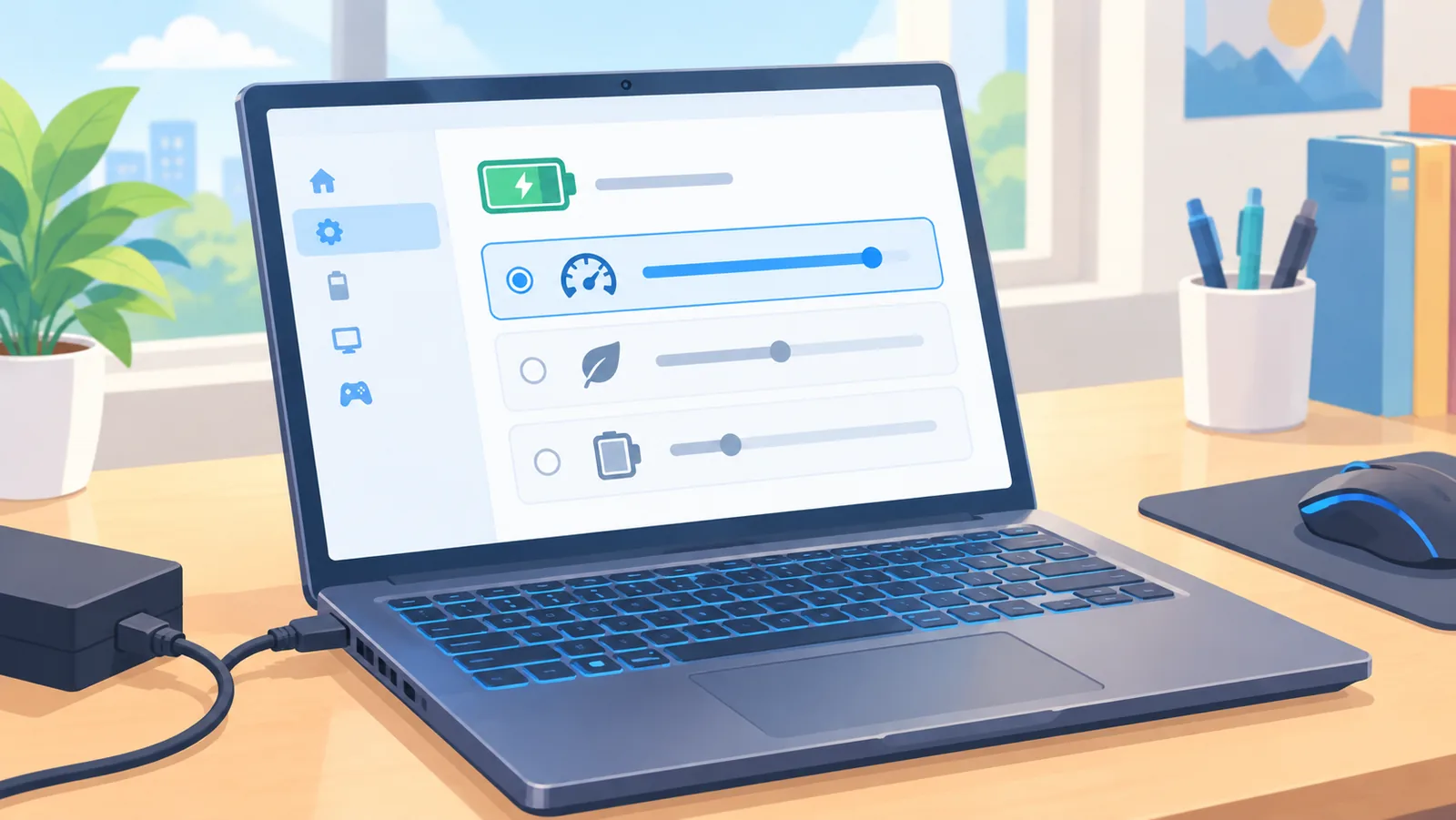
A gaming laptop on battery usually performs worse than one that is plugged in, because Windows and the manufacturer’s software limit power to save energy. Plug in the original charger before you play.
Then check your power mode. On Windows 11, open Settings, then System, then Power & battery, and set the power mode to Best Performance. Windows 10 uses different labels, so look for the closest performance option.
Many laptops also include manufacturer software, such as Armoury Crate, Lenovo Vantage, Alienware Command Center, MSI Center, or OMEN Gaming Hub. These often offer a performance or turbo profile. Note that more performance usually means more fan noise and heat.
To confirm it worked, play the same scene again and compare how smooth it feels. A steady frame rate after switching modes means power limits were the issue.
Outdated or Corrupted Graphics Drivers
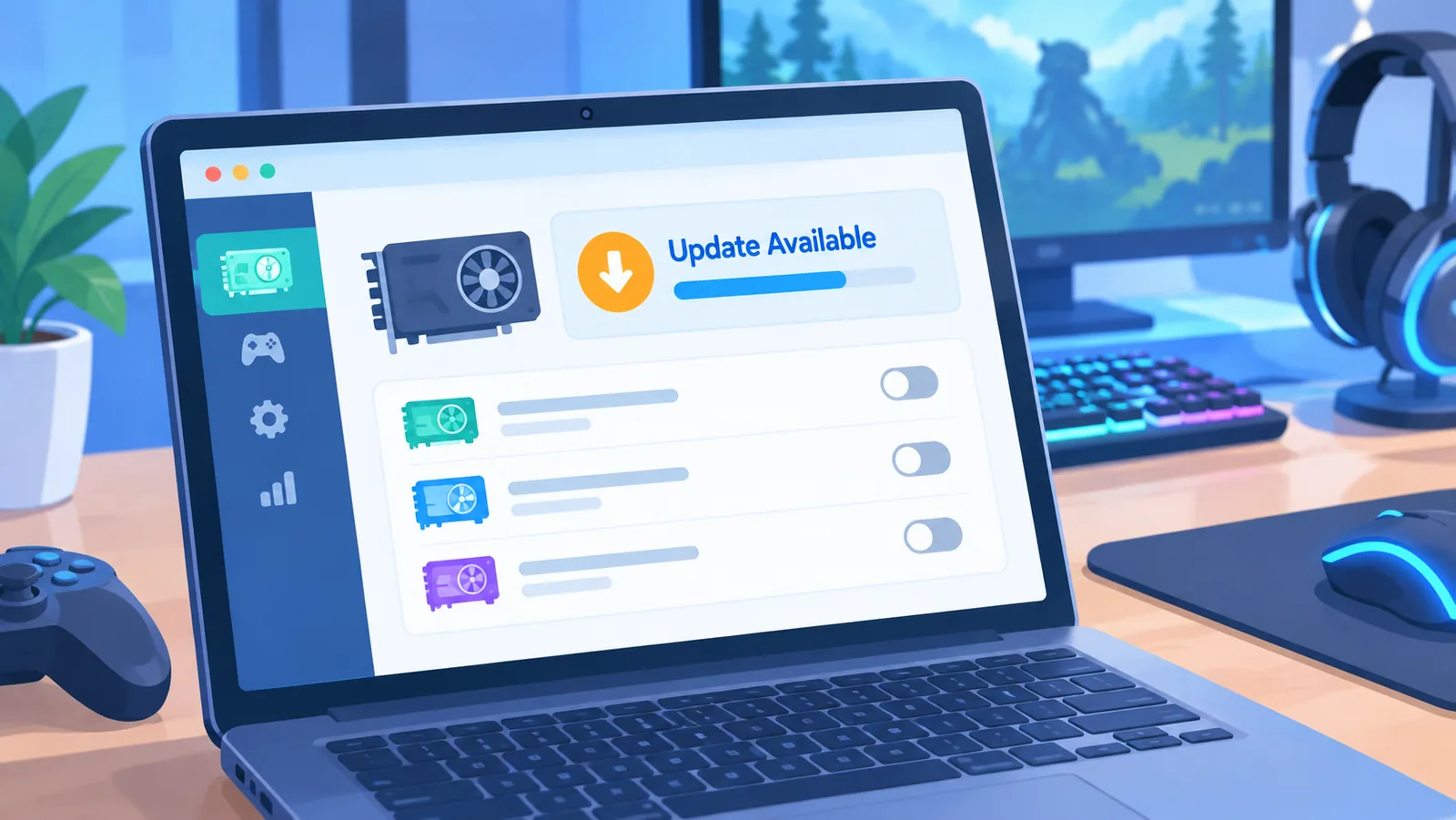
Outdated or corrupted graphics drivers can cause stutter, crashes, and lower performance, so updating them is a simple, worthwhile step. Download drivers only from official sources: NVIDIA, AMD, or Intel.
🛒 Recommended Product
There’s no fixed update schedule. Check for a new driver when a new game launches, when a game starts stuttering after an update, or when the game’s support page recommends one. Most driver makers also offer a companion app that checks for you.
If problems continue after updating, many installers offer a clean install option. It removes old settings and can clear up corrupted files.
One more thing to check: many gaming laptops have both integrated and dedicated graphics. In Windows, open Settings, then System, then Display, then Graphics, and make sure your game is set to high performance.
To confirm it worked, open Task Manager during the game and check that the dedicated GPU shows activity.
Low RAM, Full Storage, and Slow Drives
Low memory and a crowded or slow drive can cause long loading times and sudden hitching, even when your GPU is strong. If Task Manager shows memory or disk usage near the top, this section is likely your answer.
How much RAM does a gaming laptop need?
Many current games list 16 GB as a common recommendation, but needs vary by title. Check the listed requirements for the games you play, and do not assume that more RAM always raises frame rates.
Some laptops let you add or swap RAM, and others have it soldered. Check your model’s spec page or service manual before buying anything.
Does a nearly full SSD slow games?
A very full drive can cause slower loading and hitching, so leave a comfortable amount of free space. Also check the game’s install size and the drive’s health.
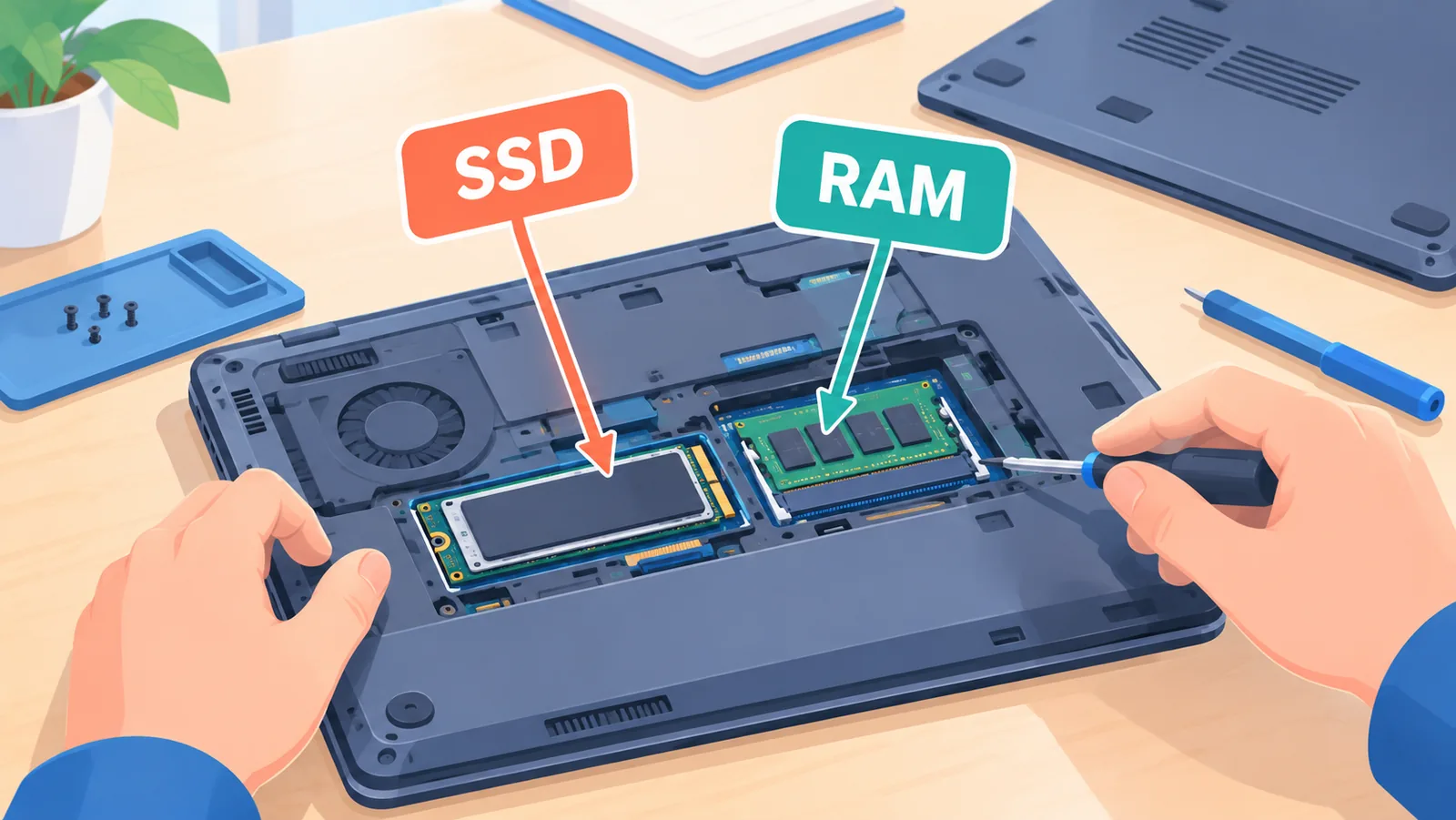
- Move your most-played games to an SSD, which loads games faster than a hard drive.
- Uninstall games you no longer play.
- Watch for signs of a failing drive, such as freezes and very slow file access.
To confirm it worked, compare loading times for the same game before and after the change.
Malware, Bloatware, and Windows Housekeeping
Malware is a less likely cause than heat or background programs, but a quick check and some routine cleanup are still worth your time. These are low-effort steps that rule out common problems.
- Run a full scan in Windows Security.
- Remove preinstalled trial software you don’t use.
- Install pending Windows updates, then restart.
- Restart the laptop regularly instead of leaving it asleep for weeks.
- Lower in-game settings such as resolution, turn V-Sync on or off to test, and set a frame cap to reduce load and heat.
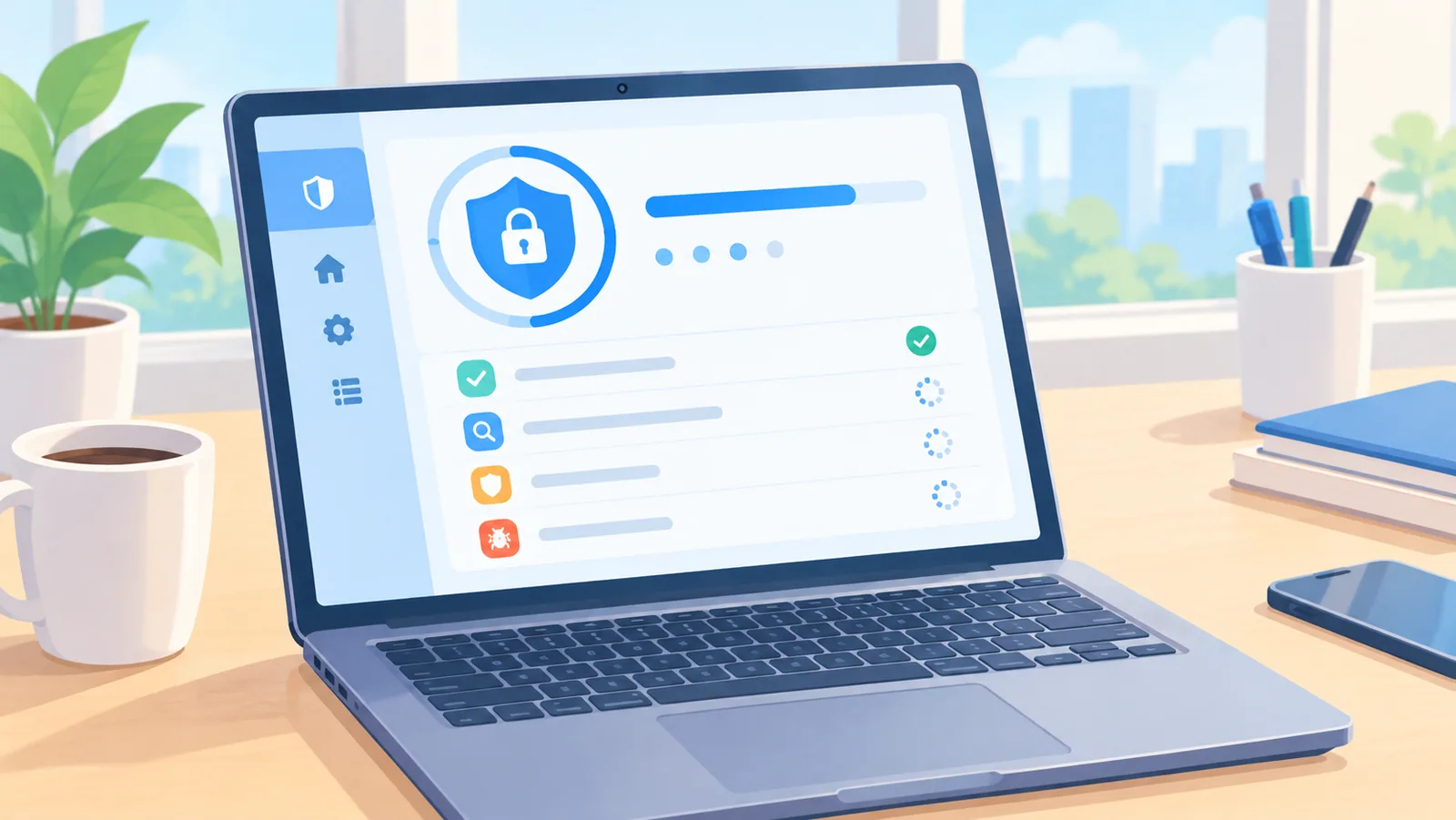
To confirm it worked, check Task Manager after a restart. Lower idle usage and steadier gameplay are good signs.
Fix It or Upgrade It? A Quick Comparison
Start with the free fixes, and only move to upgrades or a new laptop when those don’t solve the problem. The table below compares common options in general terms.
| Option | Cost | Effort | Expected Benefit | Best For |
|---|---|---|---|---|
| Software cleanup | Free | Low | Medium | Slow everywhere, many startup apps |
| Vent cleaning and repaste | Free to low cost | Medium | Varies | Slowdown after a few minutes of play |
| RAM or SSD upgrade | Low to higher cost | Medium | Medium | High memory or disk usage |
| Cooling pad or external GPU | Low to higher cost | Low to medium | Varies | Heat issues, or laptops with a supported port |
| Replace the laptop | Higher cost | High | High | Hardware too old for your games |
Replacement usually makes sense when your GPU is below a game’s minimum spec, the laptop keeps shutting down from heat, or the key parts cannot be upgraded. Many gaming laptop GPUs are soldered to the motherboard and cannot be swapped.
How to Keep Your Gaming Laptop Fast
A few small habits keep a gaming laptop running well for longer. None of them take much time.
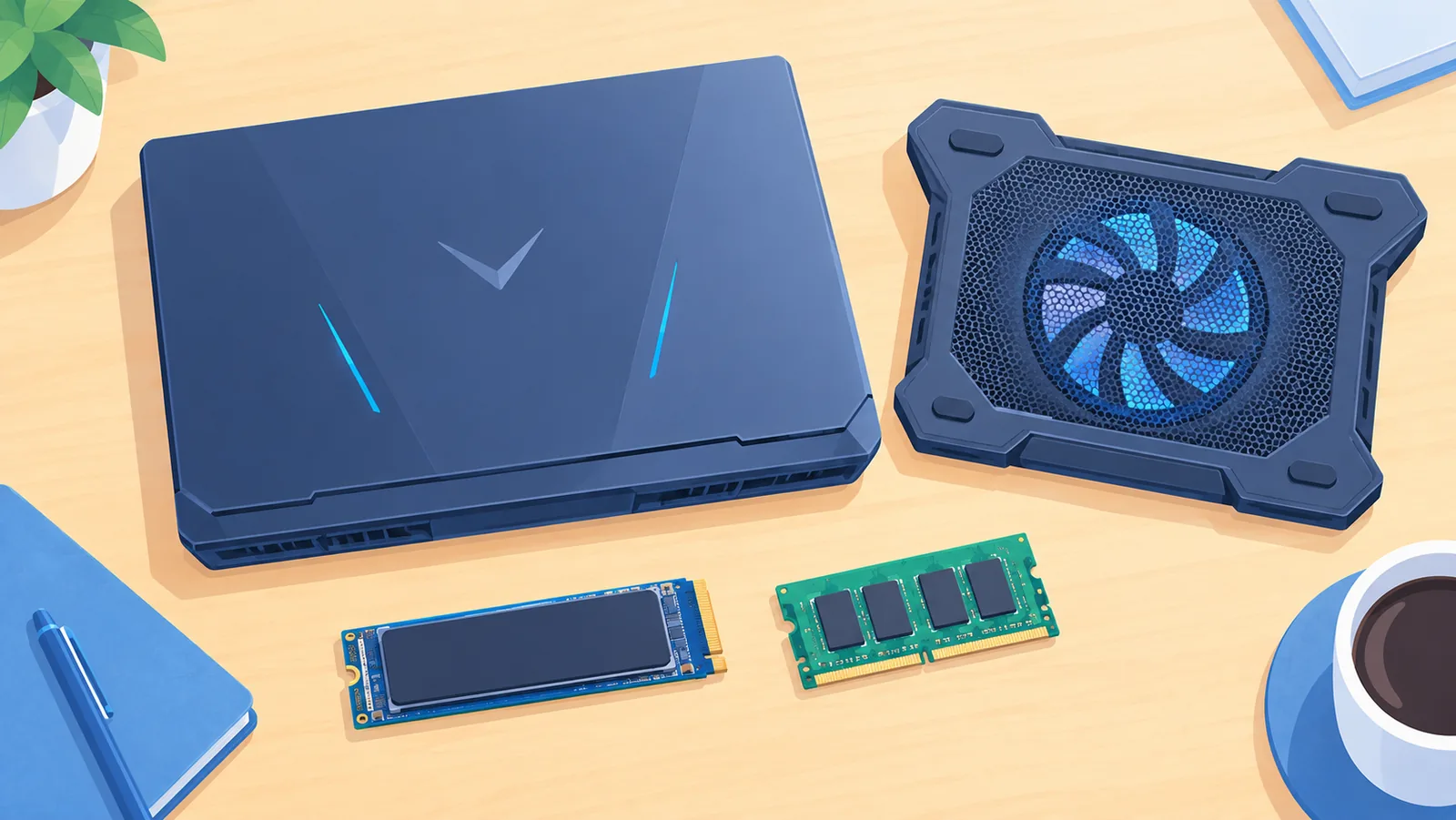
- Check the vents regularly, more often in dusty rooms or homes with pets.
- Check for a new graphics driver when a new game launches or performance drops.
- Clean up startup apps after installing new software.
- Leave a comfortable amount of free drive space.
- Play on a hard, flat surface or a stand.
Slowdowns usually come from dust, software clutter, driver issues, or battery and thermal wear, not from age alone. Staying on top of these keeps most laptops in good shape.
FAQ
Why is my gaming laptop slow even though it is new? New laptops often ship with trial software, pending updates, and a power mode set for battery life. Install updates, remove extras, and set a performance mode.
Does a gaming laptop slow down over time? Not always. When it does, the cause is usually dust, software clutter, driver problems, or battery and thermal wear.
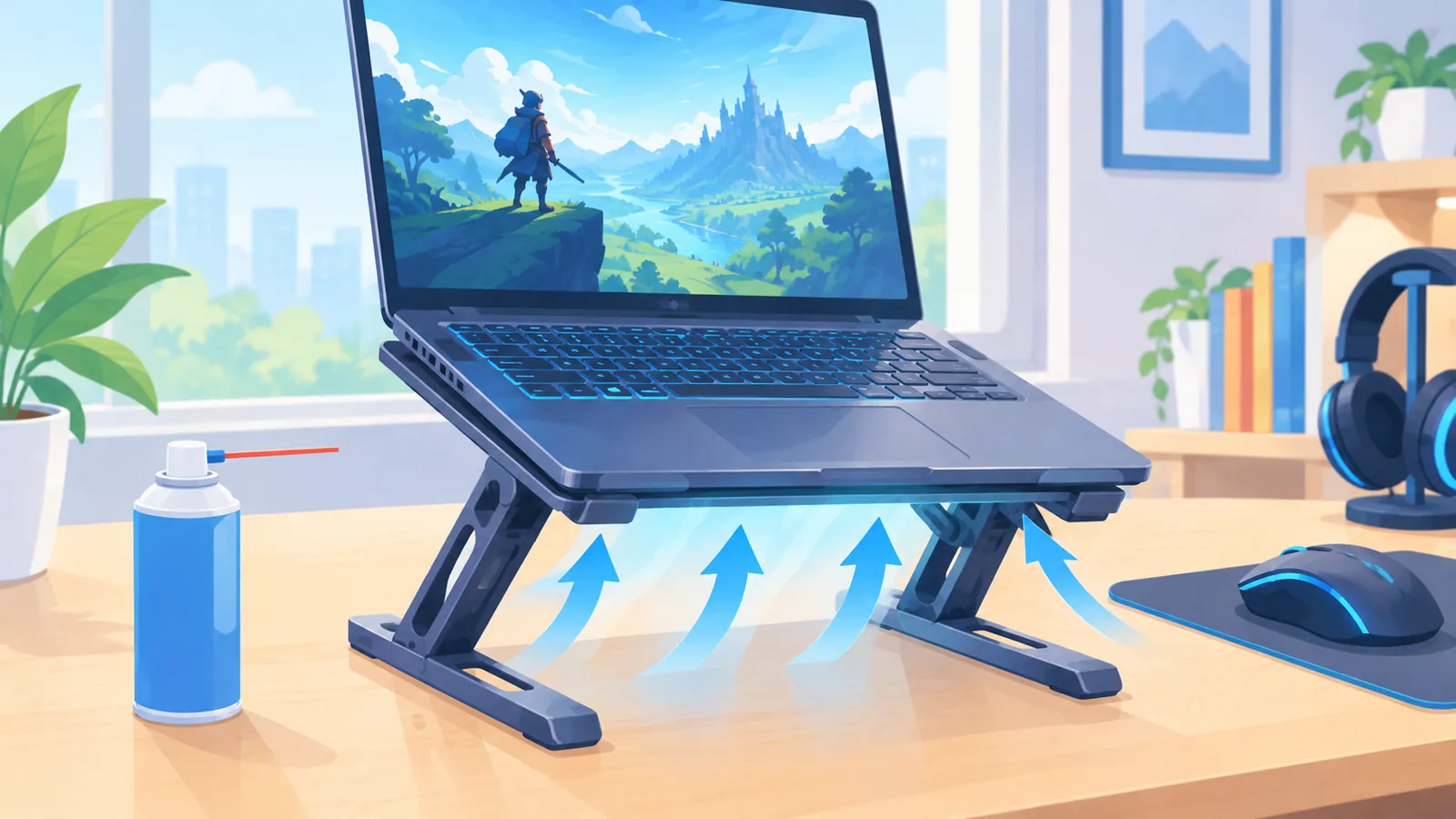
Is it bad to play while plugged in all the time? Plugging in is normal for gaming, and it gives the laptop full power. If battery health worries you, check your manufacturer’s software for a battery care option.
Will a factory reset fix it? It can help if the slowdown comes from software clutter, but it won’t fix heat or hardware limits. Back up your files first and try the simpler fixes before resetting.
Can I upgrade the graphics card in a gaming laptop? In most cases, no, because many laptop GPUs are soldered in place. Check your model’s spec page from the manufacturer to be sure.
Your next step for today: open Task Manager during a game, note your CPU, GPU, and temperature readings, and fix the first red flag you find.
Want to get more out of your setup? Read our related guide on tuning in-game settings for smoother frame rates.
- Microsoft Support: support.microsoft.com (power mode, Task Manager, Startup apps, Windows Security, graphics settings)
- NVIDIA: nvidia.com (official graphics drivers)
- AMD: amd.com (official graphics drivers and support)
- Intel: intel.com (processor specifications and graphics drivers)
- Your laptop maker’s support site (control software, thermal guidance, upgrade specifications)
Want more comparisons and buying guides?