⚠️ This page connects you to Atovia’s partners and affiliate markets. We may receive a commission from affiliate partners for activities made through these links. Discount offers may change at any time according to policy! Rest assured, there are no additional costs to you! We hope this saves you time in finding the right items!
You start your Go Live stream, the movie audio is playing, and your friends are staring at a black rectangle. It is one of the most common ways a Discord movie night stalls. This guide gives you the exact sharing steps for a server and a DM call, an ordered list of fixes to try, and an honest note on when a black screen is not something you can fix.
- Quick Answer: What Usually Causes the Black Screen
- How to Share a Movie Window on Discord Step by Step
- Sharing With Sound: Supported Devices and Clients
- Fix 1: Check Basics and Permissions
- Fix 2: Turn Off Hardware Acceleration
- Fix 3: Switch Between Window and Full Screen Sharing
- Fix 4: Lower Stream Quality and Frame Rate
- Why Some Streaming Services Still Show Black
- Watching Together the Right Way
- Quick Troubleshooting Checklist
- Frequently Asked Questions
- Go Live can share a single app window or your entire screen, in a server voice channel or in a DM call.
- Fix 1 is the basics: restart, update, check your connection, and check permissions.
- Fix 2 is turning off hardware acceleration. It is worth trying, but it is not guaranteed to cure a black screen.
- Fix 3 is switching between window and full screen sharing. Fix 4 is lowering stream quality and frame rate.
- Some streaming services use content protection, and none of these fixes is promised to work on protected video.
Quick Answer: What Usually Causes the Black Screen
There is rarely a single cause. These are the most common things to check, roughly in the order worth testing them:
- The share target: the window or screen you picked may not be the one actually playing the movie.
- Permissions: on some systems, Discord needs permission before it can capture your screen.
- Settings and app version: hardware acceleration, an outdated app, or a struggling connection can all affect a stream.
- Content protection: some streaming services protect their video, which can interfere with playback outside the service’s own player.
It is common to hear the movie while the picture stays black. When that happens, work through the fixes below in order, and read the section on protected video before you spend too long troubleshooting.
How to Share a Movie Window on Discord Step by Step
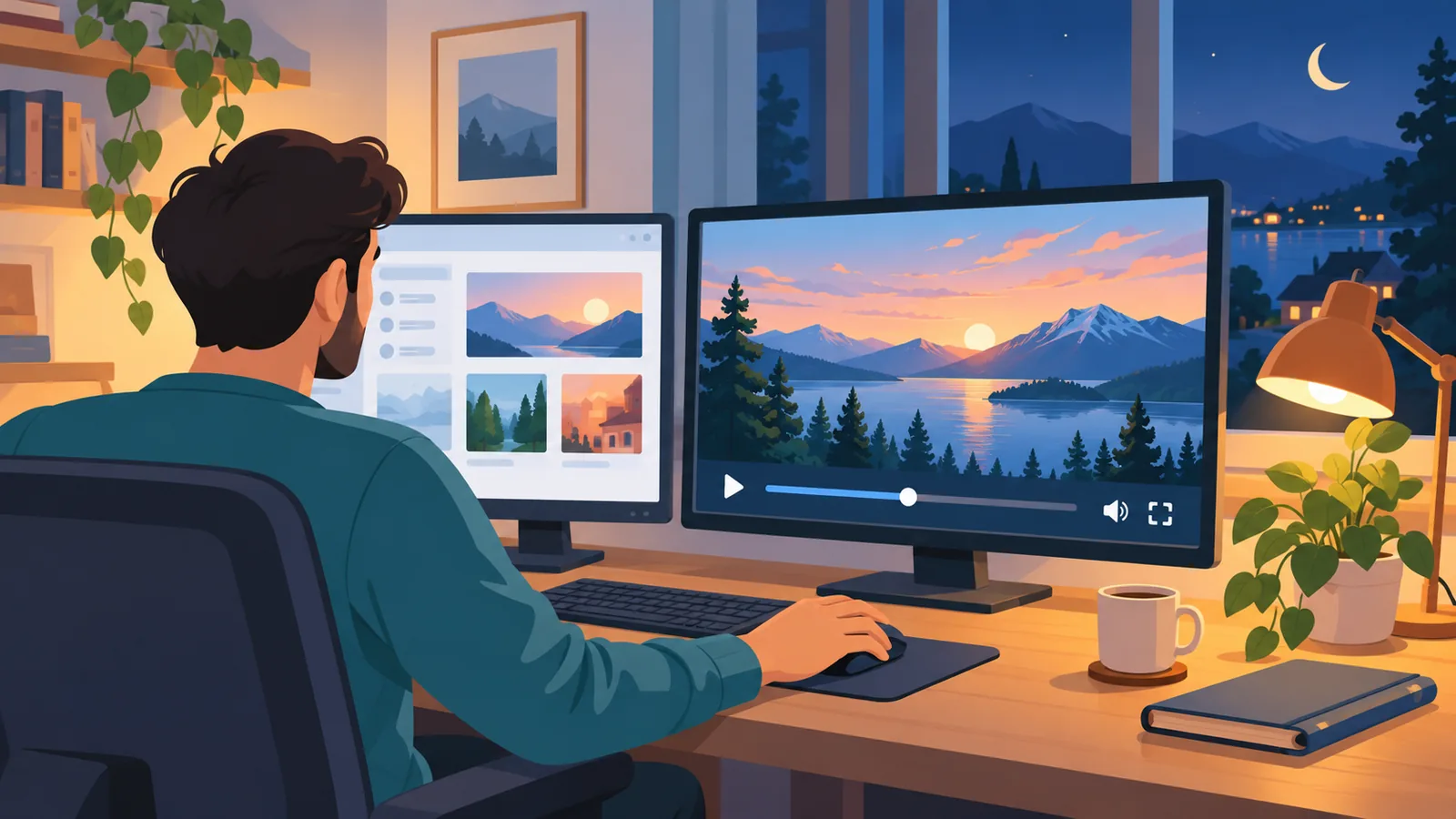
Many black screen reports start with a setup slip rather than a real capture problem, so confirm the basic steps first. Per Discord’s Go Live and Screen Share article, the process differs slightly depending on where you are.
In a Server Voice Channel
- Open the movie in the app or window you plan to share, and start playback.
- Join a voice channel in your server.
- Click the screen share icon.
- Pick an app window or a screen to share.
- Start Go Live.
In a DM Call
- Start a call with the person or group first.
- Choose screen share.
- Select what you want to share.
- Click Go Live.
Window vs. Full Screen
Go Live can share one app window or your entire screen. Sharing a window sends only that app. Sharing the entire screen sends everything you see on that display, including notifications and other windows, so close anything private before you start.
Steps and menu names can change with app updates, so check Discord’s official article if your screen looks different.
Sharing With Sound: Supported Devices and Clients
If your friends can see the movie but cannot hear it, the platform you are using matters. According to Discord’s guidance, screen sharing with audio is supported on the following:
| Platform | Audio with screen share | What to check |
|---|---|---|
| Windows desktop app | Supported | Try running Discord as administrator if capture fails. |
| macOS desktop app | Supported | Allow Discord under Screen Recording permission. |
| Chrome browser | Supported | Keep the browser updated. |
| Mobile | Supported | Use the mobile share flow and confirm your server role has Video permission. |
| Linux | Not offered | Audio sharing is not available, so plan on a different client for movie nights. |
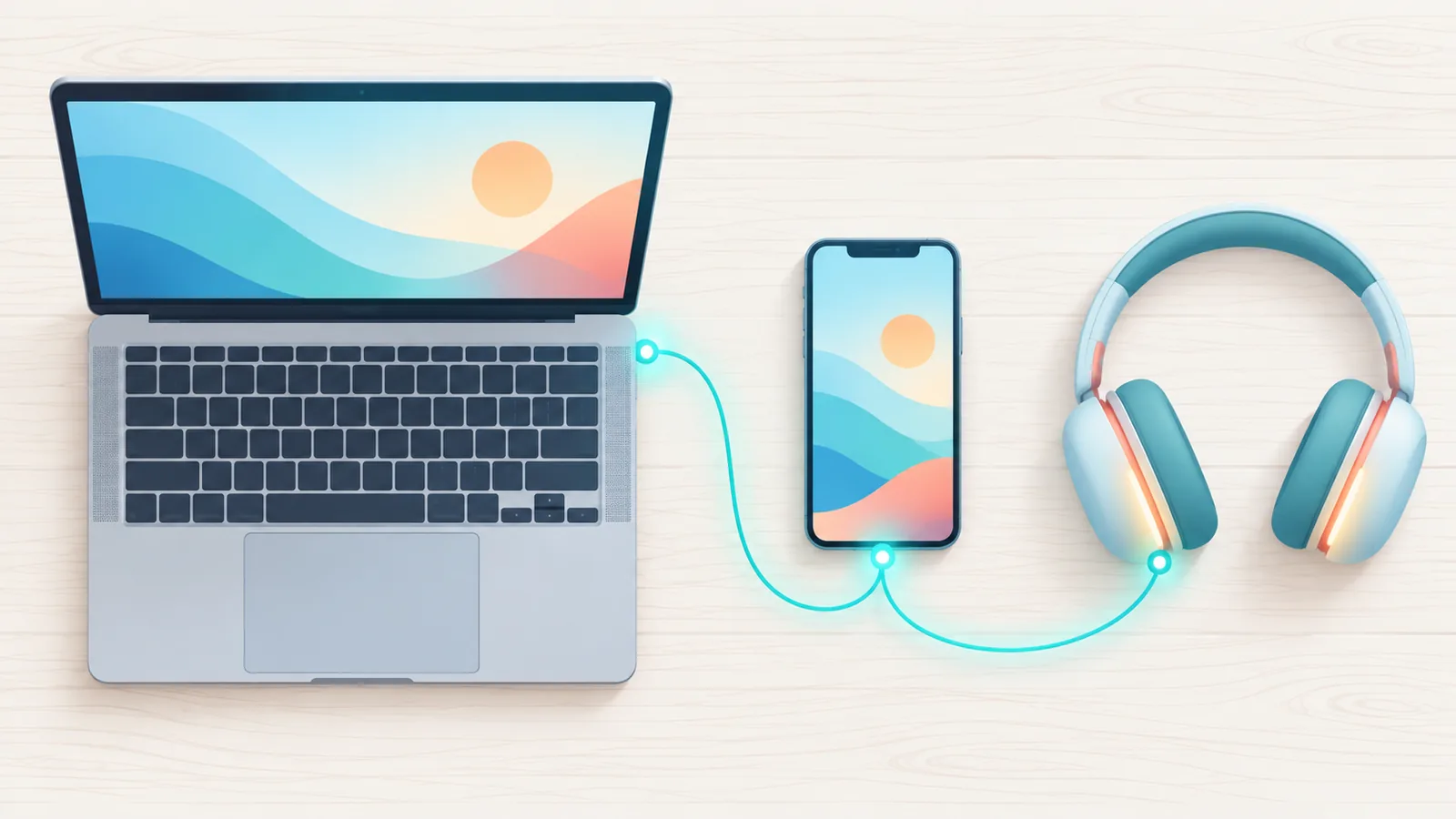
Supported platforms can change with client updates, so confirm against the official article.
Fix 1: Check Basics and Permissions
What this does: rules out the simple problems that cause many stream issues.
- Restart Discord, or restart your device.
- Update the Discord app.
- Confirm you have a stable internet connection.
- Windows: try running Discord as administrator.
- macOS: open your system’s Screen Recording permissions and allow Discord.
- Missing share button in a server: check that your role has the Video permission.
What to expect: these steps clear up setup and permission problems. The Video permission check applies to a missing share button, not to a black picture, and none of these steps is guaranteed to fix a black screen on protected video.
Fix 2: Turn Off Hardware Acceleration
What this does: Discord suggests turning off hardware acceleration when a stream runs poorly. It is worth trying if your share looks wrong.
- Open Discord’s settings and look for the hardware acceleration option.
- Turn it off.
- Restart Discord, then start the stream again and retest.
The limit: this is a diagnostic attempt, not a guarantee. It helps with some capture problems, but it will not necessarily fix every black screen. Setting names can change with updates, so follow Discord’s current guide if the layout looks different.
Fix 3: Switch Between Window and Full Screen Sharing
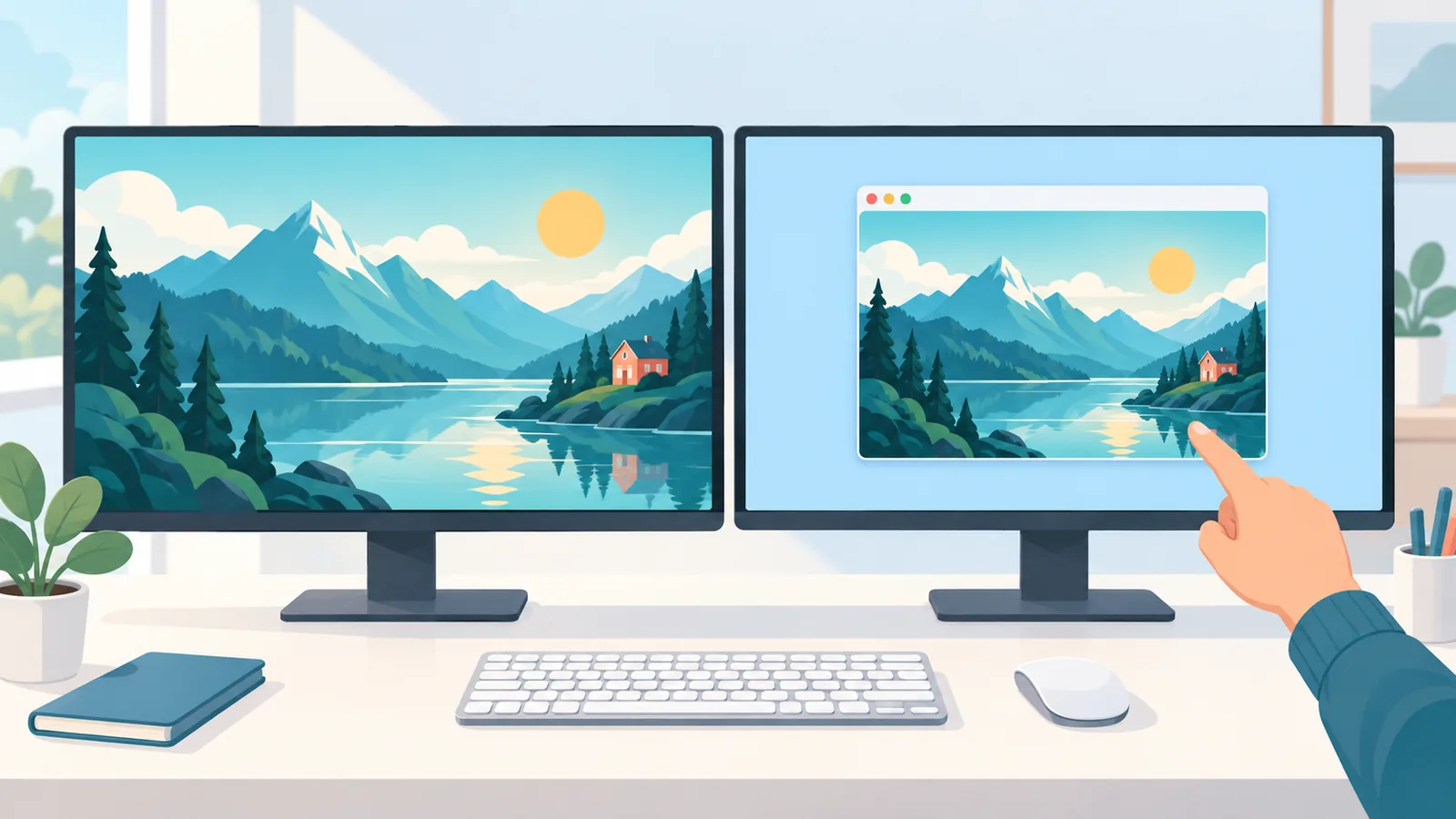
What this does: Discord lets you share a single window or your whole screen. If one option looks wrong, trying the other is a simple test.
- If sharing the movie window shows black, stop the stream and share your entire screen instead. If full screen shows black, try sharing just the window.
- Make sure the movie player is not minimized.
- If you use more than one display, check that the movie is on the display you are sharing.
🛒 Recommended Product
The limit: this is a diagnostic step, not a cure. It will not reliably change the result for protected streaming video.
Fix 4: Lower Stream Quality and Frame Rate
What this does: lowering screen share quality or frame rate is part of Discord’s troubleshooting guidance when problems persist. It reduces the load on your connection and your computer.
- Lower the stream quality in the screen share settings.
- Lower the frame rate.
- Restart the stream and check again.
The limit: this helps most when your connection or computer is the bottleneck, such as choppy or lagging video. It is not a cure for a black screen caused by protected content.
Why Some Streaming Services Still Show Black
If you have tried every fix and a subscription streaming service still shows black, the cause may not be your setup at all. Netflix’s Help Center explains that some playback errors can be related to content protection features. Content protection is designed to limit how video appears outside the service’s own player.
The fixes above are general troubleshooting for screen capture. They are not a way around content protection, and Discord’s guides do not offer one. We do not either, and we cannot promise that any setting will make protected video appear in a shared stream.
If protected video stays black, the practical answer is to change how you watch together, which the next section covers.
Watching Together the Right Way
A black screen is a good reminder to think about what you are sharing and whether you have permission to share it. Rules differ by service and by title, so check each service’s terms before sharing, and treat this article as practical guidance rather than legal advice.
- Use content you are allowed to share: your own video files, public domain or freely licensed films, or content whose owner has given permission.
- Check each service’s terms: they spell out what you can and cannot do with their video.
- Use Discord for voice and chat: if everyone has their own access to the movie, you can all press play together and use a voice channel to talk through it.
Quick Troubleshooting Checklist
Work through these in order, retesting after each step:
- Confirm you picked the right window or screen, and that the movie is playing and not minimized.
- Restart Discord or your device, and update the app.
- Check your internet connection.
- Check permissions: administrator mode on Windows, Screen Recording on macOS, Video permission for a missing server share button.
- Turn off hardware acceleration, restart Discord, and retest.
- Switch between window and full screen sharing.
- Lower stream quality and frame rate.
- If a subscription service still shows black, consider that content protection may be the cause.
| Symptom | Likely cause | Next step |
|---|---|---|
| No share button in a server | Role may lack Video permission | Check your role’s Video permission. |
| Black picture, movie audio plays | Several possible causes | Work through Fixes 1 to 4 in order. |
| Black screen on macOS | Screen Recording permission may be off | Allow Discord in Screen Recording permissions. |
| Laggy or choppy stream | Connection or computer is struggling | Lower quality and frame rate, or turn off hardware acceleration. |
| Still black on a subscription service | Possible content protection | Use content you are permitted to share, or watch separately and chat on Discord. |
| No audio for viewers on Linux | Audio sharing is not offered on Linux | Use a supported client. |
Menu names and supported platforms can change with app updates, so check Discord’s official articles if something looks different.

Frequently Asked Questions
Why do I hear audio but see a black screen?
It is common to hear the movie while the picture stays black, and there is no single cause. Work through the fixes in order, and keep in mind that protected streaming video may stay black no matter what you change.
Is the process different on a server vs. a DM?
Slightly. In a server, you join a voice channel, click the screen share icon, pick a window or screen, and start Go Live. In a DM, you start the call first, then choose screen share, select what to share, and click Go Live.
Does turning off hardware acceleration always work?
No. Discord suggests it when a stream runs poorly, and it is worth trying, but it is not guaranteed to fix every black screen.
Can I share a subscription streaming movie?
Not reliably. Some services use content protection that can interfere with playback, and we cannot promise a workaround. Check the service’s terms, and consider content you have permission to share instead.
Why can’t I find the share button?
In a server, check that your role has the Video permission. Also confirm you have joined a voice channel, or started a call if you are in a DM, and that your app is up to date.
Do features change with app updates?
Yes. Step names, menu layouts, and supported platforms can change with client updates, so rely on Discord’s official articles for the current details.
References
Want more comparisons and buying guides?