
⚠️ This page connects you to Atovia’s partners and affiliate markets. We may receive a commission from affiliate partners for activities made through these links. Discount offers may change at any time according to policy! Rest assured, there are no additional costs to you! We hope this saves you time in finding the right items!
Your phone says storage is almost full, and your camera roll is mostly clips. Before you pay for more space, it helps to know which service actually handles video well.
As an Amazon Associate I earn from qualifying purchases.
🛒 Recommended Product
There is no single winner here. The best pick depends on whether you stream, edit or just store, and upload limits are not the same thing as playback limits.
- Quick Picks: Which Cloud Storage Fits Your Videos
- What Makes Cloud Storage Good for Video
- Upload Limits vs Playback Limits: Why Both Matter
- pCloud: Best for Streaming Your Own Video Library
- Google Drive: A Familiar Option for Everyday Video Storage
- Dropbox: Best for Editors Who Sync Large Files
- OneDrive: Solid Browser Uploads and Wide Format Support
- Side-by-Side Comparison Table
- Storage vs Video Hosting: Which One Do You Actually Need?
- Backup, Version Recovery and Security Checks
- How to Choose: A Quick Checklist
- FAQ
- Final Take and Next Step
Key takeaways
- pCloud lists uploads of any file size and a built-in video player [S2].
- Dropbox previews files under 100GB, and OneDrive web uploads top out at 250GB per file [S4][S7].
- Google Drive videos must fit within your account’s remaining storage [S3].
- Check the video codec, not just the file size, before you commit.
Quick Picks: Which Cloud Storage Fits Your Videos
The best service depends on whether you stream, edit or just store your footage. Here is the short version.
- pCloud: streaming your own library straight from the cloud.
- Dropbox: editors who re-save large project files often.
- Google Drive: everyday clips in common formats.
- OneDrive: large single files uploaded through the browser.
Reviewers don’t agree on one “best” either. Zapier favors pCloud for media, while TechRadar ranks IDrive first overall [S1][S10].

What Makes Cloud Storage Good for Video
Video needs room, big-file uploads, reliable playback and safe recovery. Photos and documents rarely stress a service the way a 4K clip does.
- File size limits: can your largest clip upload at all?
- In-browser playback: can you watch it without downloading?
- Plan size: does the storage match your library?
- Sync for edits: are small changes handled efficiently?
- Backup and version safety: can you recover from a mistake?
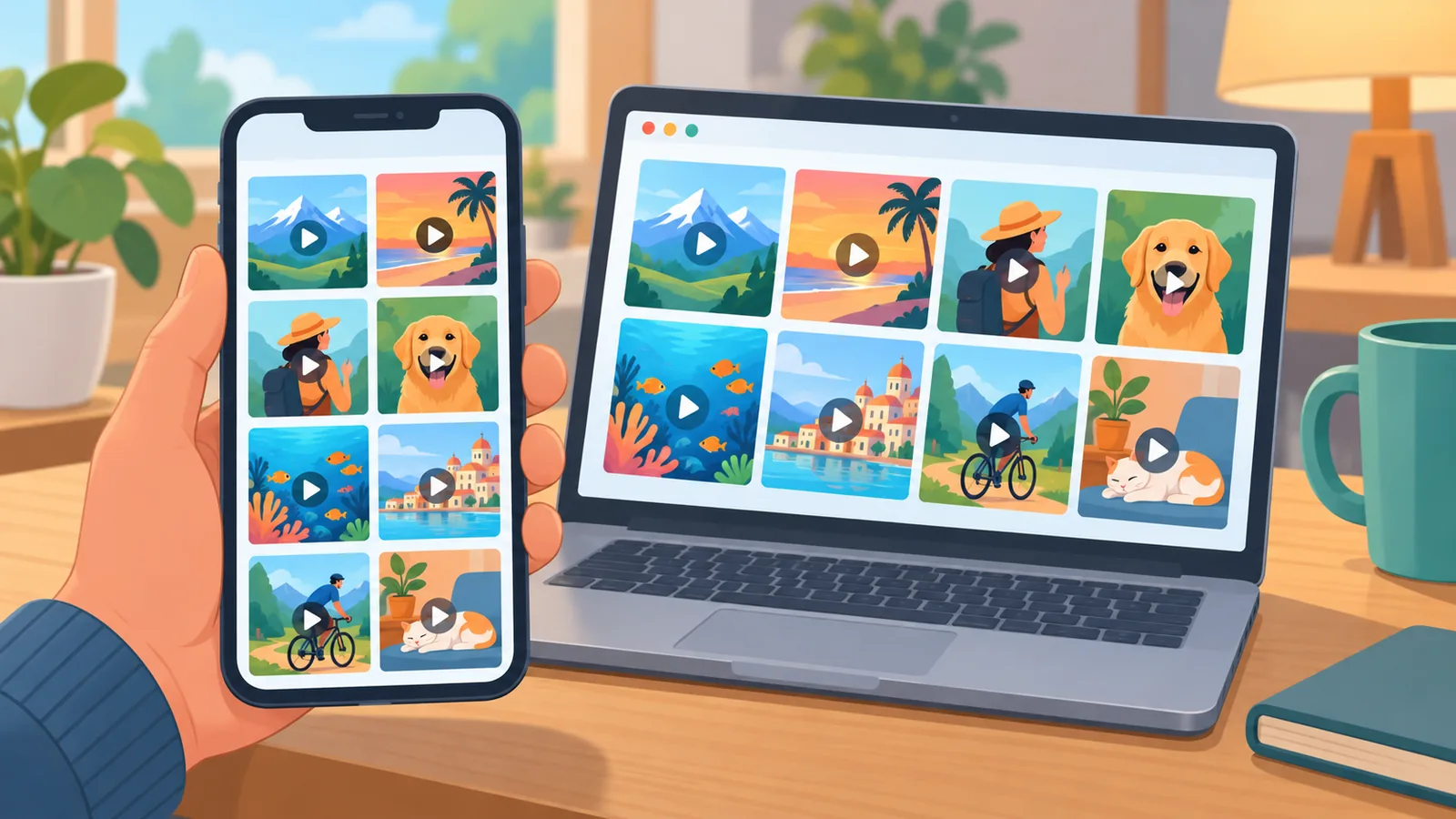
Do I need storage or video hosting?
Storage keeps and shares your files for you or your team. Hosting publishes videos to an audience. Most readers of this guide need storage.
Upload Limits vs Playback Limits: Why Both Matter
A file can upload fine and still refuse to play in your browser. Those are two separate limits, so check both.
How big a file can I upload?
Dropbox recommends its desktop app for web uploads larger than 350GB [S6]. OneDrive supports up to 250GB per file on the web, depending on your browser, and recommends the desktop app for large transfers [S7]. On Google Drive, the video has to fit within the space left in your account, and Google suggests trying the app if a web upload fails [S3].

Why won’t my video play in the browser?
Usually it comes down to format and codec. Google Drive supports a limited list of formats and codecs, and some may not work on certain devices [S3]. OneDrive playback may fail in some browsers above 50Mbps bitrate or H.264 level 5.1 [S8].
Dropbox adds one more catch: encrypted files can’t be previewed inside Dropbox [S4].
pCloud: Best for Streaming Your Own Video Library
pCloud suits people who want to play videos straight from the cloud. Its official page lists uploads of any file size and a built-in music and video player [S2].

Zapier also picks it for media storage and video streaming, noting no video file size limit [S1]. The plans shown on the official page are 500GB, 2TB and 10TB [S2]. We don’t quote prices here because they vary, so check the official page.
Here’s the catch: real playback quality and speed depend on your network and device. Best for personal archives, family footage and watching on the go.

Google Drive: A Familiar Option for Everyday Video Storage
Drive previews and plays video, but format and codec support is limited. Google says some formats may not work on certain devices [S3].
Your file also has to fit in the space left on your account [S3]. If a web upload fails, Google suggests trying the app instead. Best for casual storage and common video formats.
Dropbox: Best for Editors Who Sync Large Files
Dropbox is a strong pick if you edit big files and re-save them often. Tom’s Guide says its block-level sync can help upload only small changes to large files [S9].
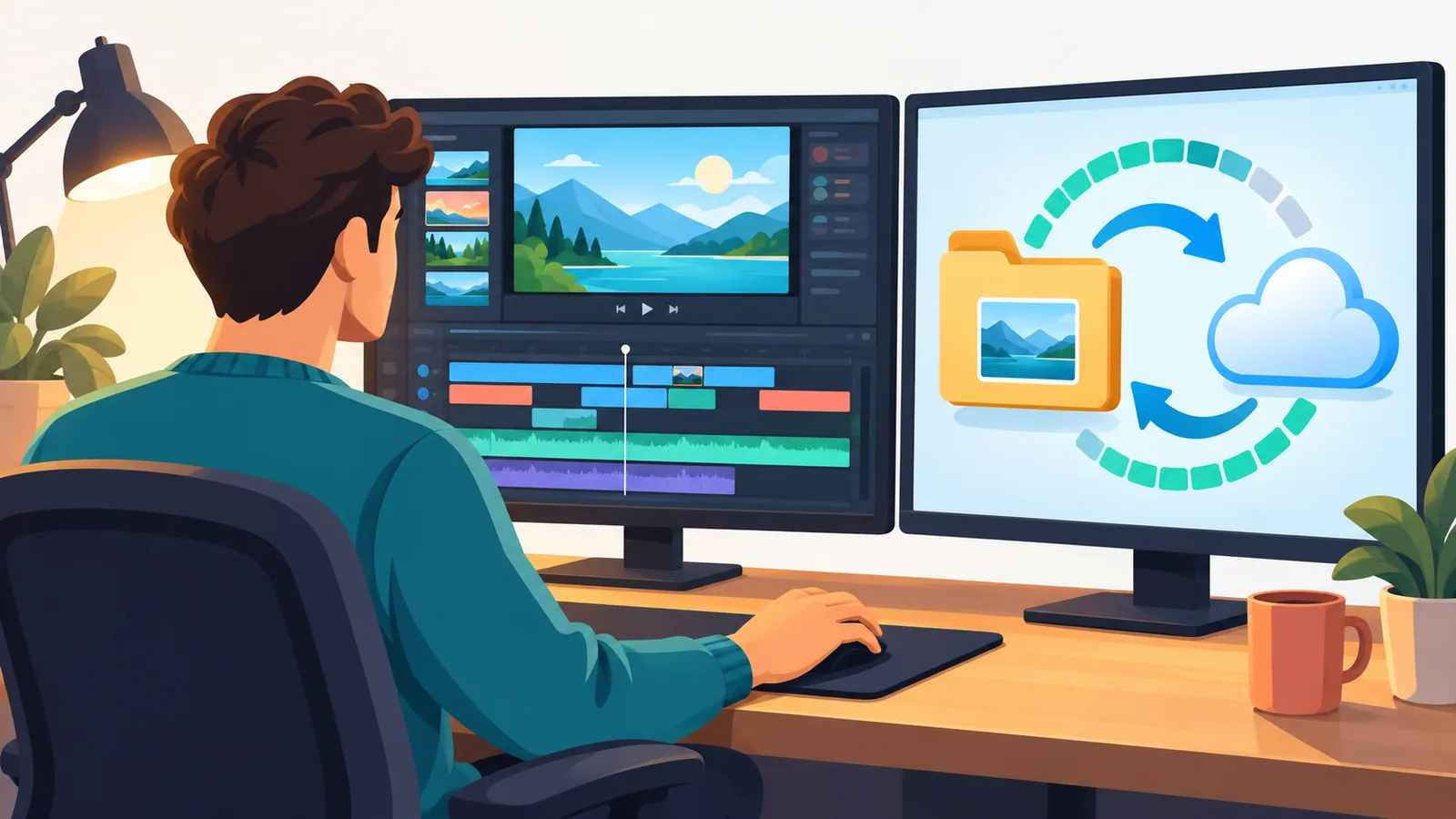
That’s a reviewer’s assessment, not a speed guarantee for every setup. On playback, Dropbox lets you choose auto, 360p, 480p, 720p or 1080p [S5]. Standard preview is limited to files under 100GB and supported formats [S4].
Best for editors and freelancers working through revisions.

OneDrive: Solid Browser Uploads and Wide Format Support
OneDrive handles web uploads up to 250GB per file, depending on your browser. Microsoft recommends the desktop app for large transfers [S7].
🛒 Recommended Product
It previews several audio and video formats, but playback can fail at high bitrates or H.264 levels in some browsers [S8]. Best for people who want to upload large single files through the browser.
Side-by-Side Comparison Table
This table sums up the verified facts. Where a value isn’t confirmed, check the official page.

| Service | Best for | Upload note | Playback note | Plan or storage note | Main watch-out |
|---|---|---|---|---|---|
| pCloud | Streaming a personal library | Any file size [S2] | Built-in video player [S2] | 500GB, 2TB, 10TB plans [S2] | Quality depends on network and device |
| Google Drive | Everyday storage | File must fit remaining storage [S3] | Limited formats and codecs [S3] | See official page | Some formats fail on some devices |
| Dropbox | Editing and revisions | Desktop app advised above 350GB on web [S6] | Auto to 1080p [S5] | See official page | Preview under 100GB only; no encrypted previews [S4] |
| OneDrive | Large browser uploads | Up to 250GB per file on web [S7] | May fail above 50Mbps or H.264 level 5.1 [S8] | See official page | Depends on browser |
Storage vs Video Hosting: Which One Do You Actually Need?
Storage keeps and shares files, while hosting is built to publish and stream to viewers. The right choice depends on who will watch.
- Personal archive: cloud storage is enough.
- Client review: a shared link from storage usually works.
- Public audience: look beyond these four services to a dedicated hosting platform.

Backup, Version Recovery and Security Checks
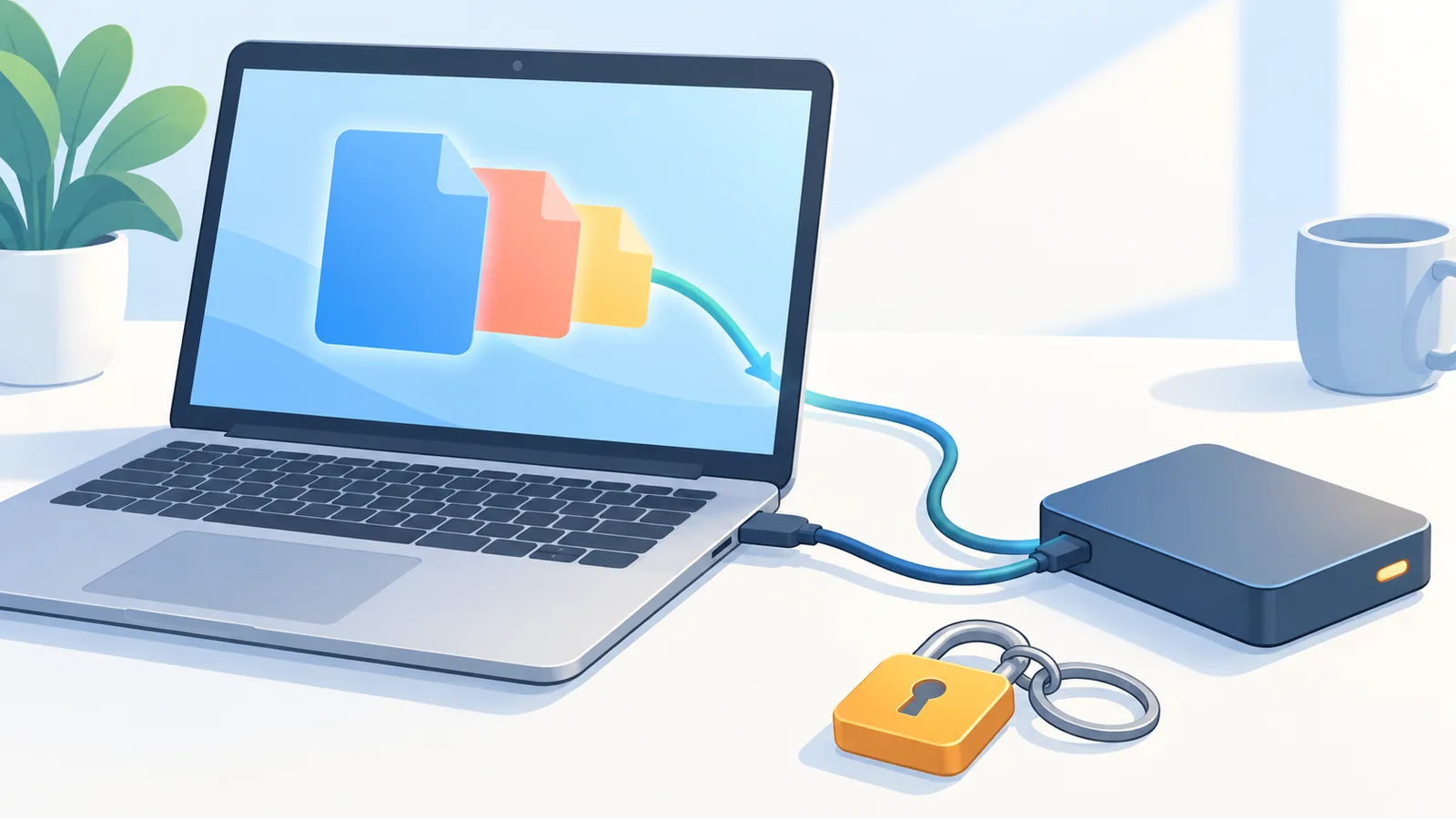
Cloud sync is not a backup. If you delete or overwrite a file, the change can follow you everywhere.
So copy important videos to another drive or a separate account. Then run a few quick checks:
- Is version history available on your plan?
- Do you rely on encrypted files? Dropbox can’t preview those [S4].
- Do you have storage headroom? Drive needs the file to fit your remaining space [S3].
How to Choose: A Quick Checklist
Start with the biggest file you own, then work down this list.
- File size: confirm your largest clip fits the upload limit.
- Playback test: check your codec and bitrate.
- Plan size: match storage to your library.
- Editing sync: pick efficient sync if you revise often.
- Sharing and backup: plan for reviewers and a second copy.

The best test is practical. Upload one real video, play it on the web and on your phone, then decide.
FAQ
Which cloud storage has no video file size limit?
pCloud’s official page lists uploads of any file size, and Zapier notes no video file size limit [S1][S2]. That isn’t a playback guarantee.
Can I watch videos directly in the cloud?
Yes, within format limits. Drive, Dropbox and OneDrive preview supported formats, and pCloud has a built-in player [S2][S3][S4][S8].

Why does my uploaded video not play?
Often the codec, bitrate or file size is outside what the previewer supports. Check the service’s supported formats [S3][S8].
Is cloud storage the same as a backup?
No. Keep a separate copy on another drive or account.

Is video storage the same as video hosting?
No. Storage keeps and shares files, while hosting publishes video to viewers.
Final Take and Next Step
Choose pCloud to stream your own library, Dropbox for editing, Google Drive for everyday clips and OneDrive for big browser uploads. In short, match the service to the job, not to a ranking.
Today, upload one real video to your top pick and play it on both web and phone.
Before you buy, check each service’s official page for current plans and limits.
References
- [S1] Zapier: The 9 best cloud storage apps in 2026
- [S2] pCloud: Pricing and plans
- [S3] Google Drive Help: Store and play video in Google Drive
- [S4] Dropbox Help: What types of files can I preview in Dropbox
- [S5] Dropbox Help: How to play video and audio files in Dropbox
- [S6] Dropbox Help: Uploading to Dropbox
- [S7] Microsoft Support: Upload photos and files to OneDrive
- [S8] Microsoft Support: File types supported for previewing
- [S9] Tom’s Guide: Best cloud storage in 2026
- [S10] TechRadar: Best cloud storage of 2026
Try Atovia’s free tool for this topic →
Want more comparisons and buying guides?
Citing this article
Source: Atovia (Atovia). https://atovia.kr