
⚠️ This page connects you to Atovia’s partners and affiliate markets. We may receive a commission from affiliate partners for activities made through these links. Discount offers may change at any time according to policy! Rest assured, there are no additional costs to you! We hope this saves you time in finding the right items!
Your Brother DCP-T420W worked yesterday, and today a document sits in the queue while nothing comes out. If that sounds familiar, you are in good company, and most cases can be sorted out without a technician. This guide works through the problem in a sensible order, using Brother’s official support guidance, grouped by symptom. Results differ from printer to printer and setup to setup, so treat each step as a check, not a guarantee.
Table of Contents
- What should you check first when the DCP-T420W won’t print?
- How do you fix an Offline or Paused printer status?
- Why won’t the DCP-T420W connect to Wi-Fi?
- What causes poor print quality and white lines?
- What should you do when paper won’t feed or jams?
- Should you reinstall drivers or reset the printer?
- In what order should you troubleshoot?
- References
What should you check first when the DCP-T420W won’t print?
Start with three quick checks: the printer’s LED error lights, the selected driver, and the online status. Brother’s support guidance lists these first because most “dead printer” cases come down to one of them.
Then look at the print queue on your computer. On Windows, an old stuck job can block everything behind it, so Brother advises canceling the documents waiting in the queue and sending a fresh test page.
- Look at the printer’s LEDs for an error indication.
- Confirm the Brother driver for your model is the selected printer.
- Check that the printer shows as online.
- Cancel old documents in the queue, then try a new job.
How do you fix an Offline or Paused printer status?
On Windows, you can usually clear an Offline or Paused status from the printer queue menu. Brother documents this fix for the DCP-T420W in its support FAQ.

Open the queue for the printer, look in its menu for the Offline or Paused setting, and turn it off. Then send a short test page to see whether the job goes through.
What do you lose when you clear the queue?
Every document waiting in the queue is canceled and has to be sent again. If a job matters, note what it was before you clear it.
If the status flips back to Offline right away, the printer may have lost its connection. In that case, move on to the Wi-Fi section below.

Why won’t the DCP-T420W connect to Wi-Fi?
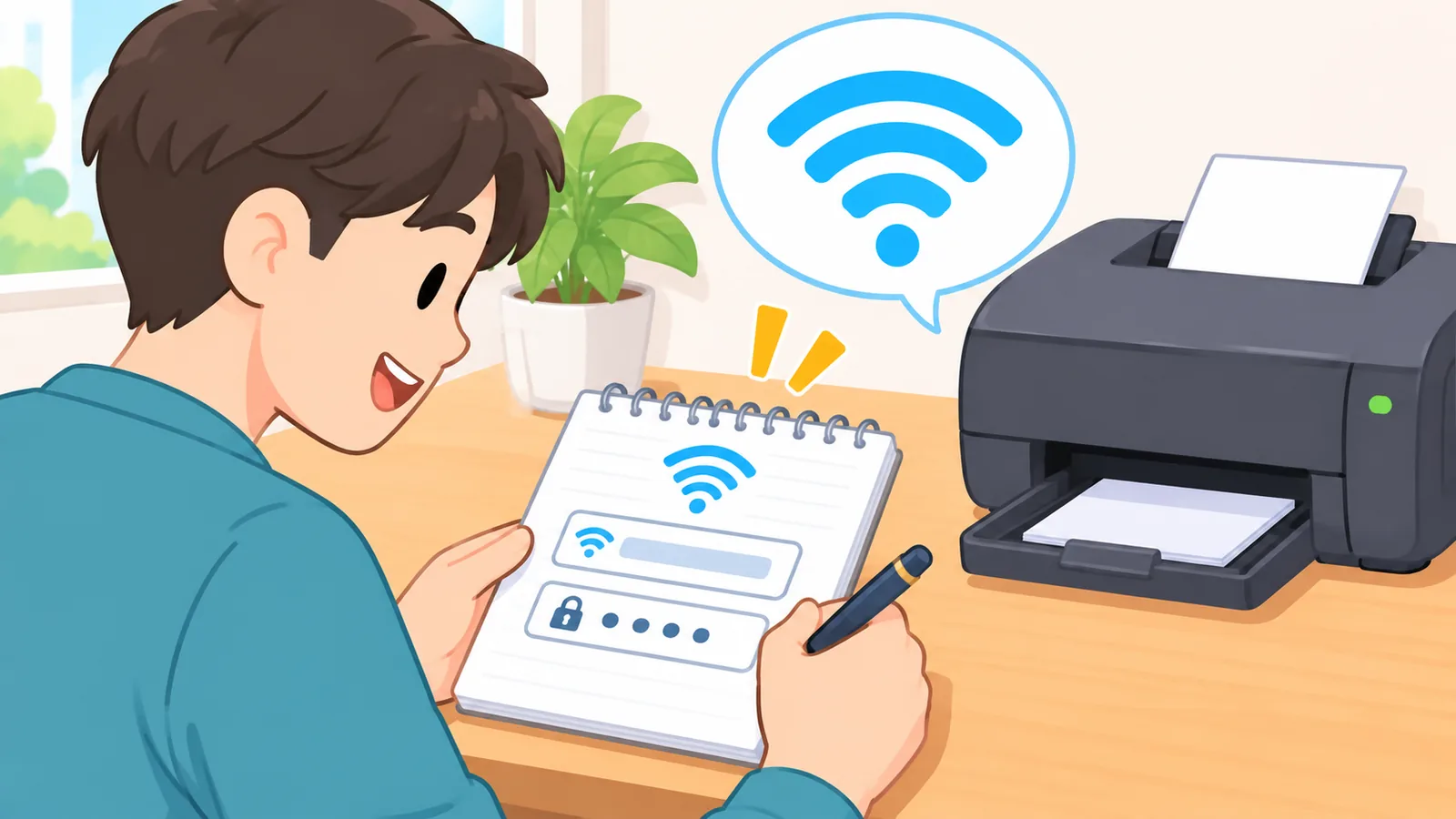
The fastest way to find a Wi-Fi fault is to print the WLAN report (a printed summary of the wireless connection attempt) and read its error code. On the DCP-T420W, press the Wi-Fi and Stop buttons together, then press the Wi-Fi button.
One code you may see is TS-02, which relates to the router not being detected. Brother suggests restarting the router, running the setup with the printer close to it, and double-checking the SSID (the network name) and the security details.
Here’s one more thing to check. Brother’s manual says this model may not support 5GHz networks, so set the router to 2.4GHz or a mixed 2.4/5GHz mode. Treat this as one item on the checklist, not as the cause of every failure.

| What you see | What it suggests | Try first |
|---|---|---|
| WLAN report shows TS-02 | Router not detected | Restart router, move printer closer, verify SSID and security |
| Printer won’t join the router | Network may be 5GHz only | Use 2.4GHz or mixed mode |
| Computer says Offline | Queue status or lost link | Clear Offline or Paused in the queue menu |
| No clear cause | You need an error code | Print the WLAN report |
What causes poor print quality and white lines?
Faded or streaky output usually traces back to settings and supplies. Brother’s manual points to the paper type setting, ink status and storage, the recommended paper, and genuine Brother ink made for your model.
For white lines across the page, Brother suggests cleaning the print head and then checking print alignment. Head cleaning uses ink, so run it when you see a quality symptom rather than as routine upkeep.

🛒 Recommended Product
Room temperature matters too. Brother lists the recommended operating range for the DCP-T420W as 20 to 33°C.
What should you do when paper won’t feed or jams?
If paper won’t feed, check how it is loaded before anything else. Brother’s guidance covers three points: the paper tray is pushed in all the way, the rear jam clear cover is closed, and the paper sits flat and straight.
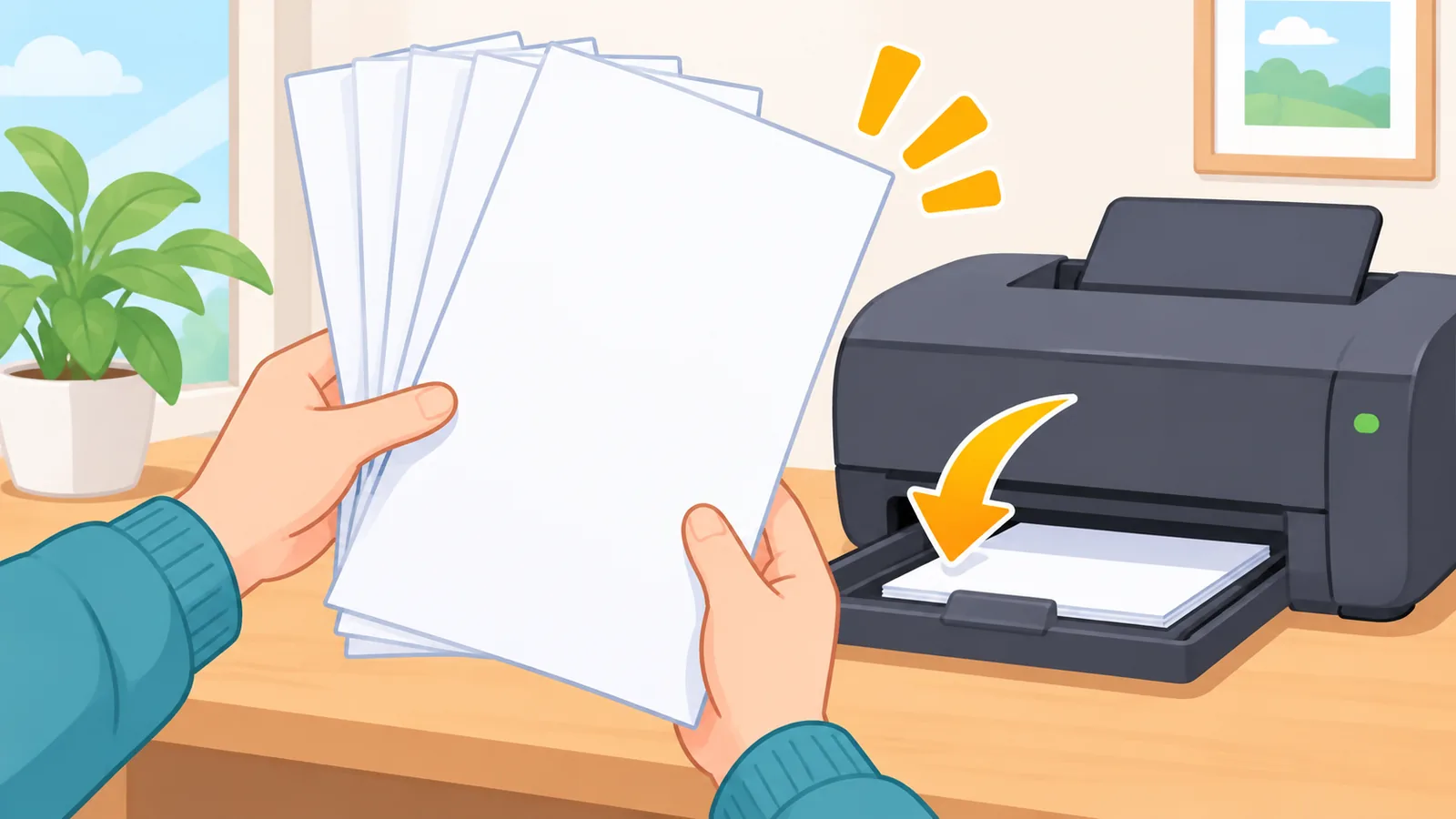
If that doesn’t help, Brother lists cleaning the feed rollers as an option to consider.
What if several sheets feed at once?
Take the paper out, fan it well, and load it again. Also make sure you haven’t pushed the stack in too far.
For a visual walk-through of a stuck sheet, Brother Global Support has a video on printer and paper jams that includes this model among others.
Should you reinstall drivers or reset the printer?
Try the lower-effort fixes first, and keep resets for last, because a reset erases settings. Cancel stuck jobs, clear the Offline status, read the WLAN report, and check paper and ink before anything drastic.
There are two kinds of reset. A network reset returns the print server settings, including the password and IP address information, to factory defaults. A full reset returns all machine settings to factory defaults, and Brother recommends it mainly when you dispose of the machine.
So before either one, write down your network details. Otherwise you will be re-entering them from scratch.

Key Takeaways
- WLAN report: press Wi-Fi and Stop together, then press Wi-Fi.
- TS-02 relates to the router not being detected.
- Recommended operating temperature is 20 to 33°C.
- A network reset erases the password and IP address settings.
In what order should you troubleshoot?
Go from cheap checks to costly ones. Start with the LEDs, driver and queue, then the Offline or Paused status, then Wi-Fi, then print quality and paper, and keep resets as a last resort.
Today, do one thing: if you can’t print, cancel any stuck jobs in the queue. If the printer won’t stay connected, print the WLAN report and read the code. Which symptom is giving you trouble?
Printer still misbehaving? Print the WLAN report today and compare its error code with the table above.
References
- Brother, FAQs & Troubleshooting for the DCP-T420W – confirmed how Brother groups network, print quality, and general printing problems.
- Brother, Paper Handling and Printing Problems – confirmed the no-print checks, ink and paper guidance, white-line fixes, 20 to 33°C range, and feed problem steps.
- Brother, The printer status is Offline or Paused – confirmed how to clear Offline or Paused from the queue menu.
- Brother, Wireless Network Settings and Reset Your Machine – confirmed the WLAN report steps, TS-02, the 2.4GHz note, and what each reset erases.
- Brother Global Support, Printer Jam or Paper Jam (video) – confirmed a visual jam guide that covers this model.
Try Atovia’s free tool for this topic →
Citing this article
Source: Atovia (Atovia). https://atovia.kr