
⚠️ This page connects you to Atovia’s partners and affiliate markets. We may receive a commission from affiliate partners for activities made through these links. Discount offers may change at any time according to policy! Rest assured, there are no additional costs to you! We hope this saves you time in finding the right items!
- What Facebook History Actually Means
- Where to Find the Activity Log
- How to Jump to an Older Year
- How to Filter by Activity Type or Search Within the Log
- How to Check Your Facebook Search History
- Who Can See Your Activity Log?
- What Happens to Hidden or Deleted Posts?
- Download or Review Your Information in Accounts Center
- Quick Checklist Before You Start
- FAQs
You remember posting something a few years ago, but you can’t scroll back far enough to find it. Facebook keeps a record of your own activity, and you can look through it yourself.
This guide walks through where that record lives, how to narrow it down, and what it does and doesn’t show. Menus change often, so I’ll point out where you may need to look around a bit.
- The Activity Log is visible only to you, but items recorded in it can still appear on your timeline, in search, or in friends’ News Feeds.
- The log opens with the latest activity of the current year, and you can pick a year to move back in time.
- Search history can appear in the log, and individual searches can be cleared.
- The official help page carries a 2019 notice, so menu names and paths may differ on your screen.
What Facebook History Actually Means
When people say “Facebook history,” they usually mean the Activity Log, a place to review and manage your own posts and activity. It is a record of what you did, not a record of what other people did on your profile.
According to the Facebook Help Center, the log can include your posts, hidden posts, photos and videos, and friend-related activity. It can also include your Facebook search history.
Here’s the catch: the help page that describes all this carries a 2019 notice. Newer app menus may use different names, so treat the labels below as a guide rather than an exact map.
Where to Find the Activity Log
Start on your own profile and look for an Activity Log option. That is where the Facebook Help Center says to begin.
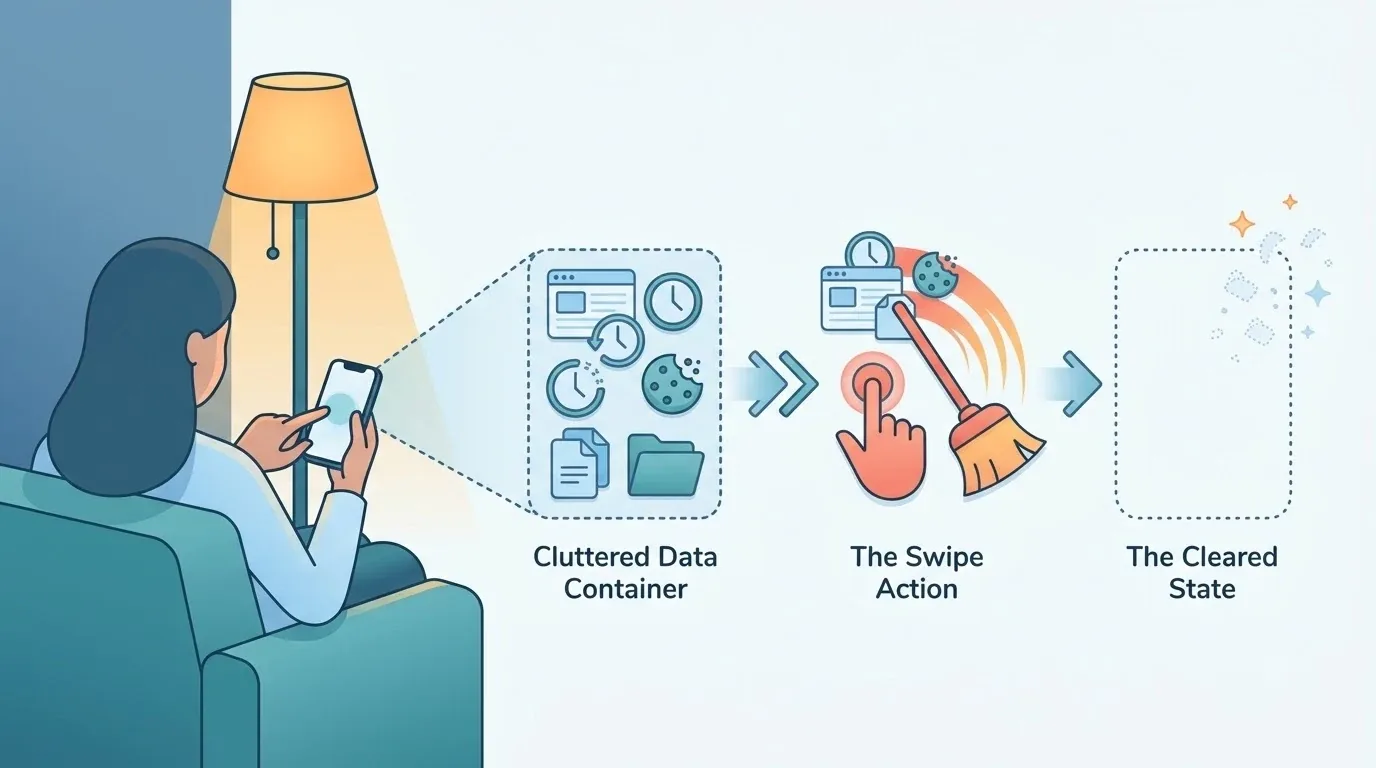
- Sign in to the account whose history you want to review.
- Open your own profile.
- Look for an option labeled Activity Log, often near your profile’s menu or settings.
- Open it and wait for your list of activity to load.
I’m using “look for” wording on purpose. No current, device-specific path is confirmed in the sources used here.
What if the menu looks different on my phone or computer?
If you can’t find the option, the label has probably moved or been renamed. The help page is dated 2019, and menu names can change after app updates.
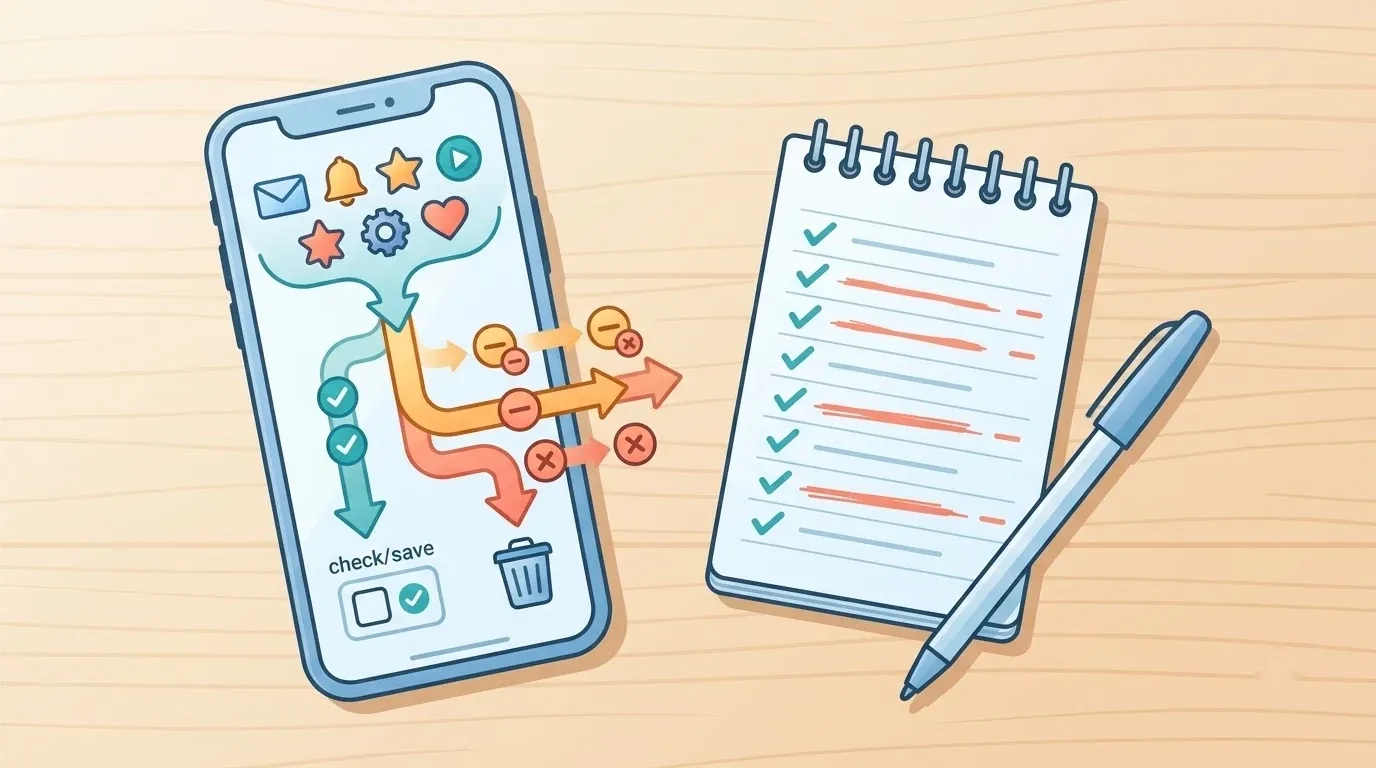
Two other places are worth checking. Meta’s Access Your Information tools and Accounts Center, covered in section 8, also hold account information.
How to Jump to an Older Year
The log opens with the latest activity from the current year, and you can choose a year to go back in time. The Facebook Help Center describes this year-by-year view.
- Open your Activity Log.
- Note that you start at the most recent activity of the current year.
- Look for a way to select a year, such as a year list or date control.
- Pick the year you want and scroll through what appears.
Say you posted a trip photo about five years ago. Choose that year first, then scroll or search until you spot it.

How to Filter by Activity Type or Search Within the Log
You can filter the log by type of activity, or use the search inside the log to find a specific item. Both are described in the Facebook Help Center page.
Filtering helps when you know what kind of thing you’re after. Searching helps when you remember a word from it.
- Posts you made
- Photos and videos
- Hidden posts
- Friend-related activity
- A keyword typed into the log’s own search
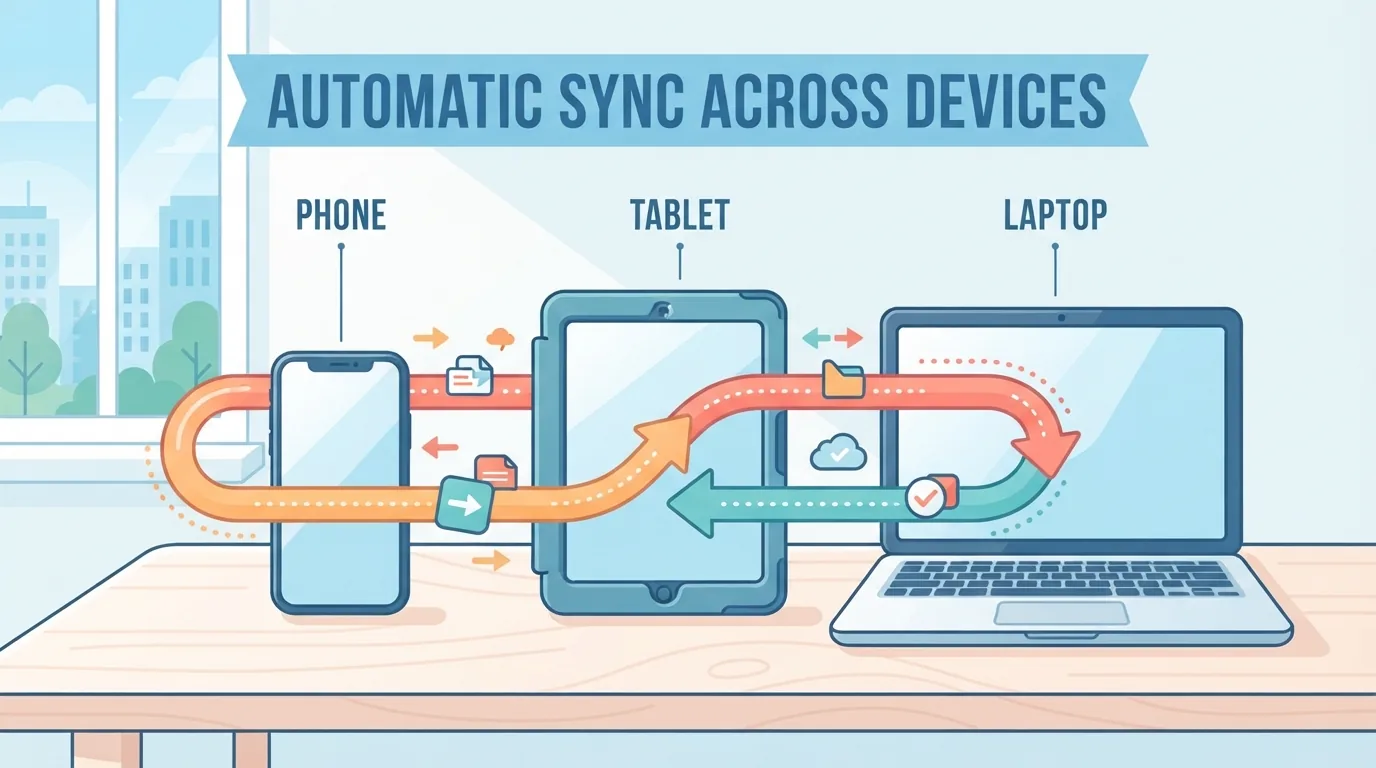
One more thing. A third-party guide from PruneSocial describes a Manage Activity option with date filters. That guide is not an official Facebook document, and the option may not match your screen.
How to Check Your Facebook Search History
Your Facebook searches can appear in the Activity Log, where you can review them and clear individual ones. The Facebook Help Center notes that search history may be included, and a 2012 Meta announcement said you can remove single searches.
- Open your Activity Log.
- Look for a category or filter related to searches.
- Review the list of searches shown.
- Look for an option to remove an individual search, if you want to clear one.
The Meta announcement is from 2012, so confirm the wording and buttons in your current menu before relying on it.

🛒 Recommended Product
Who Can See Your Activity Log?
Only you can see the Activity Log itself. The Facebook Help Center is clear on that point.
But “private log” doesn’t mean “private content.” A post recorded there may still show up on your timeline, in search, or in friends’ News Feeds, depending on its audience settings.
| Question | Activity Log view | Where a post may still show |
|---|---|---|
| Who sees it | Only you | Others, depending on audience settings |
| Where it appears | Your log | Timeline, search, friends’ News Feeds |
| What to check | The entry itself | The post’s audience setting |
What Happens to Hidden or Deleted Posts?
Hiding a post from your timeline does not always remove it from other places on Facebook. The Facebook Help Center warns about this for photos.

For example, a photo hidden from your timeline may still appear in News Feed or search, depending on its settings. So if privacy is your goal, check the audience of the item, not just whether it is hidden.
Now for the honest limit. The sources used here do not confirm that every deleted item can be recovered, or that every watched video can be found again, so I won’t promise either.
Download or Review Your Information in Accounts Center
Meta groups its information access and download tools in Accounts Center. This is another place to look if the Activity Log doesn’t have what you need.

A little history helps explain the shifting menus. In 2021, Meta said it had organized Access Your Information into eight categories, including activity, friends and followers, preferences, and login information, and added a way to search them. In 2023, Meta announced that Download Your Information and Access Your Information had come together in Accounts Center.
A 2025 Meta Engineering post also discusses data logs as part of Meta’s access tools. I’m mentioning it only as background, with no claims about specific features.
| Question | Activity Log | Accounts Center |
|---|---|---|
| Purpose | Review and manage your posts and activity | Access and download your information |
| What you can do | Pick a year, filter, search | Browse categories, search them, download |
| Where it fits | Finding a specific past item | Broader account information |
Quick Checklist Before You Start
A few quick checks save a lot of scrolling. Run through these before you dig in.
- Make sure you’re signed in to the right account.
- Choose the year you think the item is from.
- Filter by activity type to cut down the list.
- Check the audience setting if you’re worried about who can see something.
- Expect menu names to differ from older guides.
FAQs
Can I see my old posts?
Yes, the Activity Log is designed for reviewing your posts and activity, and you can move back to earlier years.
Can I filter by year or type?
Yes. The Facebook Help Center describes picking a year, filtering by activity type, and searching inside the log.

Is my search history saved?
It can appear in the Activity Log, and individual searches can be cleared. Confirm the current wording in your menu, since the Meta announcement is from 2012.
Do others see my Activity Log?
No, only you can see the log. Items recorded in it may still show elsewhere on Facebook, depending on settings.
Can I see who viewed my profile, or my recently watched videos?
The sources used here do not cover either one, so I can’t say yes or no.
What if I cannot find the menu?
Menu names change. Look around your profile for an Activity Log option, and try the Accounts Center tools as another route.
In short, open your Activity Log today and check one past year.
References
- Facebook Help Center, “Explore Your Activity Log”
- Meta Newsroom, “An Update to Activity Log” (2012)
- Meta Newsroom, “Introducing the New Access Your Information” (2021)
- Meta Newsroom, “Making It Easier To Manage Your Information Across Meta’s Apps” (2023)
- PruneSocial, “How to find your old Facebook posts” (2026), an unofficial third-party guide
- Meta Engineering, “Data logs: The latest evolution in Meta’s access tools” (2025)
Want more comparisons and buying guides?