⚠️ This page connects you to Atovia’s partners and affiliate markets. We may receive a commission from affiliate partners for activities made through these links. Discount offers may change at any time according to policy! Rest assured, there are no additional costs to you! We hope this saves you time in finding the right items!
- Check Your Internet Connection and Apple ID Status
- Verify iCloud Storage Space Is Not Full
- Confirm Date and Time Settings Are Correct
- Toggle iCloud Sync Off and On for Affected Apps
- Restart Your Device to Clear Sync Errors
- Check Apple System Status for Outages
- Sign Out and Back Into iCloud
- Update iOS, iPadOS, or macOS to the Latest Version
- Comparison of Common Causes: Storage vs Network vs Account Issues
- Troubleshooting Checklist for Stubborn Sync Failures
- Frequently Asked Questions
- Key Takeaways and Next Steps
If iCloud has stopped syncing, the fastest fix is usually to confirm your device is connected to the internet and signed into iCloud correctly, since most stalled syncs trace back to a network hiccup or an Apple ID sign-in issue rather than a deeper problem. This guide walks through every common cause in the order you should actually try them, from the quickest checks to the more involved resets.
- Most iCloud sync issues resolve after checking Wi-Fi and Apple ID sign-in status
- Low iCloud storage is one of the most common reasons sync silently stops
- Restarting the device and toggling iCloud settings often clears temporary sync errors
Check Your Internet Connection and Apple ID Status
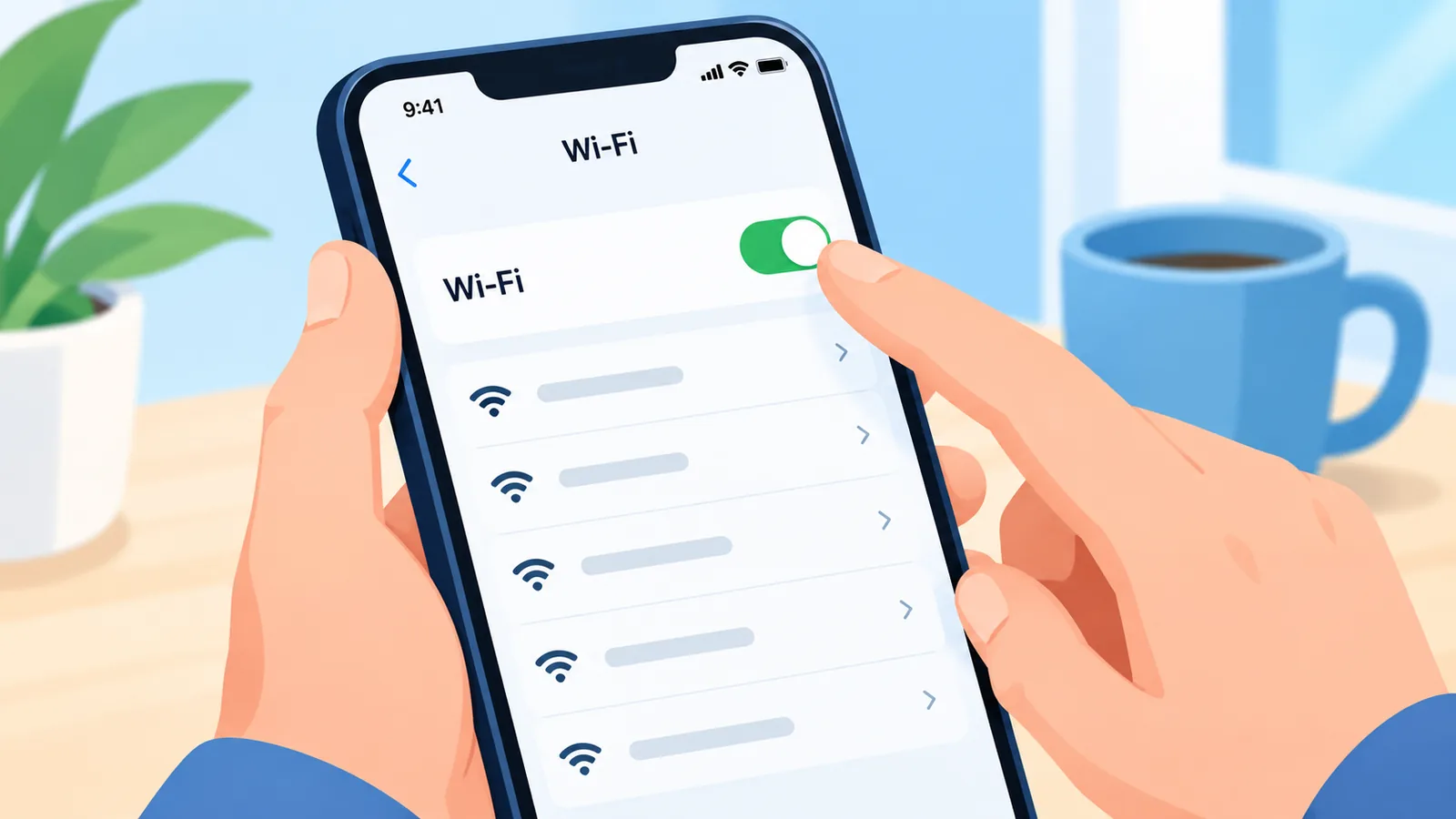
iCloud sync depends on an active internet connection, so start by confirming your device is connected to Wi-Fi or cellular data and can actually load a webpage. If the connection looks fine, open Settings, tap your name at the top, and confirm you are signed into the correct Apple ID with no red alert badges next to it. A weak or unstable Wi-Fi signal is a common cause of partial syncing, where some items update and others do not, so switching to a stronger network or moving closer to your router can resolve it on its own.
Verify iCloud Storage Space Is Not Full
When iCloud storage runs out, new photos, documents, and backups stop syncing even though the app appears to be working normally. Go to Settings, tap your name, then iCloud, and check the storage bar to see how much space is left. If storage is full, delete large backups or unused files from iCloud Drive, remove duplicate photos, or upgrade to a higher storage plan; sync typically resumes within a few minutes of freeing up space.
Confirm Date and Time Settings Are Correct
An incorrect date or time on your device can cause it to fail authentication with Apple’s servers, which blocks sync without producing an obvious error message. In Settings, go to General, then Date & Time, and enable “Set Automatically” so your device stays aligned with network time. This is an easy step to overlook, but it is worth checking before moving on to more disruptive fixes.
Toggle iCloud Sync Off and On for Affected Apps
If only specific apps like Photos or Notes have stopped syncing, toggling that app’s iCloud switch off and back on forces it to re-establish its connection. Go to Settings, tap your name, then iCloud, and find the toggle for the affected app. Turn it off, wait about 30 seconds, then turn it back on; this prompts the app to re-check its sync status from scratch rather than continuing to retry a stuck process.
Restart Your Device to Clear Sync Errors
A simple restart clears temporary background process errors, and stalled sync tasks are often among them. Power your device off completely, wait a few seconds, then turn it back on. This step is worth trying even if it seems basic, since it resolves a meaningful share of sync issues without requiring you to change any settings.
Check Apple System Status for Outages
Sometimes the problem is not on your device at all. Apple maintains a public System Status page that reports outages and service disruptions affecting iCloud, iCloud Drive, and related services. If the status page shows an active issue next to the service you are using, the fix is simply to wait until Apple resolves it on their end rather than continuing to troubleshoot locally.
Sign Out and Back Into iCloud
If the earlier steps have not worked, signing out of your Apple ID and back in can reset a sync session that has become stuck. Go to Settings, tap your name, scroll down, and tap Sign Out. After signing back in with your Apple ID and password, give the device time to re-download and re-sync your data. This step takes longer than the others, so it is best used after the faster fixes have been ruled out.

🛒 Recommended Product
Update iOS, iPadOS, or macOS to the Latest Version
Apple regularly ships fixes for sync-related bugs in software updates, and keeping your operating system current is an official recommendation for resolving many iCloud issues. Check Settings, then General, then Software Update on iPhone or iPad, or System Settings, then General, then Software Update on a Mac. Install any available update and restart the device afterward to ensure the fix takes effect.
Comparison of Common Causes: Storage vs Network vs Account Issues
| Cause | Symptom | Fix |
|---|---|---|
| Storage Full | New files or backups stop uploading | Free up iCloud storage or upgrade plan |
| Network Issue | Sync stalls, spins, or updates only partially | Reconnect Wi-Fi or switch networks |
| Account Issue | Sync fails silently or shows sign-in alerts | Sign out and back into Apple ID |
Troubleshooting Checklist for Stubborn Sync Failures
- Confirm the device has a stable internet connection
- Check that you are signed into the correct Apple ID with no alerts
- Verify iCloud storage has available space
- Confirm date and time are set automatically
- Toggle iCloud sync off and on for the affected app
- Restart the device
- Check Apple’s System Status page for outages
- Sign out and back into iCloud if the issue persists
- Update to the latest version of iOS, iPadOS, or macOS

Frequently Asked Questions
Why does iCloud show a spinning wheel and never finish syncing?
A spinning sync indicator simply means iCloud is attempting to sync and has not completed the process. It does not point to one single cause; it can result from a storage, network, or account issue, so working through the checks in this guide, starting with storage and network, is the most reliable way to resolve it.
Why is only some of my data syncing while other data is missing?
Partial syncing is often caused by a weak or unstable network connection that interrupts the sync process before it completes for every app. It can also happen if you have iCloud enabled for some apps but not others in your iCloud settings.

Why do my devices show different versions of the same file?
This usually happens when one device has not completed its sync yet, often due to a connectivity issue or the device being offline when the file changed. Confirming both devices are connected to the internet and letting sync finish fully typically resolves the mismatch.
How long should iCloud sync normally take?
There is no fixed time for a normal sync, since it depends on the size and number of files, your connection speed, and how many devices are syncing at once. As a general guide, sync that never progresses or takes unusually long compared to the amount of data involved is a sign to check storage, network, and account status rather than simply waiting longer.
What should I do if iCloud sync still fails after trying everything?
If sync still fails after working through the checklist, contact Apple Support directly, since they can check for account-specific or server-side issues that are not visible from the device.
Key Takeaways and Next Steps
Most iCloud sync problems come down to one of three causes: a network issue, full storage, or an account sign-in problem, and working through the checks in order, from fastest to most disruptive, resolves the majority of cases without needing to contact support. If sync still will not resume after restarting, toggling settings, and signing back in, checking Apple’s System Status page and keeping your software updated are the next places to look.
- Apple Support: iCloud System Status
- Apple Support: If iCloud isn’t working
- Apple Support: Manage your iCloud storage
Want more comparisons and buying guides?