⚠️ This page connects you to Atovia’s partners and affiliate markets. We may receive a commission from affiliate partners for activities made through these links. Discount offers may change at any time according to policy! Rest assured, there are no additional costs to you! We hope this saves you time in finding the right items!
You’re about to hand your laptop to a coworker, or you searched for a gift and don’t want it popping up in the address bar. Either way, you want the history gone. On a computer, Chrome keeps it under the More menu, then History, then Delete browsing data.
This guide walks through desktop, Android, and iPhone, then clears up the most common confusion: Chrome history is not the same as the search activity saved in your Google Account.
- The Fastest Way to Delete Chrome History
- How to Delete Chrome History on a Computer
- How to Delete Only Specific Pages or Sites
- How to Delete Chrome History on Android
- How to Delete Chrome History on iPhone and iPad
- What Else Can You Delete Along With History?
- Chrome History vs. Google Account Activity
- What Happens to Your Other Devices When Sync Is On?
- Does Incognito Mode Keep Your History Private?
- Frequently Asked Questions
The Fastest Way to Delete Chrome History
Open the More menu, go to History, choose Delete browsing data, pick a time range, and confirm the deletion. That is the whole routine on a computer.
Menu names and the default time range can differ a little depending on your device and Chrome version. If your screen doesn’t match exactly, look for the same wording in the menu.
How to Delete Chrome History on a Computer
On a computer, you delete history from the Delete browsing data dialog, where you choose how far back to go and what to remove.
How do I clear everything?
Choose All time as the time range and check the browsing history option. That removes the full history Chrome has stored for the data types you selected.
How do I clear just a recent time range?
Use the same dialog and pick a shorter range instead of All time. Everything outside that range stays in place.
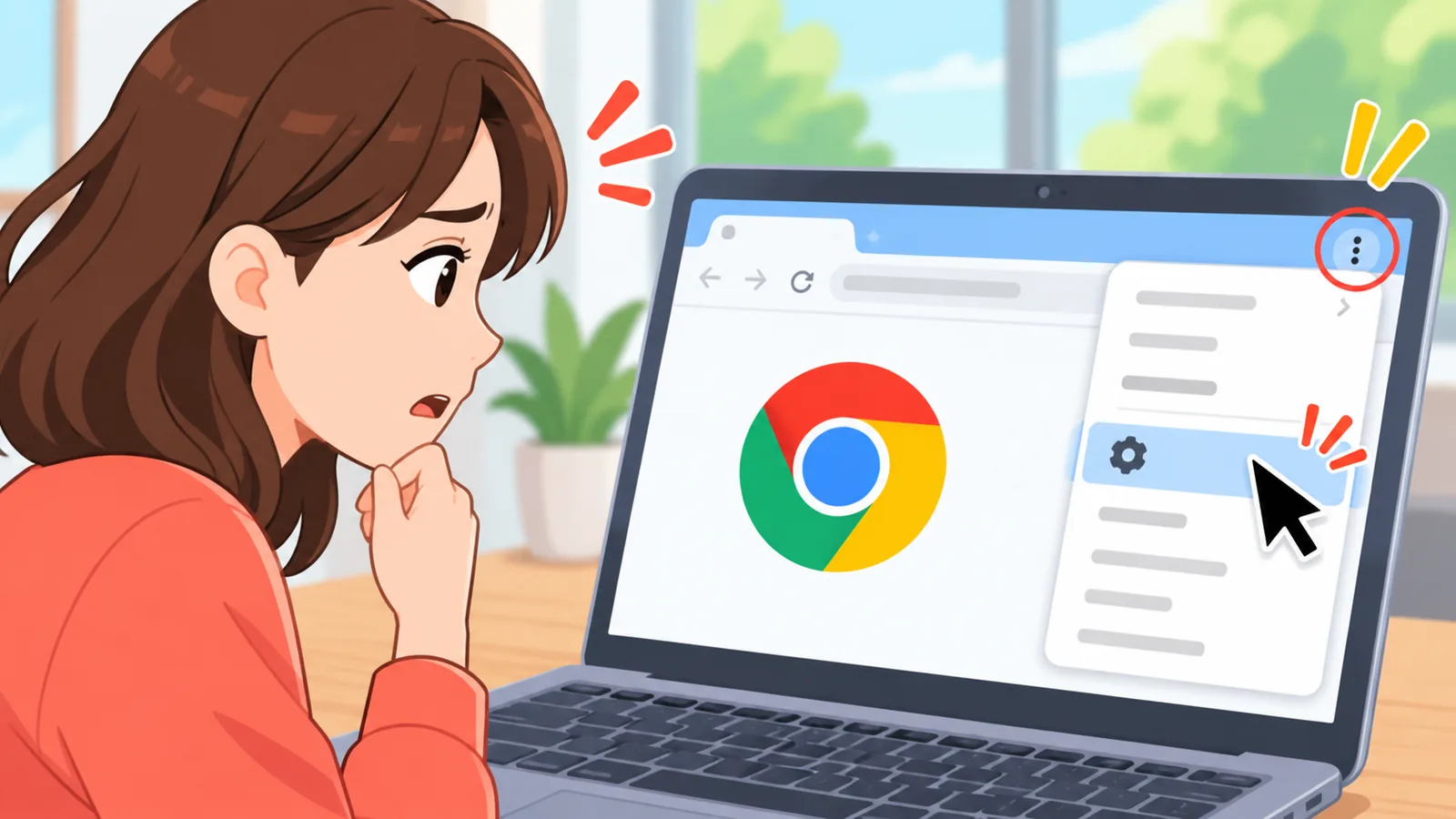
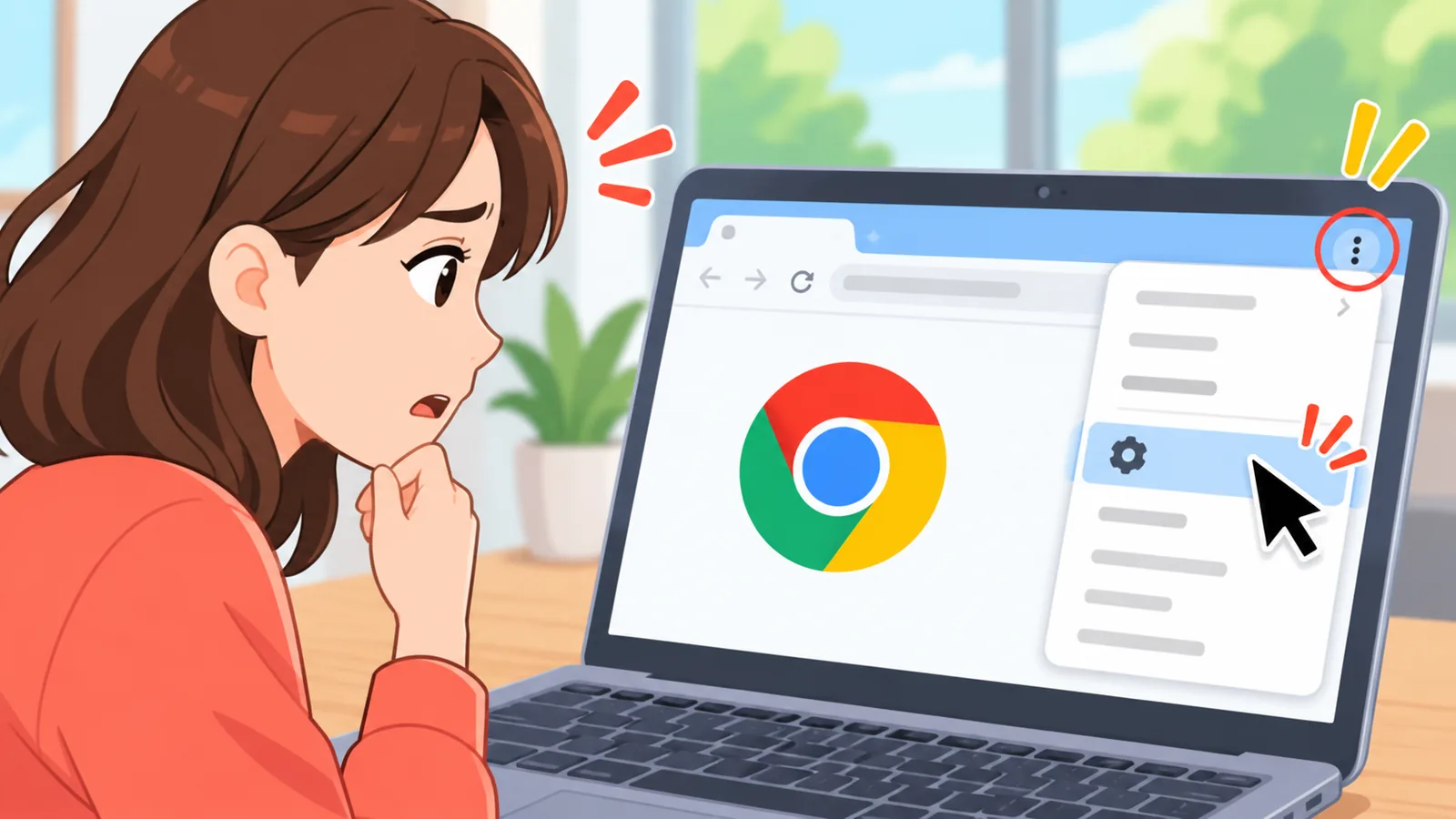
- Open Chrome on your computer.
- Click the More menu (three dots) at the top right.
- Go to History, then click History again.
- Click Delete browsing data.
- Choose a time range, such as All time, and check browsing history.
- Click the delete button to confirm.
One thing to know: Chrome’s history page shows pages you visited in the last 90 days, according to Google’s help page.

How to Delete Only Specific Pages or Sites
If you only want to remove a few entries, select them in your history list and delete them instead of wiping a whole time range.
On Android, Google’s help page says you can pick individual items or several at once from the history list. This is the better choice when most of your history is fine and a handful of pages are not.
Deleting an address also has side effects you may like. Chrome removes that page’s shortcut from the new tab page and stops suggesting that site in the address bar.

How to Delete Chrome History on Android
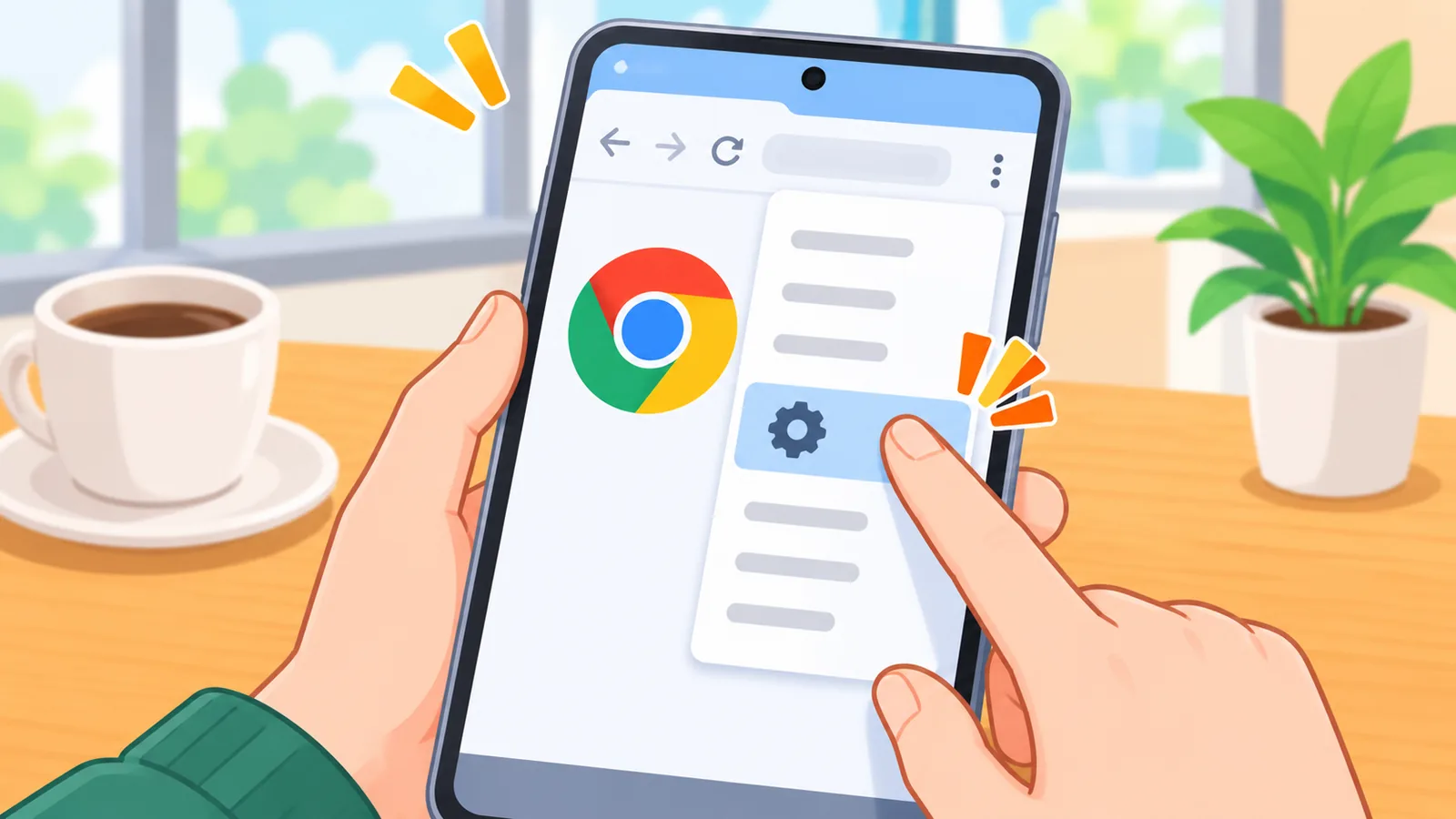
On Android, open the More menu in Chrome, choose Delete browsing data, set a range, check browsing history, and delete.
How do I clear all or a time range?
Pick the period you want, then make sure browsing history is checked before you confirm. Choosing a longer range removes more.
How do I keep my other data?
The same screen lists other data types too. Uncheck the ones you want to keep, and Chrome leaves them alone.
🛒 Recommended Product
How to Delete Chrome History on iPhone and iPad
On iPhone and iPad, the option also lives in Chrome’s menu, under its history and browsing data settings.
The exact taps vary by Chrome version, so I’d rather not guess them here. Google’s official Chrome Help page for browsing history has a section for iPhone and iPad with the current steps, and it is linked in the references below.
What Else Can You Delete Along With History?
The dialog lets you choose each data type separately, so history is only one of several things you can clear.
- Cookies and other site data
- Cached images and files
- Saved passwords
- Autofill form data
- Site settings

Key takeaways
- Check the boxes before you hit delete. Only checked items are removed.
- “All time” applies to the items you selected, so don’t assume passwords or cookies are gone.
- Chrome’s history page shows 90 days of visits.
- Google Account activity is managed separately from Chrome history.
Chrome History vs. Google Account Activity
Clearing Chrome history does not delete the activity saved in your Google Account. They are two separate records with two separate places to manage them.
| Question | Chrome browsing history | Google Account activity (My Activity) |
|---|---|---|
| Where is it managed? | In Chrome, under History | In your Google Account, under My Activity |
| How do I delete it? | By time range, including All time, or by selecting individual pages | All activity, individual items, or filtered by date or product |
| Does clearing it affect the other? | No, account activity stays | Chrome history stays on the browser |
One more detail from Google: some Google product activity may not be saved in My Activity at all. For a second explanation that separates search history from browser history, see the Tom’s Guide piece in the references.

What Happens to Your Other Devices When Sync Is On?
If you’re signed in to Chrome with history sync turned on, your history can include pages you visited on other devices.
Here’s the catch: deletion syncs too. Google says that deleting synced history removes it from your other signed-in, synced devices as well. So if you clear history on your laptop, the pages you opened on your phone can disappear from that synced history, too.
Does Incognito Mode Keep Your History Private?
Pages you view in Incognito aren’t saved to your Chrome history, but Incognito is not full anonymity.

| Not kept after the session | Still remains or may be visible |
|---|---|
| Sites you visited | Files you downloaded |
| Site data from the session | Bookmarks you saved |
| Chrome’s record of the visit | Activity visible to websites or network admins |
That last item matters on a school or work network, where the administrator may still see what you do.
Frequently Asked Questions
Will clearing history delete my passwords?
Only if you check saved passwords in the dialog. Passwords are a separate data type from browsing history, so review the checkboxes before you confirm.
Does clearing Chrome history delete my Google searches?
No. Searches saved to your Google Account are managed in My Activity, where you can delete everything, single items, or activity filtered by date or product.
Can I delete just the last hour or day?
Yes. Pick a shorter time range in the Delete browsing data dialog instead of All time. The available ranges can vary by device and version.
Why do I still see pages from my phone?
With sync on, your history can show pages from other signed-in devices. Deleting synced history removes it on the other synced devices too.
Does Incognito hide my activity from my school or employer?
Not necessarily. Incognito stops Chrome from saving your history, but websites and network administrators may still be able to see your activity.
Your next step today: open your Chrome history, delete what you want gone, then visit My Activity if you also want to review what your Google Account has saved.
References
- Google Chrome Help, “Check or delete your Chrome browsing history (Desktop)”
- Google Chrome Help, “Check or delete your Chrome browsing history (Android)”
- Google Chrome Help, “Clear Chrome browsing data”
- Google Account Help, “Delete your activity”
- Google Chrome Help, “Browse in private (Incognito)”
- Tom’s Guide, “How to clear your Google search history in 2026”
Want more comparisons and buying guides?
This article was written by Atovia with the help of AI tools. If you spot an error, please let us know via Contact and we will review and fix it.