
⚠️ This page connects you to Atovia’s partners and affiliate markets. We may receive a commission from affiliate partners for activities made through these links. Discount offers may change at any time according to policy! Rest assured, there are no additional costs to you! We hope this saves you time in finding the right items!
- Why a Routine Beats Guesswork
- Start by Capturing the Symptoms
- Check the Most Common Causes First
- Narrow the Candidates One Step at a Time
- Use Network Layers for Connection Problems
- Verify the Fix Before You Call It Done
- Document What You Tried
- Built-In Diagnostic Tools Worth Trying First
- When Built-In Tools Aren’t Enough
- Common Mistakes and a Quick Checklist
- FAQ
- Conclusion and Next Step
- References
Why a Routine Beats Guesswork
Something stopped working, and every fix you try feels like a coin flip. You toggle a setting, restart, toggle another one, and now you can’t remember what you changed.
As an Amazon Associate I earn from qualifying purchases.
The way out is a repeatable routine. Capture the symptoms, check the common causes first, narrow the candidates, confirm the fix held, and write down what you tried.
This guide walks through that routine step by step. It also covers the built-in tools on Windows and Mac, plus a few options for deeper network work.
[[IMAGE_1]]
Start by Capturing the Symptoms
Before you fix anything, write down what is actually happening. TechTarget’s troubleshooting guide starts here: collect the symptom, when it began, where it happens, and under what conditions.
Then ask one more question: can you reproduce it every time, or only sometimes? A problem you can trigger on demand is far easier to test than one that appears at random.
A short written record also saves time later. Once you start trying fixes, your memory of the original behavior gets fuzzy fast.
What counts as a good symptom note?
Three lines are enough: what you see, when it began, and what you were doing at the time. Add whether other devices or users are affected if you know.

[[IMAGE_2]]
Check the Most Common Causes First
Simple explanations come first because they are the likeliest and cheapest to rule out. TechTarget recommends starting with common causes and then eliminating candidates to narrow the scope.
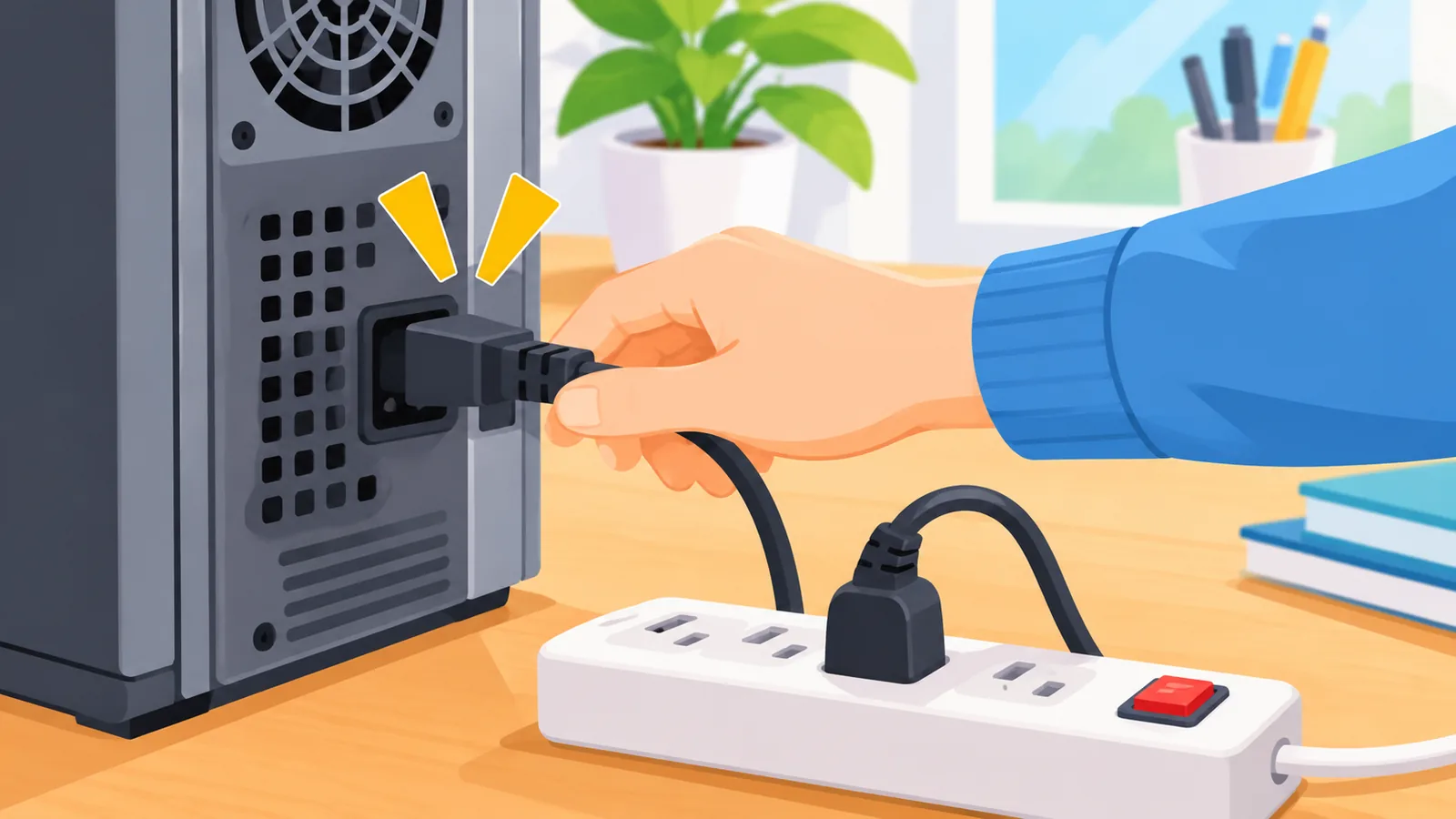
- Is the device powered and the cable seated?
- Is the right setting or account selected?
- Did anything change just before the problem began?
- Do other devices or users have the same issue?
- Is an update pending?
Here’s the catch: a reboot or reset is not a universal cure. Changing many settings at once also hides the real cause, because you can’t tell which change mattered.
When is a restart worth trying?
Try it when it’s quick and harmless, and note the result either way. If a restart helps only briefly, that pattern is itself a clue worth recording.
[[IMAGE_3]]
Narrow the Candidates One Step at a Time
Rule out causes one by one so the search area keeps shrinking. Each test should answer a single question.

When several components sit in a chain, TechTarget notes that testing the middle first can isolate the fault faster, much like a binary search. You then only need to look at one half of the chain.
Another clue is comparison. If one device or setting works and another doesn’t, the differences are candidates. Cisco Press points out the limit: you may find what differs without finding the root cause.
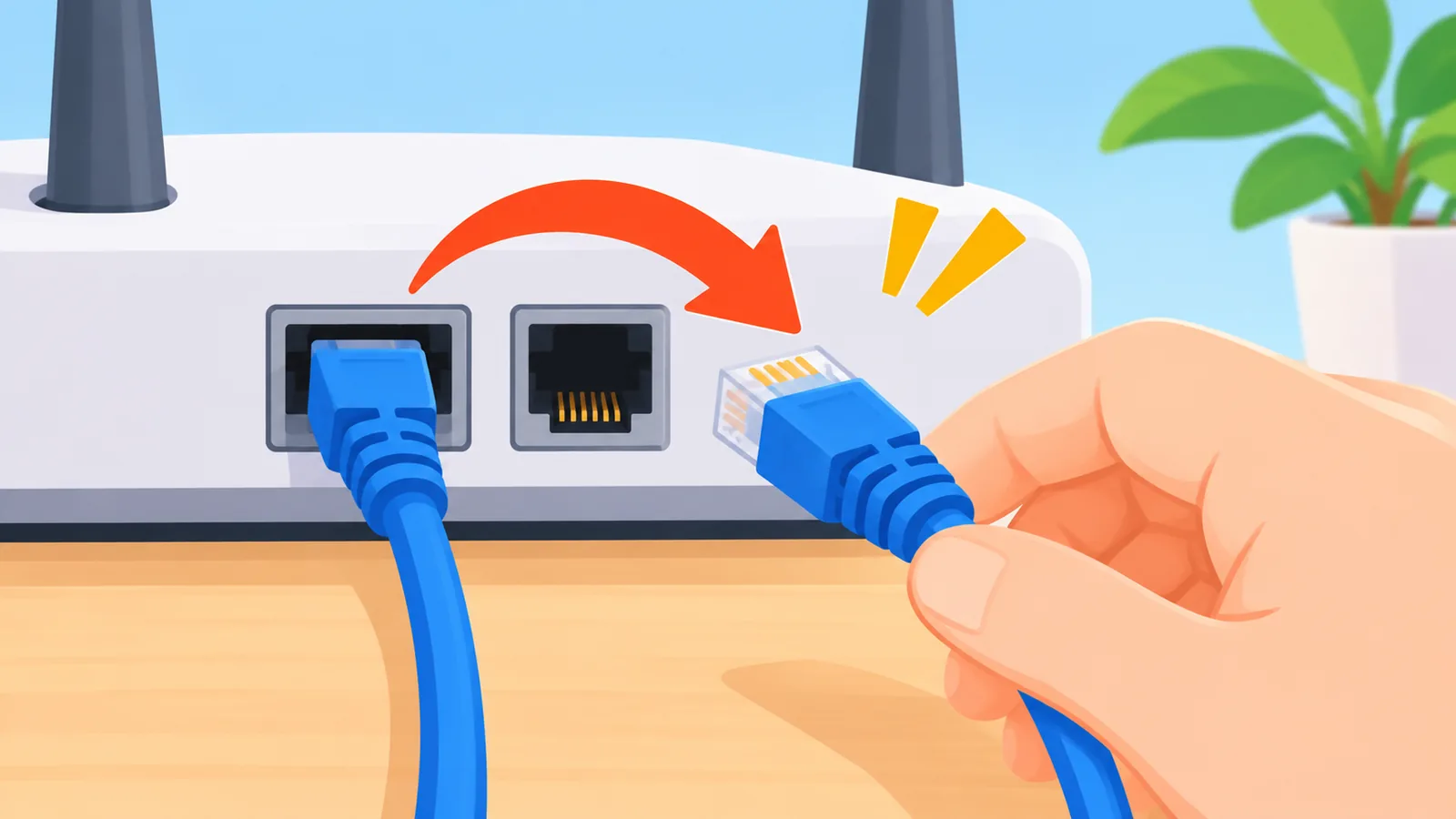
Swapping a cable, port, or device to see whether the problem moves can isolate a physical part. But if there is more than one cause, this can lead you to the wrong conclusion.
How do you test one change at a time?
Change one thing, test, and note the result before touching anything else. If it didn’t help, consider undoing it so the next test starts from a known state.
[[IMAGE_4]]
Use Network Layers for Connection Problems
Layered thinking turns “the internet is down” into a short list of places to look. Cisco Press describes three structured approaches built on the OSI model.
- Top-down: start at the application layer and work down.
- Bottom-up: start at the physical layer and work up.
- Divide and conquer: start in a middle layer and move up or down based on what you find.
Cisco Press says a structured approach can be faster than random attempts, but the best method depends on the problem. If one app fails while others work, top-down is a natural fit. If nothing connects at all, checking physical parts first often makes sense.
Does a successful ping mean the network is fine?
No. A single good result doesn’t prove the whole path is healthy. Treat it as one data point and keep testing the part that matches your symptom.
[[IMAGE_5]]
Verify the Fix Before You Call It Done
A fix is done only when the symptom no longer appears and the function works again. TechTarget stresses confirming both, not just one.
🛒 Recommended Product
🛒 Recommended Product
Fixes can also cause side effects elsewhere, so keep an eye on related systems for a while. Before any reset, file deletion, or operating system reinstall, back up your data and check what the action will affect.
[[IMAGE_6]]
Document What You Tried
Record the steps that worked and the ones that failed. TechTarget recommends logging both, because failed attempts tell the next person what to skip.
A simple template is enough: symptom, change made, result. If the problem returns, those notes turn a fresh mystery into a quick lookup.
[[IMAGE_7]]
Built-In Diagnostic Tools Worth Trying First
Start with the tools already on your computer. They cover many common cases without extra software.
On Windows, Microsoft’s Get Help offers troubleshooters for areas such as audio, Bluetooth, camera, network, printer, program compatibility, and updates. After a troubleshooter runs, Get Help shares what it found and possible actions. Microsoft does not promise it will solve every problem.
On a Mac, Apple Diagnostics looks for potential hardware problems. Apple’s documentation states that it does not check software problems such as external device or app conflicts.
Key Takeaways
- Windows Get Help troubleshooters cover audio, Bluetooth, camera, network, printer, compatibility, and updates, but don’t guarantee a fix.
- Apple Diagnostics checks Mac hardware, not external devices or app conflicts.
- A passing diagnostic doesn’t rule out a real problem.
- Back up before resets, deletions, or reinstalls.
[[IMAGE_8]]
When Built-In Tools Aren’t Enough
When built-in tools come up empty, look at deeper network analysis or structured learning. Wireshark captures network packets live or analyzes saved captures, and its official site describes it as free and open source.

The catch is that the data it shows is detailed, so reading it can require networking knowledge. Cisco Press’s article on structured approaches is a good read if you want to learn the method behind network diagnosis. It’s aimed at network troubleshooting, not general consumer repair.
| Option | Best for | Scope | Main limit | Cost or access |
|---|---|---|---|---|
| Microsoft Get Help | Everyday Windows issues | Audio, network, printer, updates, more | No guaranteed fix | Windows support tool |
| Apple Diagnostics | Suspected Mac hardware faults | Hardware only | Skips external devices and app conflicts | Mac diagnostic tool |
| Wireshark | Deep network analysis | Packet capture and analysis | Needs networking knowledge | Free, open source |
| Cisco Press article | Learning network methods | Structured approaches | Not a consumer repair guide | Online article |
[[IMAGE_9]]
Common Mistakes and a Quick Checklist
Most failed troubleshooting comes from four habits: changing several things at once, skipping notes, trusting one normal result, and resetting before backing up.
- Write down the symptom, timing, and conditions.
- Run through the common causes.
- Change one thing at a time and record each result.
- Confirm the symptom is gone and the function works.
- Back up before anything destructive.
- Save your notes for next time.
[[IMAGE_10]]
FAQ
How do I know where to start?
Start with the symptom note, then the most common causes. They’re quick to check and often explain the problem.

What if the problem only happens sometimes?
Record when it occurs and what was happening each time. Patterns in those notes are your best lead.
Should I reset or reinstall right away?
No. Try narrower steps first, and back up before any reset or reinstall.
Can a diagnostic pass and the problem still be real?
Yes. A passing result covers only what the tool tests, and it may not include your issue.
Do I need Wireshark as a beginner?
Usually not. Try built-in tools and the layered approach first, and use Wireshark once you’re comfortable reading network data.
[[IMAGE_11]]
Conclusion and Next Step
In short, troubleshooting is a loop: observe, test the likeliest cause, narrow down, verify, and record. Today, open a note and write a three-line symptom entry for the problem in front of you.
Keep your notes handy and work through the checklist above on your next issue.
[[IMAGE_12]]
References
[[IMAGE_13]]
Try Atovia’s free tool for this topic →
Want more comparisons and buying guides?
Citing this article
Source: Atovia (Atovia). https://atovia.kr