
⚠️ This page connects you to Atovia’s partners and affiliate markets. We may receive a commission from affiliate partners for activities made through these links. Discount offers may change at any time according to policy! Rest assured, there are no additional costs to you! We hope this saves you time in finding the right items!
Your Windows 11 PC will not start, and you have typed “startup repair command prompt” into a search box hoping for one magic line. Here is the short version: no single Command Prompt command launches Startup Repair. You pick it from the Windows Recovery Environment (WinRE), and Command Prompt comes in afterward, for specific symptoms.
This guide shows the safe order: open WinRE, run the automatic repair, confirm which drive holds Windows, then use one matching command. Results differ from one PC to another, so treat each step as something to try, not a promise.
- No single CMD command opens Startup Repair; the path is Troubleshoot > Advanced options > Startup Repair.
- Run automatic Startup Repair before any manual command.
- Confirm which drive letter holds the Windows folder before typing commands, because WinRE letters can differ from normal Windows.
- A BitLocker-encrypted device may ask for a recovery key during repair.
Can you run Startup Repair from Command Prompt?
No, there is no single Command Prompt command that launches Startup Repair. Startup Repair is a built-in automatic repair tool that runs from WinRE and tries to diagnose and fix common startup problems (Microsoft Support, “Startup Repair”).
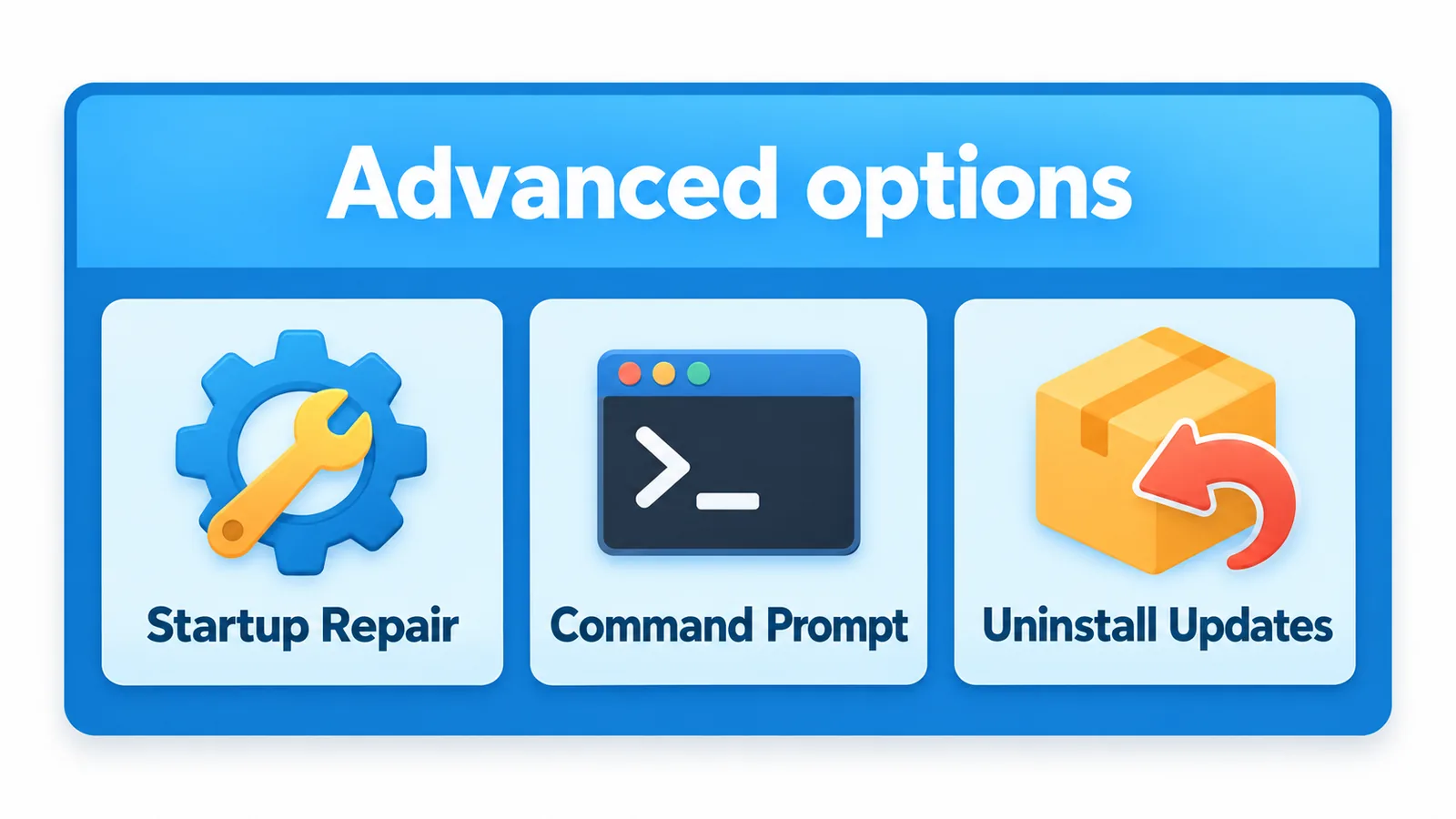
Microsoft’s documented route is Troubleshoot > Advanced options > Startup Repair. Command Prompt sits in the same Advanced options menu, but it is a separate tool for manual fixes when the automatic one fails.
So the useful question is not “which command starts Startup Repair?” but “which tool fits my symptom?” The rest of this guide is built around that order.
How do you open the Windows Recovery Environment?
You can reach WinRE in three ways: let it start on its own after repeated failed startups, open it from Settings, or boot from a Windows installation USB. Windows can launch WinRE automatically when it fails to start normally several times in a row, and the Settings route is System > Recovery > Advanced startup > Restart now (Microsoft Support, “Windows recovery environment”).

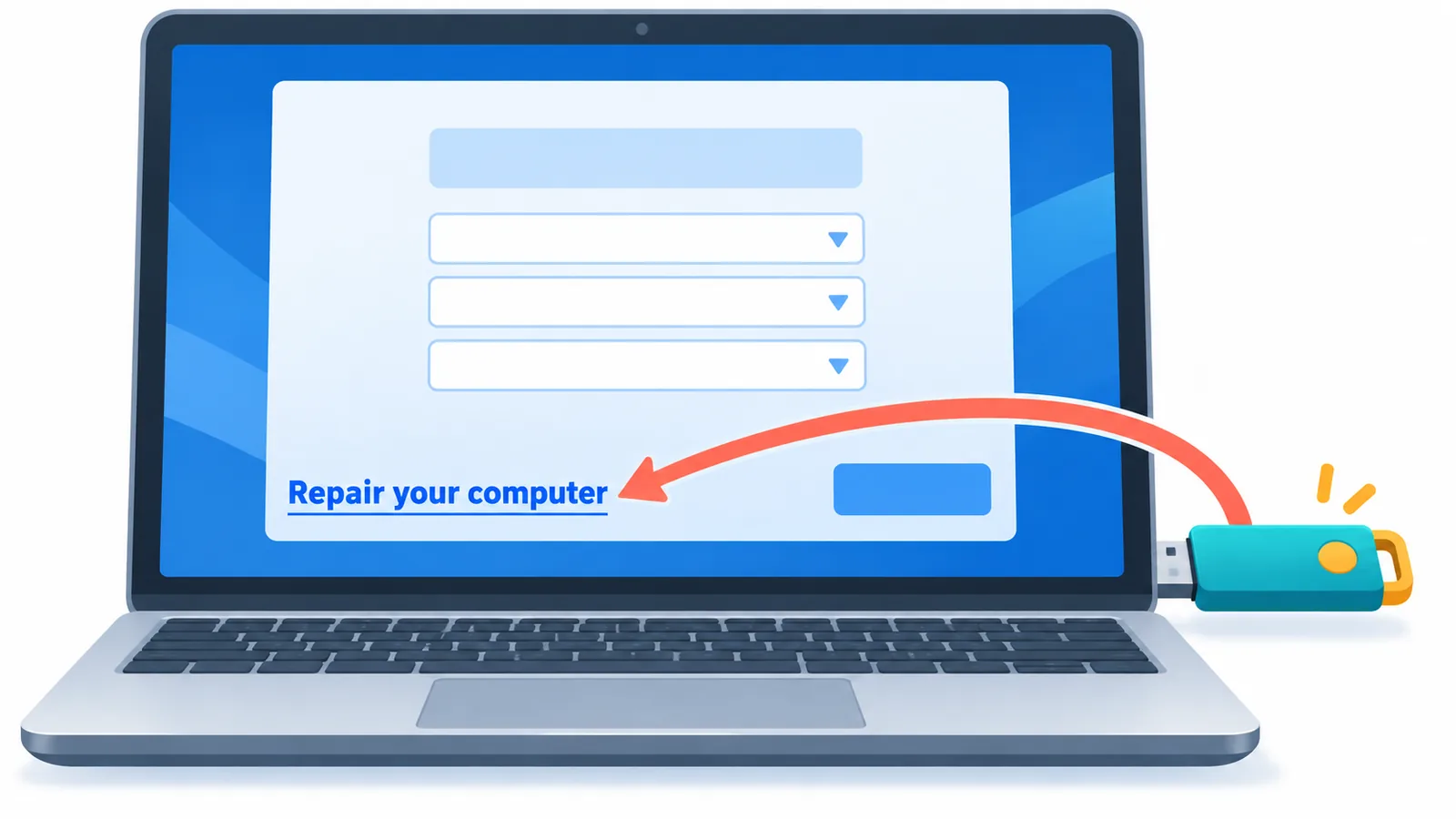
If the PC cannot reach the desktop at all, the installation USB is the dependable option. Boot from it, then choose Repair your computer on the setup screen to enter WinRE (Microsoft Learn, “Windows startup issues troubleshooting”).
When you boot from installation media, you can also press Shift+F10 to open a Command Prompt window directly. Microsoft Learn documents this shortcut for startup troubleshooting.
One thing to prepare before you start: if the device uses BitLocker (Windows drive encryption), recovery steps may ask for your recovery key. Microsoft notes this in its Startup Repair and WinRE guidance, so locate the key before you begin rather than halfway through.
How do you run automatic Startup Repair?
Inside WinRE, choose Troubleshoot, then Advanced options, then Startup Repair, and let the tool run. It diagnoses common startup problems and attempts repairs without any typing (Microsoft Support, “Startup Repair”).
Run this first, even if you are comfortable with the command line. It is the least invasive option, and it can fix problems that would otherwise tempt you into changing boot settings by hand.
If Startup Repair fails, it may leave a log file at Windows\System32\LogFiles\Srt\SrtTrail.txt inside the offline Windows folder. Microsoft Learn points to this file for diagnosing why the repair did not work, so keep it in mind for later.
Did the trouble begin right after a Windows update? Then look at Uninstall Updates in the same recovery menu. Microsoft lists it as a recovery option for Windows 10 and 11 after a problematic update (Microsoft Support, “Recovery options in Windows”).
How do you find your Windows drive letter in WinRE?
You find it by checking which volume actually contains the Windows folder, because the letter shown in WinRE can differ from the one you see in normal Windows. A top-ranking third-party guide (iTechGuides, “Windows 10/11 Startup Repair from Command Prompt: Safe Steps,” 2026) stresses this check before running any repair command.
🛒 Recommended Product
Many examples online use C:, and it is only an example. In WinRE, the volume that holds your Windows installation may carry another letter, and a command aimed at the wrong volume will either fail or act on the wrong place.
The goal is simple: browse the available volumes in Command Prompt until you find the one containing the Windows folder, then use that letter wherever a command below shows C:. Take a minute here, since every offline command depends on this answer.
Which Command Prompt fix matches your symptom?
Pick one command that matches what is actually wrong, and do not run them all in sequence. The commands below change boot configuration or scan system files, and Microsoft Learn presents each for a specific kind of problem. MBR (master boot record) code, the boot sector, and the BCD (boot configuration data) store are different things, so a fix for one does not address the others.

Suspected system file damage: offline SFC
If you think Windows system files are corrupted, Microsoft Learn shows an offline System File Checker scan for WinRE.
sfc /scannow /offbootdir=C:\ /offwindir=C:\WindowsReplace C: with the drive letter you confirmed in the previous section. The two paths must point at your actual Windows installation.
Boot code or boot sector problems: BOOTREC
For problems with boot code, Microsoft Learn lists BOOTREC /FIXMBR, which writes only the master boot code. For boot sector problems, it lists BOOTREC /FIXBOOT.
Because both rewrite startup code, use them only when your symptom points that way, and only one at a time.

BCD errors: scan, back up, rebuild
For BCD errors, Microsoft Learn starts with Bootrec /ScanOS, which searches for installed Windows systems. If more work is needed, its steps include exporting the current BCD with bcdedit /export, renaming the BCD file, and then running bootrec /rebuildbcd.
The export step matters: it gives you a saved copy of the existing configuration before you change anything.
| Symptom | Command | What it does | Caution |
|---|---|---|---|
| Suspected system file damage | sfc /scannow /offbootdir=C:\ /offwindir=C:\Windows | Scans system files offline | Use your real Windows drive letter |
| Boot code problem | BOOTREC /FIXMBR | Overwrites the master boot code only | Changes startup code; use only for this symptom |
| Boot sector problem | BOOTREC /FIXBOOT | Repairs the boot sector | Changes startup code; use only for this symptom |
| BCD error | Bootrec /ScanOS, then bootrec /rebuildbcd | Finds installed Windows, rebuilds BCD entries | Export the BCD first with bcdedit /export |
What if Command Prompt repair does not work?
If a command fails, step back and check the basics before trying anything stronger. Recheck that you used the correct drive letter, then read SrtTrail.txt if Startup Repair ran, since it records what the tool found.

Next, consider Uninstall Updates if the problem started after an update, and have your BitLocker recovery key ready if the device is encrypted. Microsoft’s recovery guidance covers both situations (Microsoft Support, “Recovery options in Windows”).
Before you consider a reset or reinstall, protect your files. Boot from a USB or another working method to copy important data to external storage first, because a reset can remove what you have not saved. If none of this helps, a repair shop or Microsoft Support can examine the drive and hardware directly, which a text guide cannot do.
Conclusion
In short, run Startup Repair from WinRE first, confirm your Windows drive letter, and use one command that matches your symptom. That order keeps you from changing boot settings you did not need to touch.
One thing you can do today, while your PC still works: write down where your BitLocker recovery key is stored and create a Windows installation USB. Having both ready turns a stressful boot failure into a manageable repair. Which step did your PC stall on?
Looking for more practical, step-by-step tech guides? Explore more on Atovia.
References
- Microsoft Support, “Startup Repair” – confirmed the WinRE path, what the automatic tool covers, and the BitLocker recovery key note.
- Microsoft Learn, “Windows startup issues troubleshooting” – confirmed installation media entry, Shift+F10, the SrtTrail.txt log, and the BOOTREC, BCD and offline SFC steps.
- Microsoft Support, “Windows recovery environment” – confirmed the ways to enter WinRE and the available recovery tools.
- Microsoft Support, “Recovery options in Windows” – confirmed Uninstall Updates and other recovery alternatives.
- iTechGuides, “Windows 10/11 Startup Repair from Command Prompt: Safe Steps,” 2026 – supported the note that WinRE drive letters can differ from normal Windows.
Try Atovia’s free tool for this topic →
Citing this article
Source: Atovia (Atovia). https://atovia.kr