⚠️ This page connects you to Atovia’s partners and affiliate markets. We may receive a commission from affiliate partners for activities made through these links. Discount offers may change at any time according to policy! Rest assured, there are no additional costs to you! We hope this saves you time in finding the right items!
You opened a page yesterday, can’t remember the site, and the search bar isn’t helping. Safari keeps a History list, and it takes about two taps to reach.
This guide covers where History lives, how to clear it, and what clearing does and doesn’t touch. Menu names can vary a little by iOS version, so check them against your own iPhone.
- Where Is Safari History on iPhone?
- How to Find Pages You Visited in the Current Tab
- How to Delete Safari History on iPhone
- What Clearing History Does and Doesn’t Remove
- Does Private Browsing Show Up in History?
- Does Safari History Sync Across Apple Devices?
- Safari History Missing or Not What You Expected?
- Quick Comparison: Which Way to Clear History?
- Frequently Asked Questions
- Final Thoughts and Next Step
[IMAGE_1]
Where Is Safari History on iPhone?
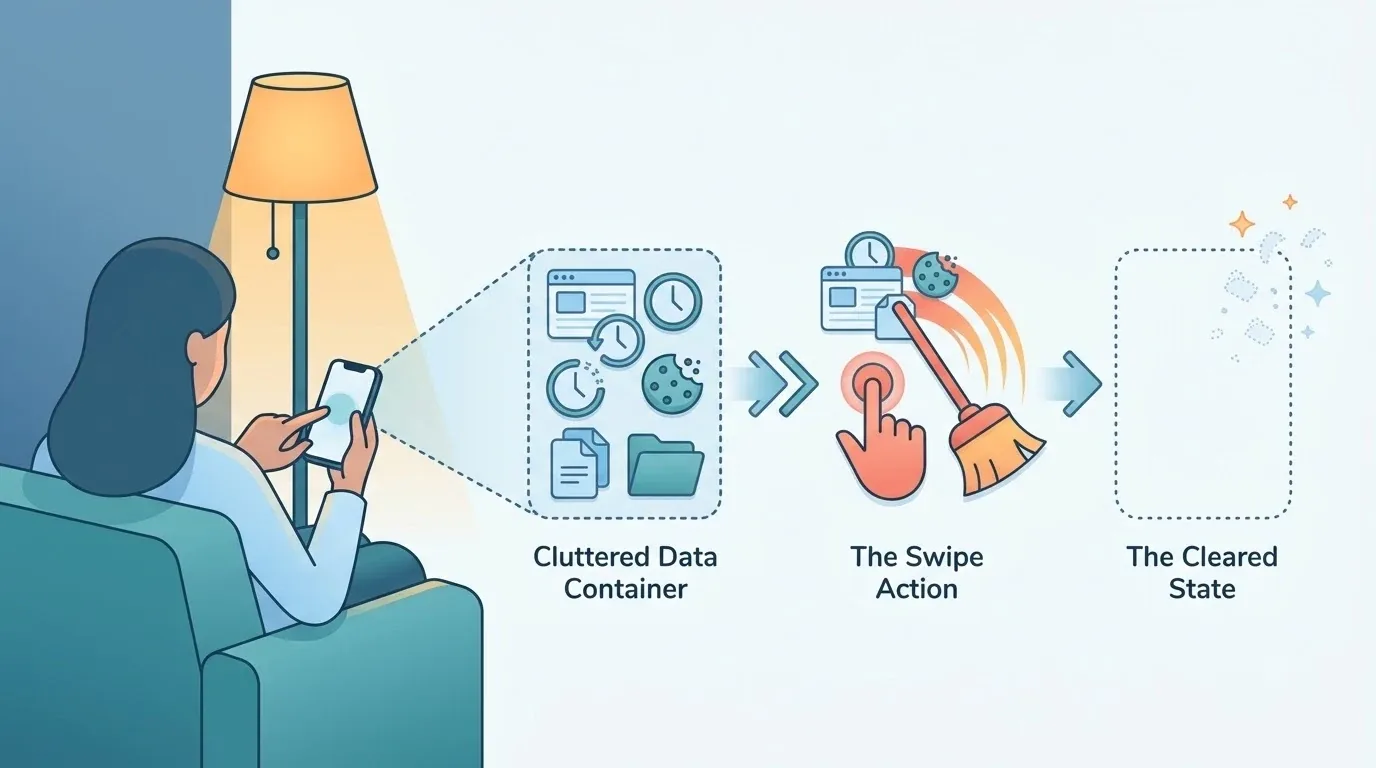
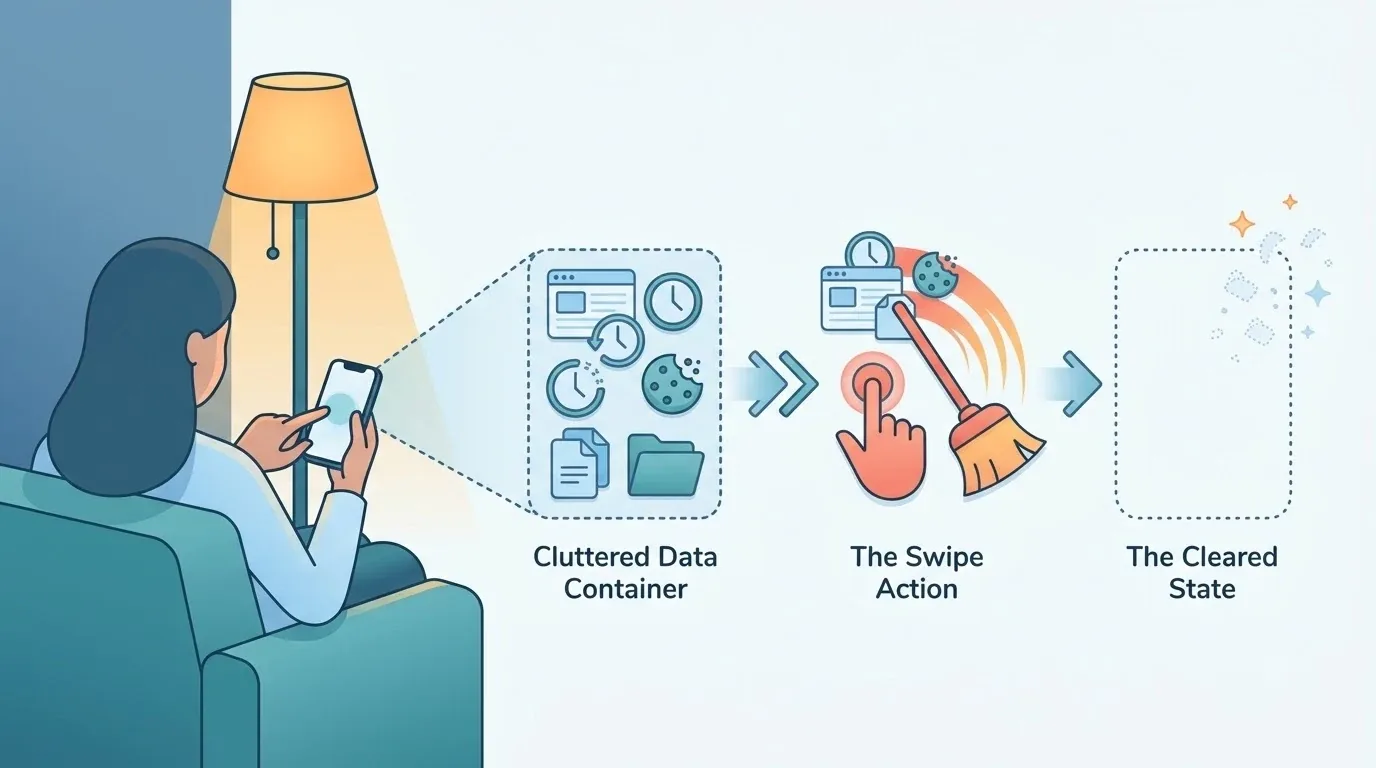
Open Safari’s start page, open the bookmarks menu, and tap History. That is the whole route, according to Apple Support.
How do I open the History list?
- Open Safari on your iPhone.
- Go to the start page.
- Open the bookmarks menu.
- Tap History.
If your screen looks a little different, don’t worry. Layouts and labels can change between iOS versions, so use the steps above as a guide and look for the word History.
[IMAGE_2]
How to Find Pages You Visited in the Current Tab
Touch and hold the Back or Forward button in Safari. This shows the pages you visited in the tab you’re using right now.
Say you followed five links from one article and want to get back to the second page. Holding Back is faster than tapping it again and again. It only covers the current tab, so for anything older, use the History list from the first section.
[IMAGE_3]
How to Delete Safari History on iPhone
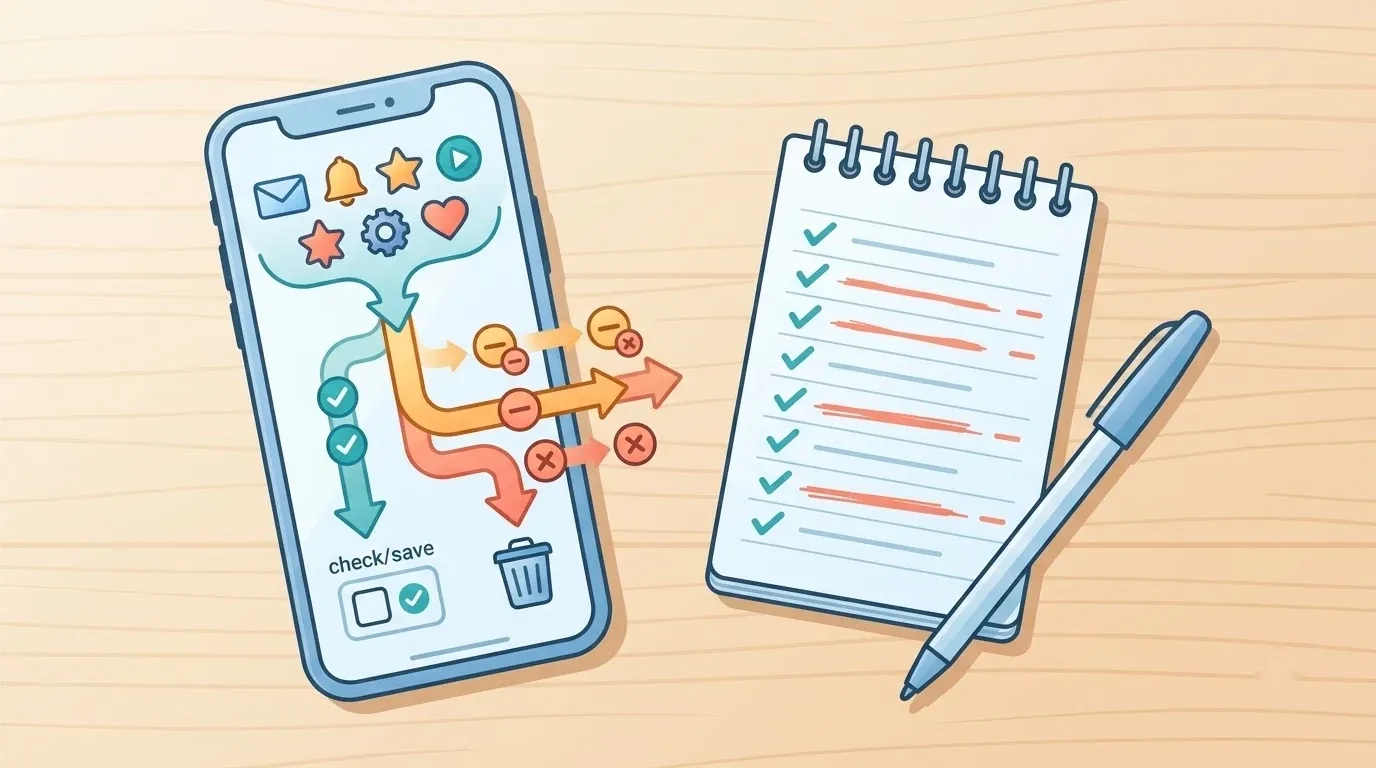
You can clear history from Safari’s History menu or from the Settings app. Either one lets you choose how much to remove.
How do I clear all or part of my history from Safari?
- Open the History list (bookmarks menu, then History).
- Tap Clear History.
- Choose all history or a time range.
- Confirm.
How do I clear history from Settings?
Open Settings, then go to Apps > Safari > Clear History and Website Data. Apple’s guide says you can check the time range before you confirm, so take a second look at it.
Can I delete just one website?
Yes. Open History, tap More, then Select Websites. Pick the sites you want gone and tap the trash icon.
[IMAGE_4]
What Clearing History Does and Doesn’t Remove
Clearing removes your visited-site records and recent searches. It also affects cookies and the information sites use for location and notification permissions, per Apple Support.
Your AutoFill information stays as it was. That’s a relief if you were worried about saved details.
Here’s the catch: clearing only covers what Safari stores on your iPhone. Websites can keep their own records of your visits, and other apps keep their own history too. Neither is erased when you clear Safari.
- Find History from the start page: bookmarks menu, then History.
- To delete single sites, use History > More > Select Websites, then the trash icon.
- Clearing leaves your AutoFill information unchanged.
- Websites and other apps may still hold their own records after you clear Safari.
🛒 Recommended Product
[IMAGE_5]
Does Private Browsing Show Up in History?
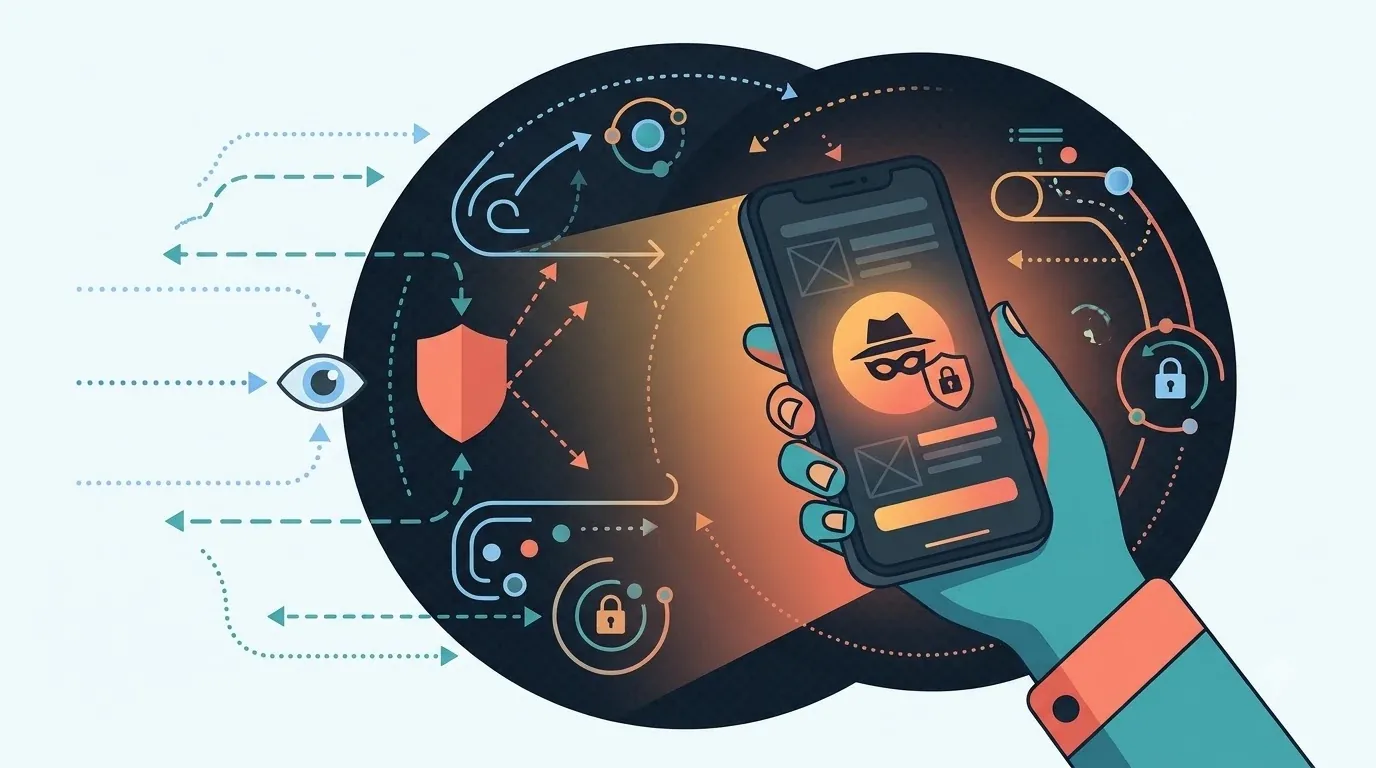
No. Private Browsing tabs don’t appear in your iPhone’s history, and they don’t show up in the tab lists on your other Apple devices.
So if you were in Private Browsing and now can’t find a page, History won’t help. Next time, you may want to keep it in a regular tab.
[IMAGE_6]
Does Safari History Sync Across Apple Devices?
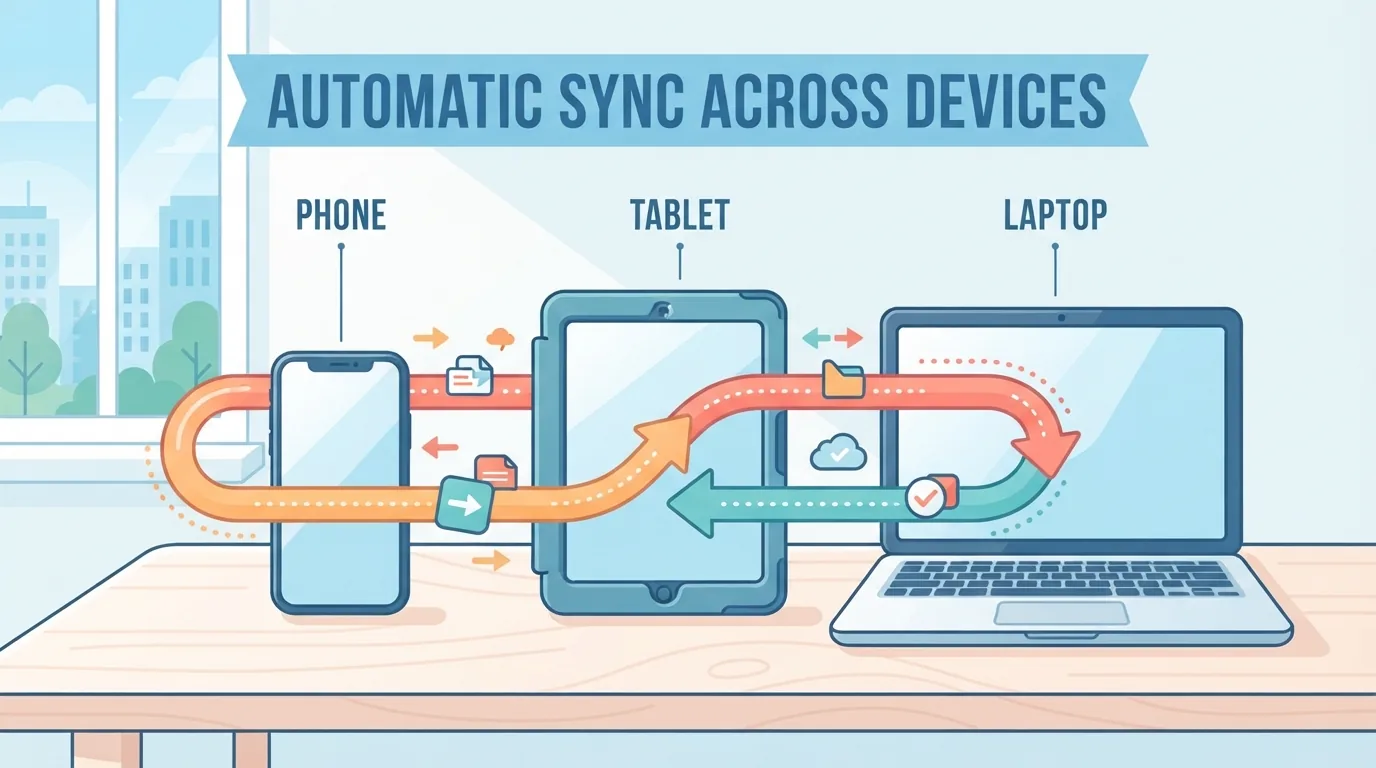
Yes, when you sign in with the same Apple Account and turn on Safari in iCloud. Apple says this keeps your history up to date across your devices.
If you browse on an iPhone and then switch to another Apple device, check that both use the same account and have Safari turned on in iCloud settings. If sync is off, each device keeps its own list.
[IMAGE_7]
Safari History Missing or Not What You Expected?
Start with three quick checks: Private Browsing, a cleared time range, and iCloud sync.
- Were you in a Private Browsing tab? Those pages never appear in History.
- Did you clear a time range recently? Pages from that period are gone.
- Is Safari turned on in iCloud? Without it, other devices may not match.
- Are you on the same Apple Account across devices?
- Does your menu look different? Names and layout vary by iOS version, so confirm in Apple’s guide.
[IMAGE_8]
Quick Comparison: Which Way to Clear History?
Use Select Websites for single sites and Clear History for a time range. The Settings route works when you’d rather not open Safari.
| Option | Where you start | What it covers | Best for |
|---|---|---|---|
| Clear History | Safari History menu | All history or a chosen time range | Wiping a recent stretch |
| Settings app | Settings > Apps > Safari | History and website data, with the time range shown first | Clearing without opening Safari |
| Select Websites | History > More | Only the sites you pick | Removing one or two sites |
[IMAGE_9]
Frequently Asked Questions
Where is my Safari history?
Open Safari’s start page, open the bookmarks menu, and tap History.
Can I delete just one site?
Yes. Go to History > More > Select Websites, choose the site, and tap the trash icon.
Does clearing history remove cookies?
It affects them. Apple says clearing also touches cookies and the information sites use for location and notification permissions.
Does Private Browsing save history?
No. Private Browsing tabs don’t appear in your iPhone’s history or in other Apple devices’ tab lists.
Does history sync between devices?
It can. Sign in with the same Apple Account and turn on Safari in iCloud.
[IMAGE_10]
Final Thoughts and Next Step
In short, History is two taps away, and you can clear it by time range, from Settings, or one site at a time. Just remember that websites and other apps may keep their own records.
Today, open Safari, tap the bookmarks menu, and tap History to see what’s there. Then decide whether anything needs clearing.
References
Want more comparisons and buying guides?