⚠️ This page connects you to Atovia’s partners and affiliate markets. We may receive a commission from affiliate partners for activities made through these links. Discount offers may change at any time according to policy! Rest assured, there are no additional costs to you! We hope this saves you time in finding the right items!
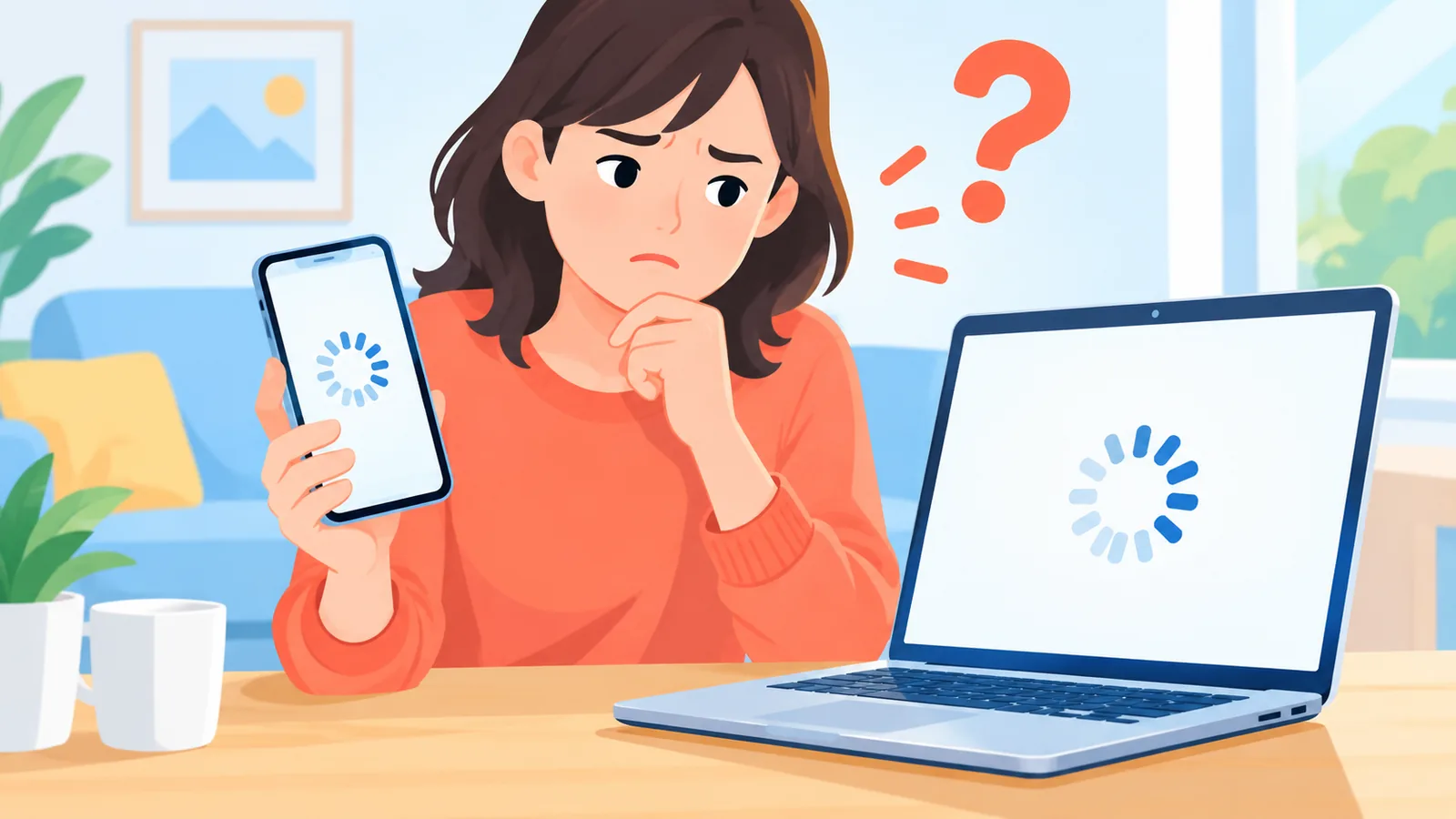
Your laptop says it is connected to Wi-Fi, yet every page refuses to load. That mismatch is the most confusing part of a dead connection, and it is also the best clue you have. This guide walks through a short order of checks that shows whether the fault sits in one device, your home network, or your internet provider (ISP), so you can fix what you can and call with useful details when you cannot.
- A fault can sit in three places: a single device, your home network (modem, router, Wi-Fi, cables), or your ISP.
- Test one more device on the same network first. It splits the problem in two with almost no effort.
- Restart before you reset. A restart is safe; a factory reset can erase your router and Wi-Fi settings.
- One speed test is a clue, not a verdict.
Is the problem one device or every device?
The fastest first test is to connect a second device to the same network, because a problem on only one device points to that device, while a problem on several at once points toward the router, the network, or the ISP. TP-Link’s troubleshooting guide, “Wi-Fi Not Working? How to Diagnose and Fix It Fast” (2026), describes this split, and Microsoft’s Windows support page makes the same suggestion for ruling out a single PC.
Treat the result as a clue rather than proof. If your phone loads pages but your laptop does not, look at the laptop’s settings and network adapter (the hardware or software piece that connects a computer to a network). If nothing loads on any device, the cause is more likely shared: the router, the modem, or the line from your provider.
A Wi-Fi connected indicator is the point many readers trip over. Microsoft’s guide, “Fix Wi-Fi connection issues in Windows,” explains that this indicator can mean your device is linked to the router, but it does not guarantee the internet itself is working. In other words, you can be connected to your own router and still be cut off from the wider internet.
How do you restart a modem and router the right way?
To restart your equipment, connect the modem’s power first, let its status lights settle, and only then connect the router’s power. Microsoft’s Windows support guidance lists this order, and it matters because the router needs the modem ready before it can pick up your connection.
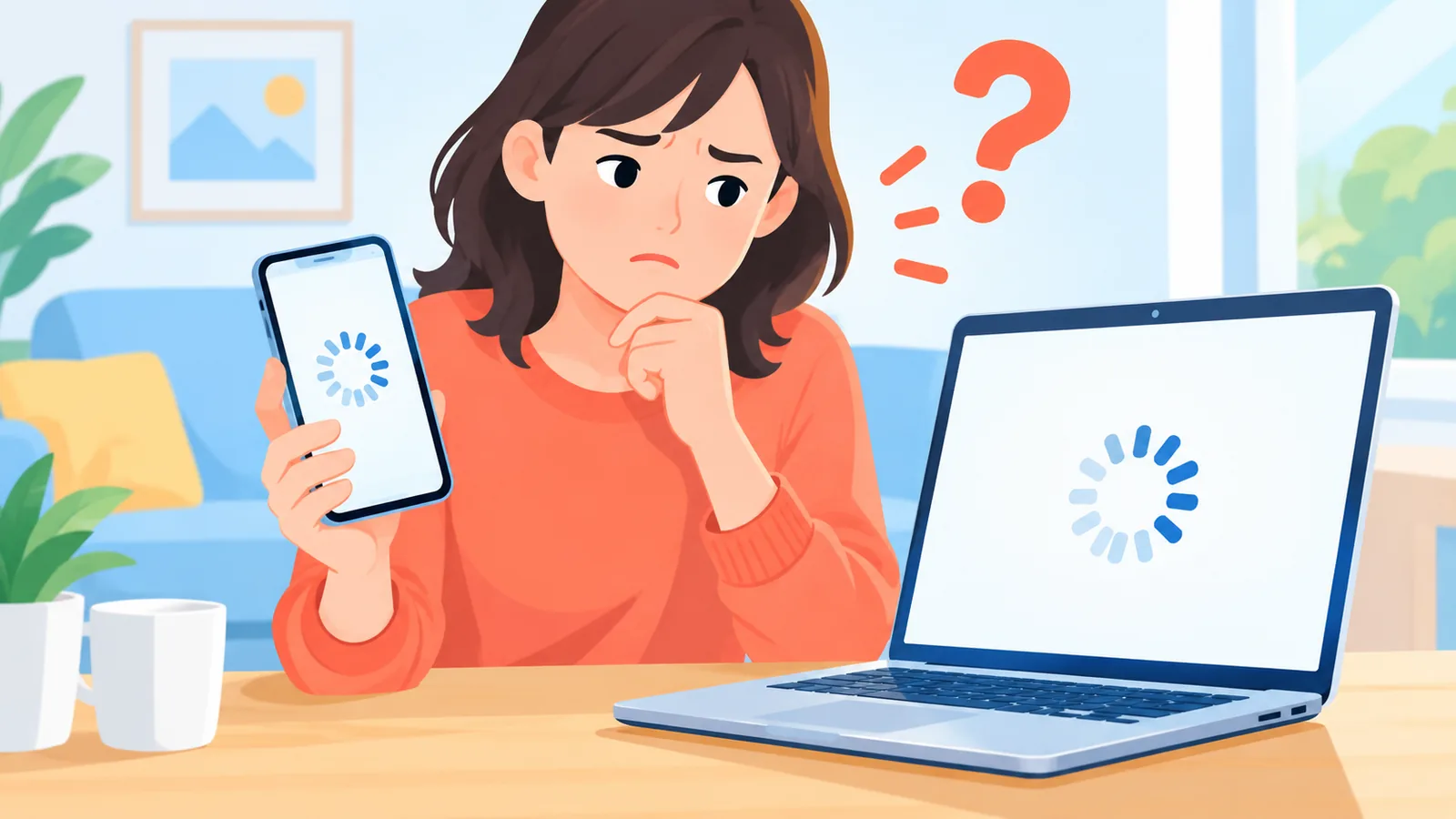
Check your own manual for how long to wait and what the lights mean. Light colors and patterns differ by manufacturer and model, so no single color is a reliable signal across all devices. A green light on one brand can mean something else on another.
A restart is not a factory reset, and the difference is important. A restart simply cuts and restores power. A factory reset returns the router to its original state and can erase your router settings and Wi-Fi setup, so it is not a first move. If you ever get that far, note your network name and password before you touch it.
How do cables and wired vs. Wi-Fi tests narrow the cause?
Comparing a wired connection with Wi-Fi shows whether the trouble sits in the wireless part of your setup or further upstream. BroadbandNow’s guide, “No Internet? How to Troubleshoot WiFi and Router Issues” (2026), explains that testing both separately can point to a wireless problem, and that if both are slow, the ISP becomes a possible cause.
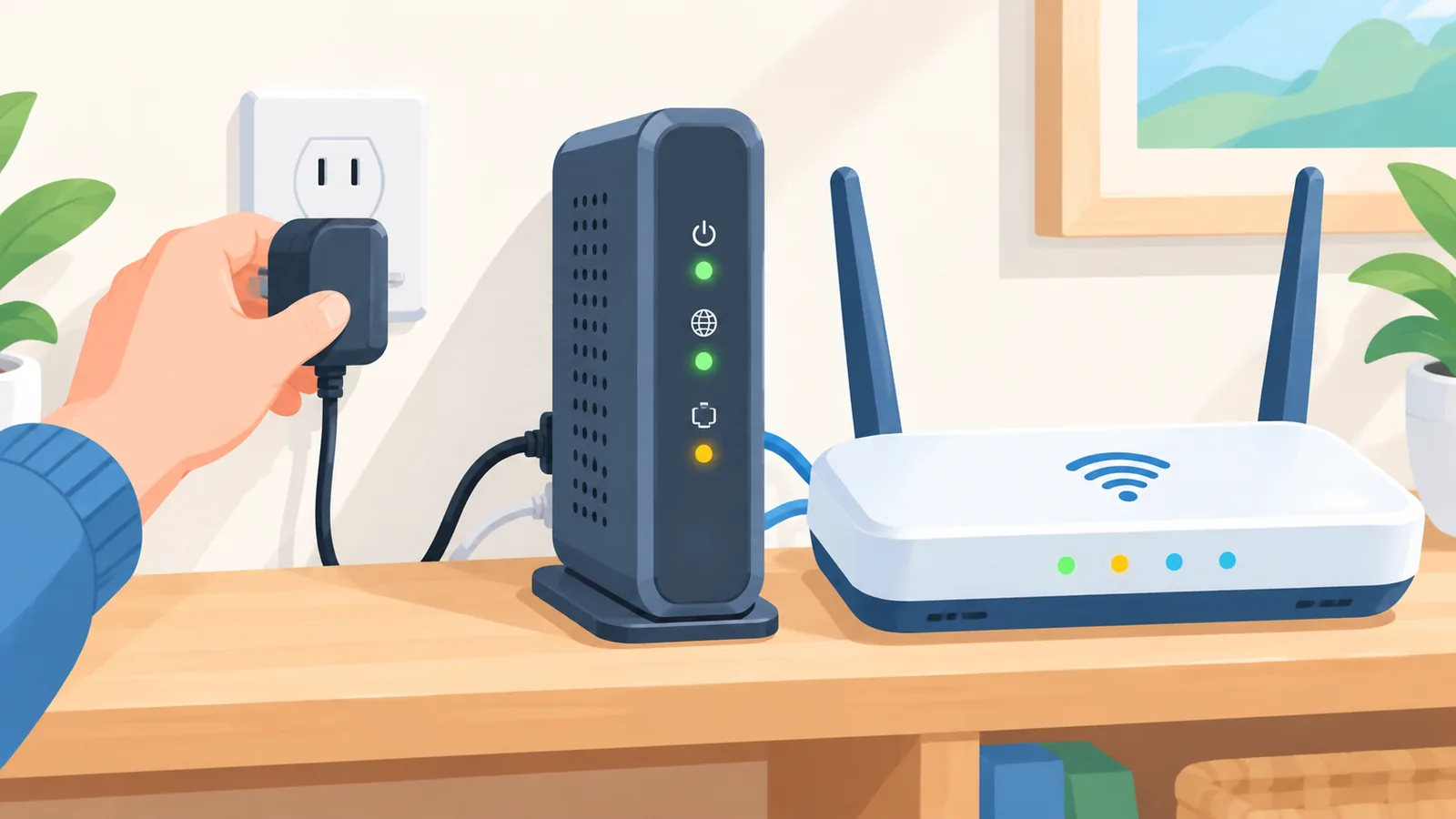
Start with the physical basics. Microsoft’s Ethernet troubleshooting page, “Fix Ethernet connection problems in Windows,” says the cable should be firmly seated in the correct Ethernet ports on both the PC and the router. If a different cable is handy, swap it in and see whether the result changes.
The table below turns common symptom patterns into likely starting points. It is a guide for deciding what to try next, not a diagnosis.
| What you see | Likely problem area | Sensible next step |
|---|---|---|
| Only one device cannot get online | That device’s settings or network adapter | Check its Wi-Fi switch, Airplane mode, and saved network |
| Every device is offline | Router, modem, or ISP | Restart modem then router, then check cables |
| Wired is fine but Wi-Fi is slow or drops | The wireless segment of your home network | Retest Wi-Fi, then look at Wi-Fi settings and conditions |
| Wired and Wi-Fi are both slow | Possibly the ISP, or the modem and router | Restart equipment, repeat the tests, then gather notes for your ISP |
🛒 Recommended Product
What can you fix on a Windows PC?
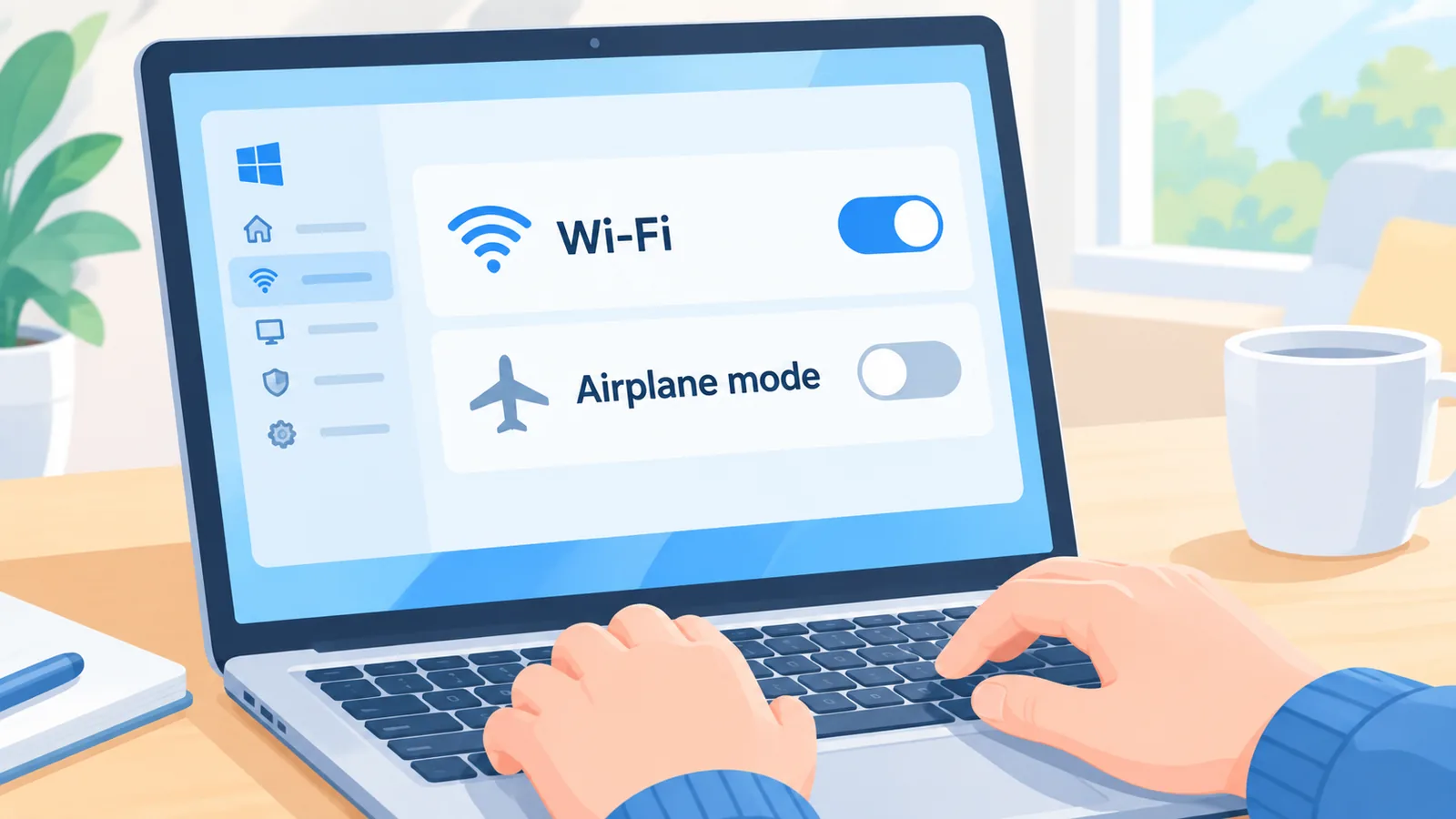
On Windows 10 and 11, you can check the Wi-Fi switch, turn off Airplane mode, and remove and re-add your saved network. Microsoft’s Windows guidance covers these steps, and this section applies to Windows only; other operating systems and router brands work differently.
If the basics do not help, Windows 11 includes a Network and Internet troubleshooter in the Get Help app. It is a built-in diagnostic that walks through common faults for you. It is worth running before you start changing settings by hand.
There is also a quick way to see how far your PC can reach. Microsoft explains that if the router’s default gateway (the address of your router on your local network) answers a ping (a small test message sent to see if a device responds), your PC and router are connected. A remaining problem would then lie beyond the router, with the modem or the ISP.
Save Network reset for last. Microsoft recommends it as a final step because it resets your network adapters and settings, and software such as a VPN (a service that routes your traffic through a private connection) may need to be set up again afterward.
Can a speed test prove your ISP is at fault?
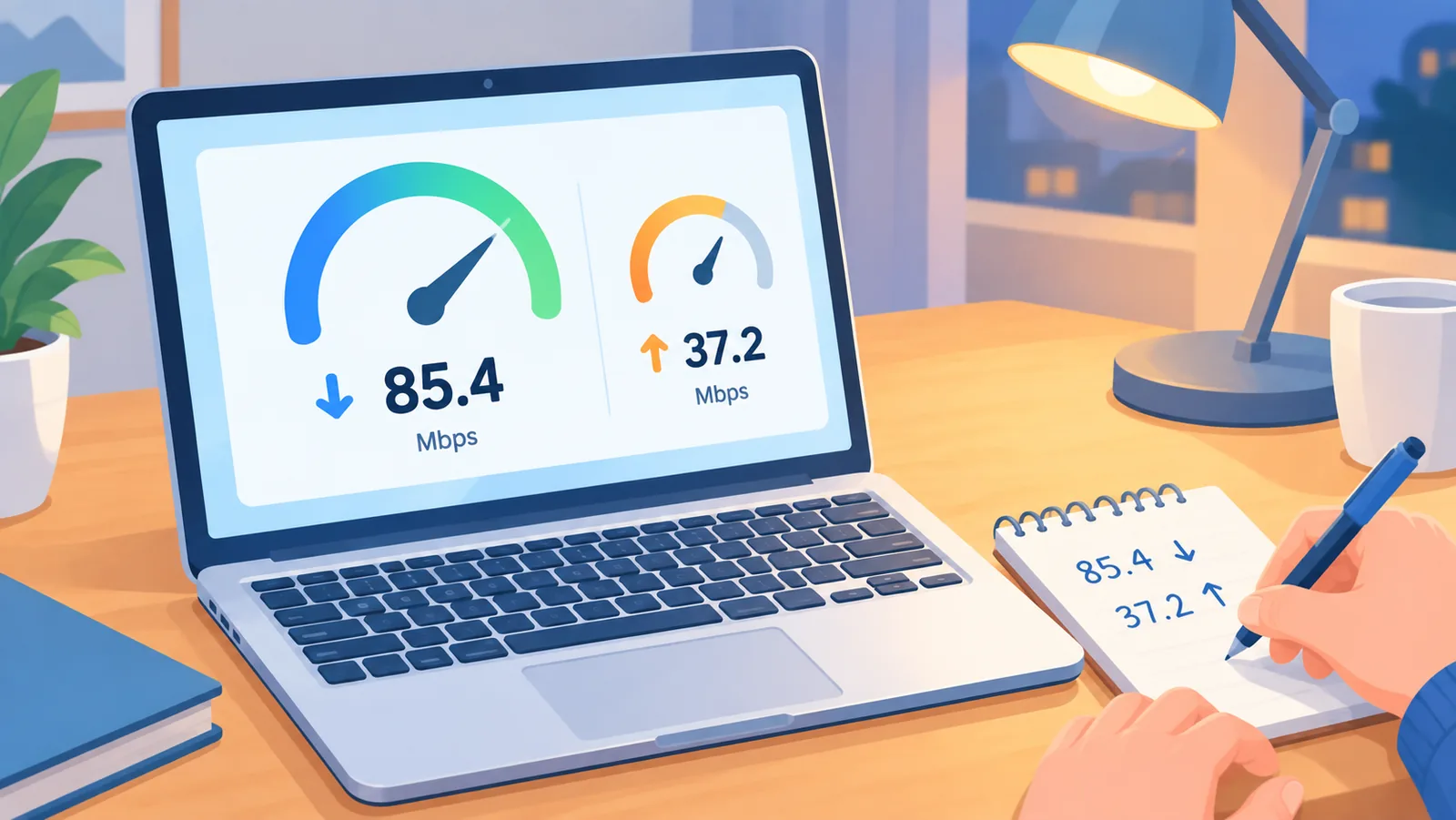
No, a single speed test cannot prove an ISP fault, because the result is shaped by your modem, your router, your Wi-Fi conditions, and the device doing the testing. The FCC’s report, “Eleventh Measuring Broadband America Fixed Broadband Report” (2022), makes the general point that measured performance depends on more than the provider’s line. It is a U.S. source, so it is used here only for that principle and not for any local complaint process.
A better habit is to repeat the test and compare. Run it on a wired connection and on Wi-Fi, note both results, and try again after a restart. A pattern across several tests tells you far more than one number does.
Want more practical, plain-language tech guides like this one? Explore more on Atovia.
When should you contact your internet provider?
Contact your ISP when the problem continues on several devices after you have restarted your equipment, or when your speeds stay below what your plan promises. TP-Link’s guide recommends this, and it adds a useful habit: before you call, write down the state of your equipment’s lights, the steps you already tried, and your speed test results.
Those notes save time on the call. They show the support agent that you have already ruled out one device, the cables, and the restart, so the conversation can start closer to the real cause. Results differ from home to home, so your own notes matter more than any general rule.
To recap the order: test a second device, restart modem then router, check cables and compare wired with Wi-Fi, work through the Windows steps if one PC is the issue, and treat speed tests as clues. Which step solved it for you, or did you end up calling your provider?
References
- TP-Link, “Wi-Fi Not Working? How to Diagnose and Fix It Fast,” 2026 – confirmed the one-device vs. all-device split and what to note before contacting an ISP.
- Microsoft Support, “Fix Wi-Fi connection issues in Windows” – confirmed the restart order, Windows Wi-Fi checks, the gateway ping test, and Network reset as a last step.
- Microsoft Support, “Fix Ethernet connection problems in Windows” – confirmed that cables must be firmly seated in the correct ports and can be swapped for comparison.
- BroadbandNow, “No Internet? How to Troubleshoot WiFi and Router Issues,” 2026 – confirmed the wired vs. Wi-Fi speed comparison.
- FCC, “Eleventh Measuring Broadband America Fixed Broadband Report,” 2022 – confirmed that speed test results are influenced by home equipment, Wi-Fi, and the testing device.
Citing this article
Source: Atovia (Atovia). https://atovia.kr