
⚠️ This page connects you to Atovia’s partners and affiliate markets. We may receive a commission from affiliate partners for activities made through these links. Discount offers may change at any time according to policy! Rest assured, there are no additional costs to you! We hope this saves you time in finding the right items!
Steam game sharing works through a feature called Steam Families, which lets up to six household members combine their game libraries and play different shared titles at the same time. The single biggest limit to know before you start: playing the exact same game at once requires the family to own two separate copies of it, since each copy supports one player at a time.
- What Is Steam Game Sharing?
- Requirements Before You Start
- Step-by-Step: How to Set Up Game Sharing
- How to Play a Shared Game
- Old Family Sharing vs New Steam Family Library
- Simultaneous Play Limits Explained
- Which Games Can and Cannot Be Shared
- Troubleshooting Common Game Sharing Issues
- Account Safety Tips for Game Sharing
- FAQ
- Steam Families lets a household of up to six members share purchased games without handing out login credentials.
- Two people can play the same shared game at once only if the family owns two copies of it.
- Adults can leave a Steam Family at any time, but must wait one year before joining or creating another.
What Is Steam Game Sharing?
Steam game sharing, officially called Steam Families, lets members of a household access each other’s eligible game libraries under one shared collection called the Family Library. Ownership of each game stays with whoever purchased it, but every family member who has access can install and play it under their own account, keeping separate save files and Steam achievements.
This is different from simply logging into someone else’s account: with Steam Families, each person keeps their own credentials and profile the entire time. It’s built for a household of up to six close family members rather than a casual swap with distant friends, since Valve applies eligibility checks intended to keep the feature within that use case.

Requirements Before You Start
Before creating or joining a Steam Family, confirm the following:
- A working Steam account with Steam Guard enabled for security.
- Willingness to be assigned an adult or child role, since every member needs one.
- An invite sent or received from a family organizer if you’re joining rather than creating a family.
- Awareness that only adults can leave a family on their own; children need an adult to remove them.
- Acceptance that leaving a family triggers a one-year cooldown before joining or creating another.

Step-by-Step: How to Set Up Game Sharing
Follow these steps in the Steam client:
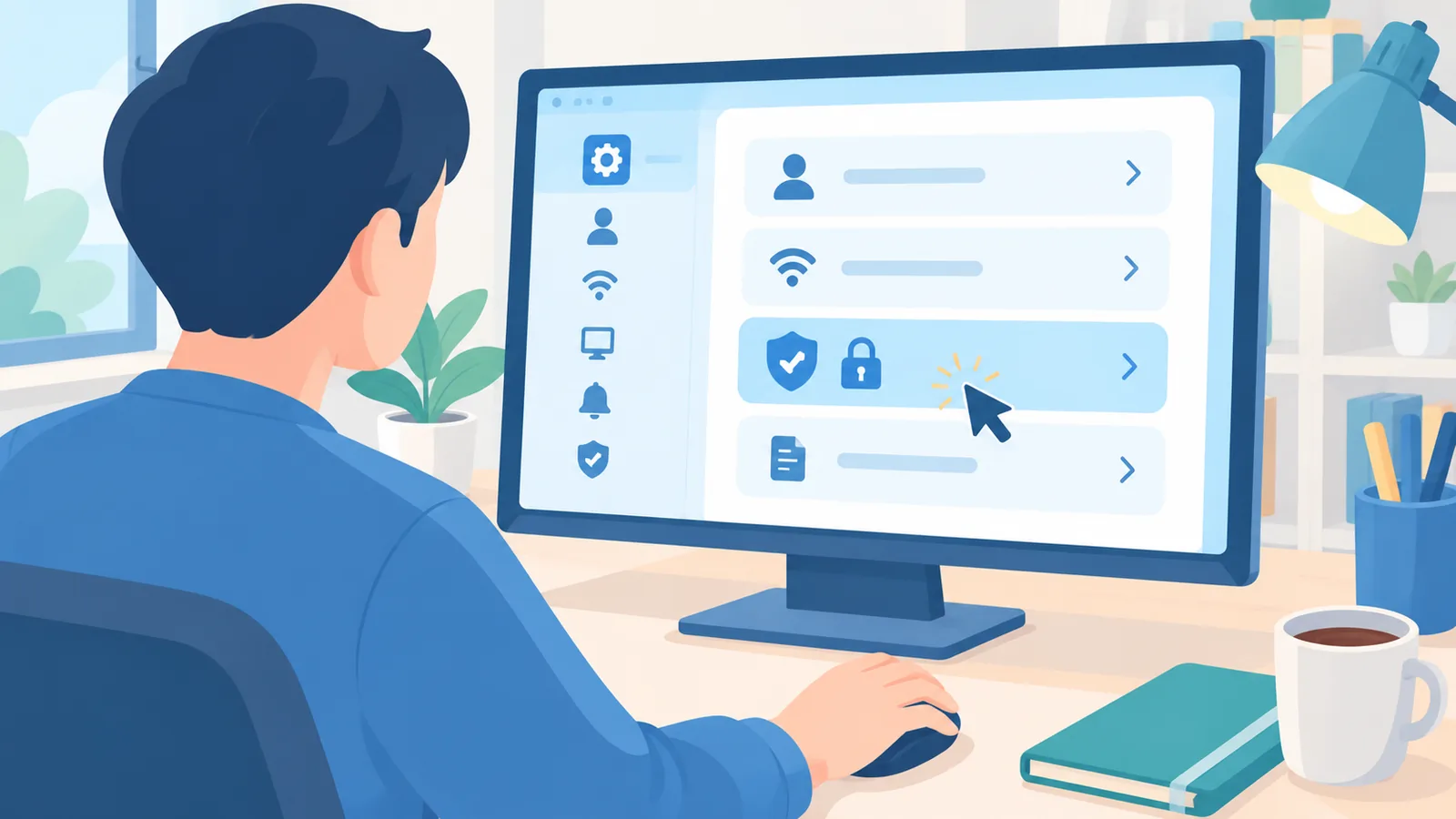
- Click Steam in the top-left corner, then select Settings.
- Open the Family tab.
- Click “Create or Join Steam Family.”
- Select “Create a Family” and enter a name, or accept an invite if joining an existing one.
- Click “Invite a Member,” search for the person by their Steam account, and send the invite.
- Choose whether the new member should be added as an adult or a child.
- Once accepted, the shared titles will appear under a new Family Library section in each member’s games list.
How to Play a Shared Game
Once you’re in a Steam Family, open your games list and look for the Family Library section. Select a shared title, install it like any other game, and launch it — you’ll build your own save progress and earn your own achievements separately from the game’s owner. Shared titles can also be played offline, as long as that specific game supports Family Sharing. If someone else in the family wants to play the exact same title while you’re using it, Steam will only allow that at the same time if the family owns a second copy of the game.
Old Family Sharing vs New Steam Family Library
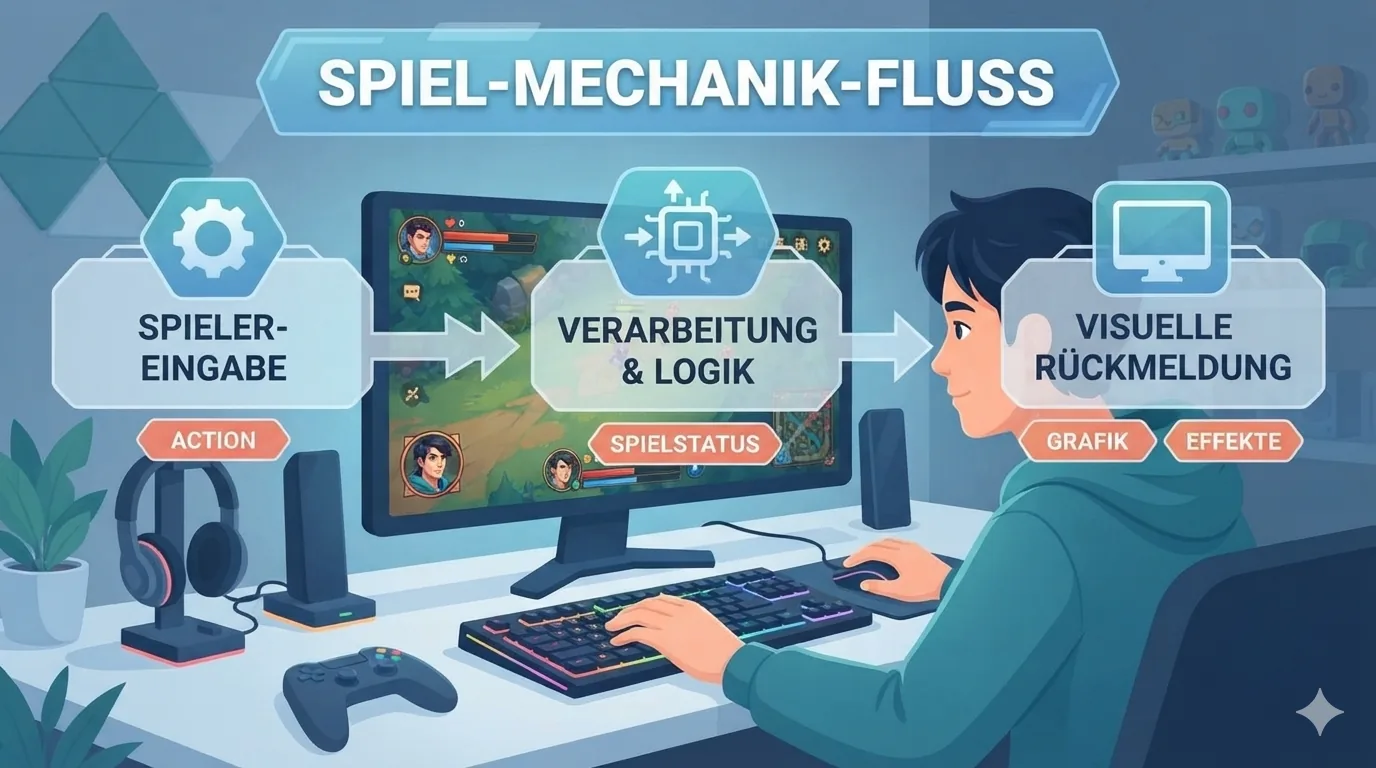
Steam Families fully replaced the older Family Sharing and Family View features as of September 2024. If you were previously using the legacy Family Sharing feature, Steam will automatically suggest inviting your existing sharing partners when you set up a new Steam Family.

🛒 Recommended Product
| Feature | Family Sharing (Legacy) | Steam Families (Current) |
|---|---|---|
| Setup location | Manage Family Library settings, tied to authorized computers | Steam Settings > Family tab > Family Management |
| Number of members | Up to 5 authorized accounts | Up to 6 family members |
| Simultaneous play rule | Only one person could use the shared library at a time | Different shared games can be played at the same time; the same game needs two copies |
| Device authorization | Required per computer, with a limited number of authorized devices | Not tied to authorizing individual computers; access follows account membership |
Simultaneous Play Limits Explained
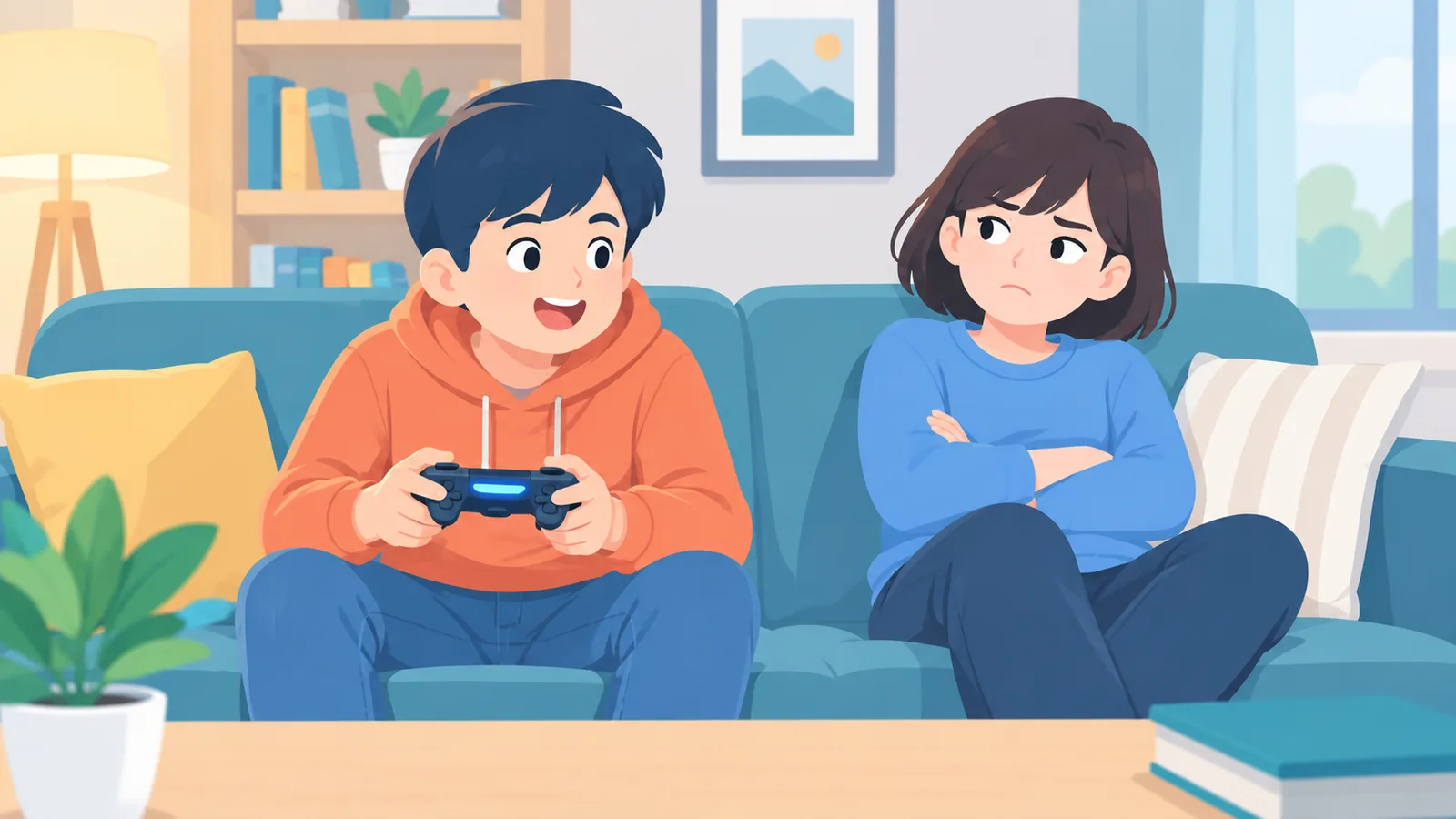
Under the current system, the shared library works per copy rather than per account. If your family owns one copy of a game, only one member can play it at a time; whoever launches it first gets access until they stop playing. If two members want to play the same game together, the family needs a second copy — one purchased on either account. Playing two different shared games at the same time works without any extra purchase, since each title only needs its owner’s copy to be in use by one person.
Which Games Can and Cannot Be Shared
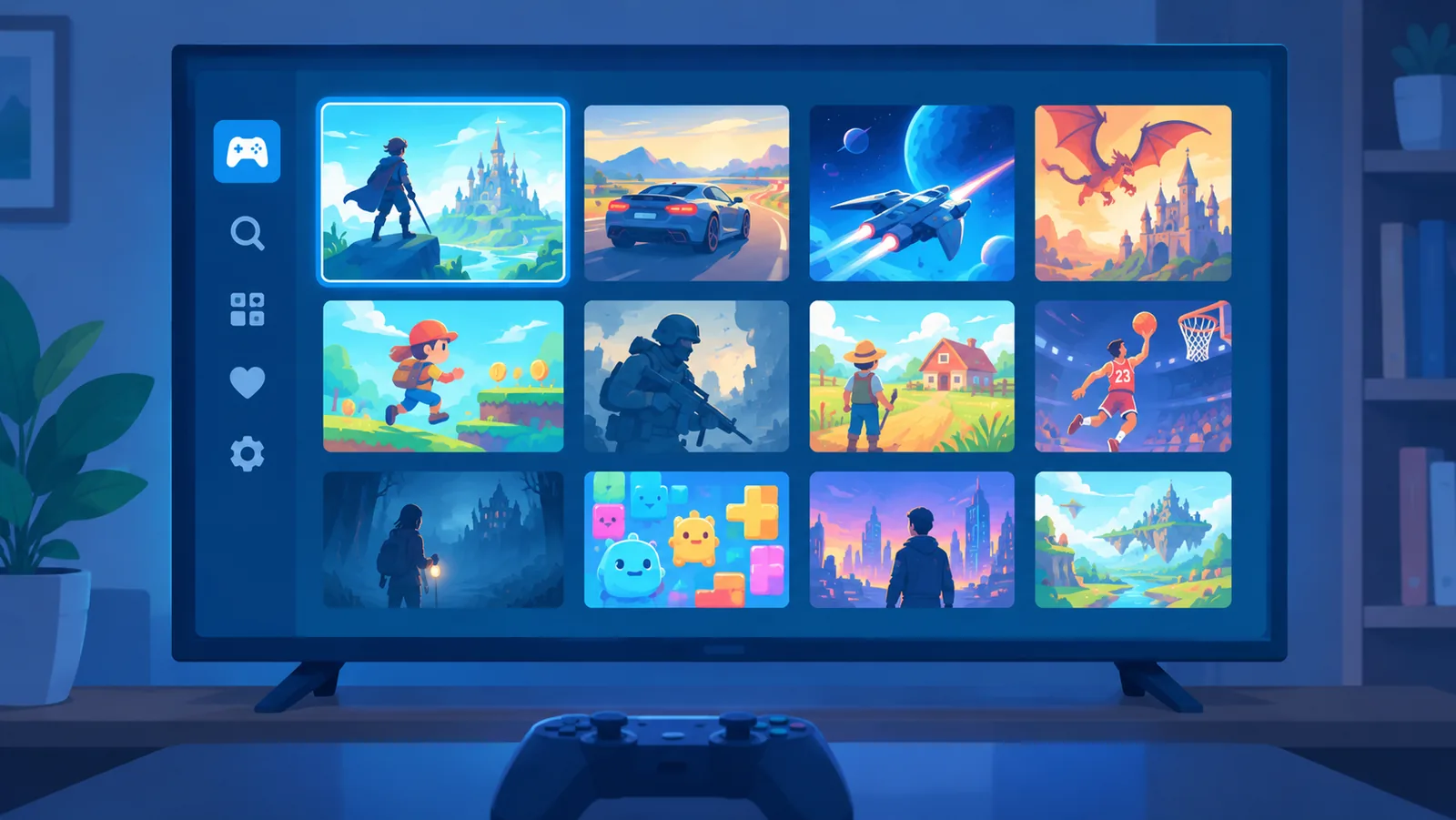
Most Steam titles that a family member owns outright are shareable, but developers can exclude specific games from Family Sharing for technical or licensing reasons. Titles that require an additional third-party account, key, or subscription to play — such as many games tied to external launchers or online services — cannot be shared between accounts, regardless of family membership.
Troubleshooting Common Game Sharing Issues
- A shared game won’t launch: Check whether the title is excluded from Family Sharing by the developer, or whether another family member is currently using the only available copy.
- The Family Library section isn’t showing up: Confirm the invite was accepted and that you’re logged into the correct Steam account; the section only appears after the invite is confirmed on both sides.
- A family invite isn’t arriving: Double-check the Steam account name entered when sending the invite, since a mistyped name will send it to the wrong account.
- Achievements or saves aren’t appearing: This is expected behavior — progress and achievements for shared games are tracked per player, not per copy, so a first playthrough always starts fresh for a new player.
Account Safety Tips for Game Sharing
- Only invite people you’d trust with ongoing access to your purchased game library, since sharing is intended for a household rather than casual acquaintances.
- Assign child roles to younger family members so parental controls apply; configure these under Account Settings > Family Management > Manage, then toggle “Enable Parental controls” on that member’s entry.
- Remember that only adult members can leave a family on their own — removing a child member requires action from an adult — so review membership periodically if circumstances change.
- Keep in mind the one-year cooldown before rejoining or creating a new family, so treat family formation as a longer-term commitment rather than a short-term arrangement.

FAQ
Can two people play different games from the same library at once?
Yes. Steam Families allows members to play different shared titles simultaneously; only playing the identical game at the same time requires a second copy.

Does game sharing affect achievements or save data?
No. Each member earns their own Steam achievements and keeps their own save progress when playing a shared game, separate from the game’s owner.
Can I remove a shared member later?
Adults can leave a family on their own at any time. Child members can only be removed by an adult in the family, and rejoining another family afterward is subject to a one-year cooldown.

Is game sharing against Steam’s terms?
No. Steam Families is an official Valve feature built specifically for sharing game libraries within a household, distinct from sharing account login credentials.
- Steam Support — Steam Families User Guide & FAQ
- SteamDB — Steam Family Sharing Complete Guide
- Ghacks — Valve Introduces Steam Families