⚠️ This page connects you to Atovia’s partners and affiliate markets. We may receive a commission from affiliate partners for activities made through these links. Discount offers may change at any time according to policy! Rest assured, there are no additional costs to you! We hope this saves you time in finding the right items!
Computers break down for all kinds of reasons, and it’s easy to feel stuck when a screen freezes or an app refuses to open. This guide walks through a practical, repeatable method for figuring out what’s wrong and fixing it yourself.
Understanding Computer Troubleshooting Basics
Troubleshooting is the process of identifying the source of a problem by testing possible causes one at a time, rather than guessing randomly. A systematic approach saves time because it narrows down variables instead of trying random fixes that may make things worse. The core idea is to isolate the issue: is it hardware, software, a driver, a setting, or a connection problem. Working through possibilities in order, from simplest to most complex, prevents wasted effort on advanced fixes when a simple restart would have solved it.
- Start with the simplest possible cause before assuming a major failure
- Change one variable at a time so you know what actually fixed it
- Document error messages and steps taken for reference
- Back up important data before making system-level changes
Common Computer Problems and Their Causes
Most computer issues fall into a few recurring categories. Slow performance is often caused by too many background programs, insufficient storage space, or malware. Freezing and crashing can stem from outdated drivers, overheating, or corrupted system files. Startup failures are frequently linked to hardware connection issues, failing drives, or corrupted boot files. Software errors, including applications that won’t open or crash unexpectedly, are usually tied to compatibility issues, missing updates, or damaged installation files. Recognizing these patterns helps narrow down where to start looking.

🛒 Recommended Product
Step-by-Step Troubleshooting Process
A reliable troubleshooting workflow generally follows this order. First, restart the device, since this clears temporary memory issues and resolves a surprising number of problems. Second, check physical connections such as cables, power sources, and peripherals. Third, look for recent changes, including new software installs or updates, since these often correlate with new issues. Fourth, run built-in diagnostic tools to check hardware and system health. Fifth, update drivers and operating system components, as outdated software is a common cause of instability. Finally, if the issue persists, consider a system restore point or a clean reinstall of the affected software as a last resort before deeper hardware investigation.
Hardware vs Software Troubleshooting Approaches
Distinguishing between hardware and software causes early on directs your efforts more efficiently. Hardware issues typically involve physical components and often produce consistent symptoms regardless of what software is running, while software issues tend to be tied to specific programs or recent changes.
| Criteria | Hardware Issues | Software Issues |
|---|---|---|
| Common Symptoms | No power, unusual noises, overheating | App crashes, error messages, freezing |
| Diagnostic Method | Physical inspection, built-in hardware tests | Event logs, safe mode, update checks |
| Typical Fix | Reseat or replace component | Update, reinstall, or reset settings |
| Persistence Across Reboots | Usually persists | May resolve after restart |
Essential Troubleshooting Tools and Resources
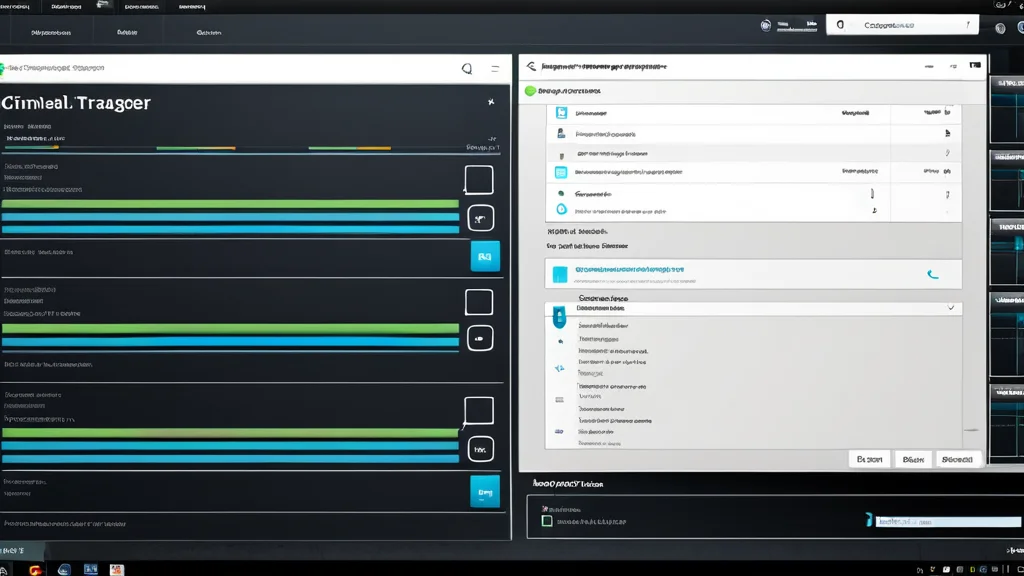
Most operating systems include built-in tools that make diagnosis easier without installing third-party software. Task Manager or Activity Monitor shows which processes are consuming resources. Safe Mode allows the system to start with minimal drivers, helping isolate whether a problem is caused by third-party software. Built-in disk and memory diagnostic tools can identify failing hardware components. Event Viewer or Console logs record system errors with timestamps, which is useful for pinpointing when an issue started. Manufacturer support sites also often provide dedicated diagnostic utilities for specific hardware.
When to Seek Professional Help
Some situations call for professional repair rather than continued self-troubleshooting. Physical damage, such as liquid spills or a cracked screen, usually requires specialized tools and parts. Repeated hardware failures, like a drive that keeps failing after replacement, may indicate a deeper motherboard or power supply issue. Data recovery from a failed drive should be handled by professionals to avoid permanent data loss. If a problem persists after all standard troubleshooting steps and the device is still under warranty, contacting the manufacturer’s support is usually the safer and more cost-effective option.
Need expert help resolving a persistent computer issue?
Conclusion and Key Takeaways
Troubleshooting a computer doesn’t require deep technical expertise, just a methodical approach. Start simple, change one thing at a time, and use built-in diagnostic tools before assuming the worst. Keeping software updated and backing up data regularly also reduces how often serious problems occur in the first place. When an issue goes beyond these steps, professional support can save time and prevent further damage.